GENESYS User Manual Issue 1
SEL Mode
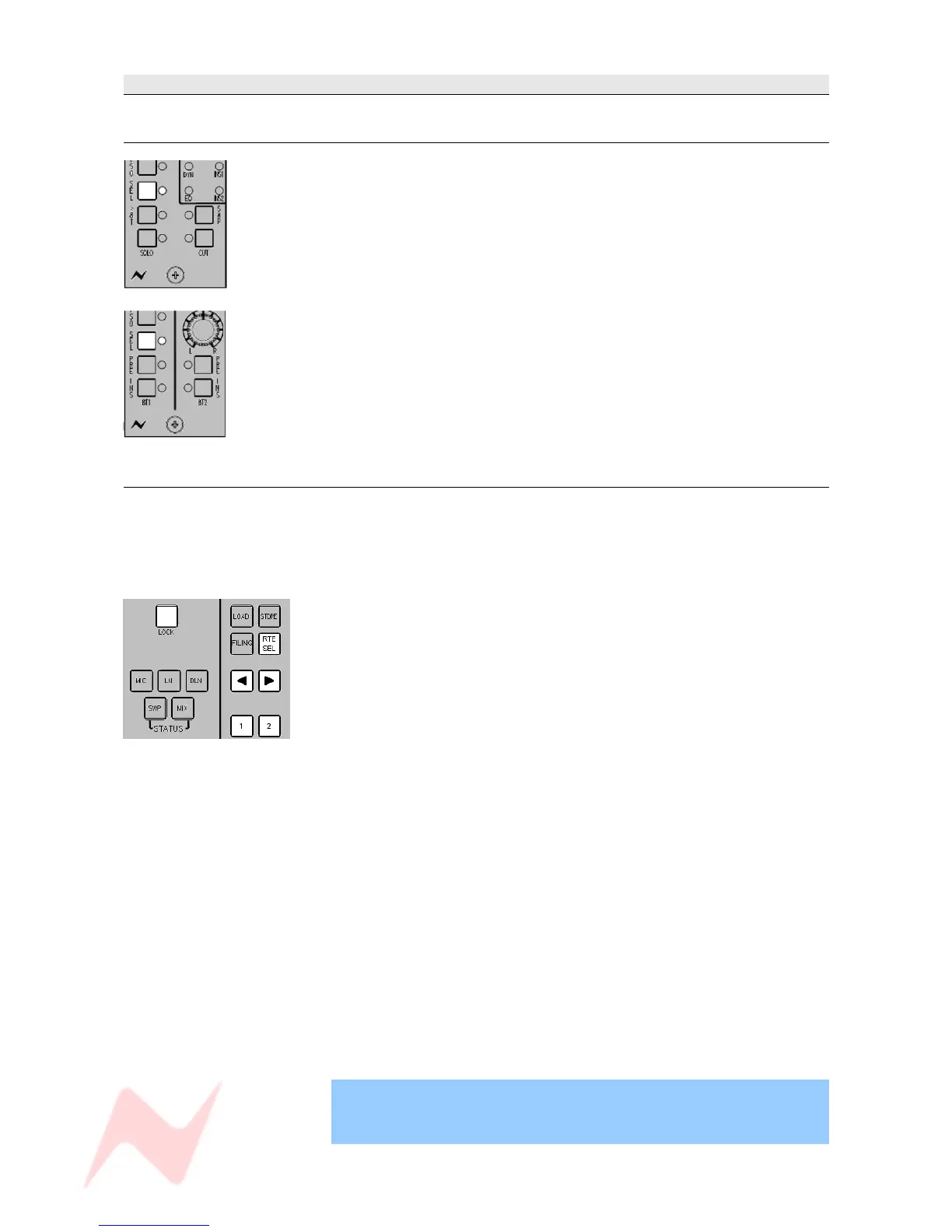
Channel Sel Mode
> When SEL is selected by holding down and then releasing on a channel
strip, most of that strips functionality plus the ability to change any of the
audio is suspended.
The SEL led will flash to indicate you are in SEL Mode.
It will then be possible to set up Auxiliary Pre-/Post- states, the order of
processing in the Monitor and Channel paths etc.
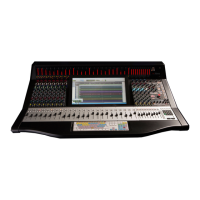
> When SEL is selected on the 8T faders section , you can set how the
Rev Return signals are fed into the Auxes (either Pre- or Post-).
Monitor SEL Mode
SEL Mode is a setup mode on the Monitor panel where signal path routing,
Cue feeds, loudspeaker trims, output trims, Pre/Post states and other
monitoring setups can be configured.
The majority of these functions can also be configured on the Settings
Screen, see separate chapter).
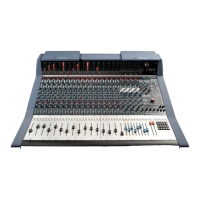
When LOCK and SEL are pressed together on the ROUTE SEL section of
the Master Panel, most of the Control Room Monitor panel's button display
and functionality – plus the ability to change the audio selection – is
suspended.
(If lit, the D-EXT, AFL/PFL and and RTB leds on this panel will not
extinguish).
When launched from this panel, SEL Mode provides purely a routing
function, and is used for sending Channel and/or Monitor paths to either
the 8T and/or Main Mix.
NB.
The SEL buttons on the channel strips and 8T fader strips are all
interlocked, so that selecting one SEL button will deselect any other SEL
button already pressed.
There is no such interlock between these SEL buttons on the channels
and the SEL button on the ROUTE SEL panel, apart from when the Sel
Route option is ticked on the Setup screen.
With this option ticked, the first single quick press of the SEL button will
bring up the EQ and a double quick press will bring up the DYN display on
the DAW screen; Holding down sel and selecting >8T will also force the
Route Sel panel into SEL Mode by forcing on it's SEL button (as well as
turning over the DAW screen to be the Routing display).
Coming out of SEL Mode returns all audio, leds & buttons to their last
selected display and state.
In this manual, all text relating to SEL Mode is shown with a shaded blue
background.
- 19 -


 To Next Page