GENESYS User Manual Issue 1
As with the 8Ts (above), scrolling up or down the channel or Rev numbers
will allow you to route to Mix L and Mix R.
CH
This On/Off button lights yellow when pressed, and allows the Channel
path to be routed to Mix L and Mix R in the channel module.
MON
This On/Off button lights yellow when pressed, and allows the Monitor
path to be routed to Mix L and Mix R in the channel module.
CH and MON are interlocked.
&
keys
When pressed, they are used to scroll up/down the Channels and Revs so
you are able to route them to the 8T and Mix Outputs.
This routing information will be displayed on the TFT screen.
• The Routing system does not form part of the Store system. Only a
route present (or absent) when the store is created will be recalled.
• If routes have already been made, then scrolling through the paths will
display those routes where appropriate.
If selecting Rev Returns to be routed to the 8Ts:
• Rev 1 can only be routed to 8T 1 & 2
• Rev 2 can only be routed to 8T 3 & 4
• Rev 3 can only be routed to 8T 5 & 6
• Rev 4 can only be routed to 8T 7 & 8
--- + ---
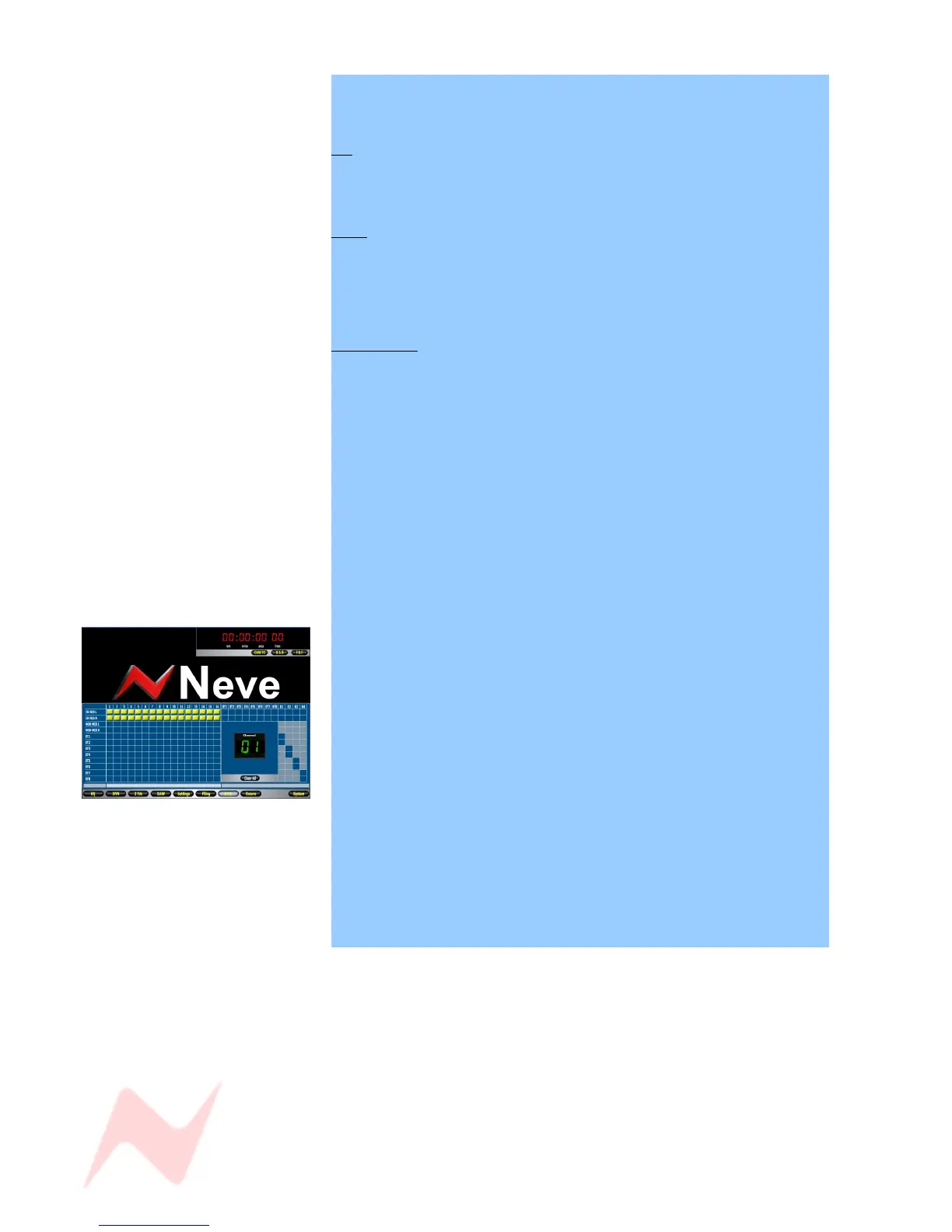
Routes can also be created (or destroyed) by clicking on the relevant
junctions on the Routing Screen display, as shown left.
A yellow block indicates the presence of a route, while the large digit to
the right of the screen indicates which path the routing refers to.
--- + ---
By pressing LOCK and RTE SEL together, you will put the Monitor Panel
into SEL mode (the RTE SEL button will start to flash). It will then be
possible to set up the Monitor, Cue and 2T mix functions in SEL mode.
When you enter SEL Mode, any selection already made on this panel will
start to flash (along with the RTE SEL button) to indicate you are in SEL
Mode, and the DAW screen display will swap over to showing the currently
selected Edit.
When you exit SEL Mode, any changes made will be saved, and the
buttons, audio and display screen will revert to their last selection.
- 43 -


 To Next Page