Y070.302/EN Page 79
Operation instructions
SIPOS SEVEN: PROFITRON, HiMod
8
Parameters and possible parameter values
8 Parameters and possible parameter values
8�5 Software functions
To enable a software function or a customer variant, a PIN code available as accessory is re-
quired. The PIN code is different for each actuator.
Unauthorized enabling, setting of customer variants can lead to damage of the actuator/valve/
plant!
The operation sequence for enabling the soft-
ware functions is always the same and therefore
described as an example.
Operation sequence
1. Select “Software functions” in the “Param-
eter” menu.
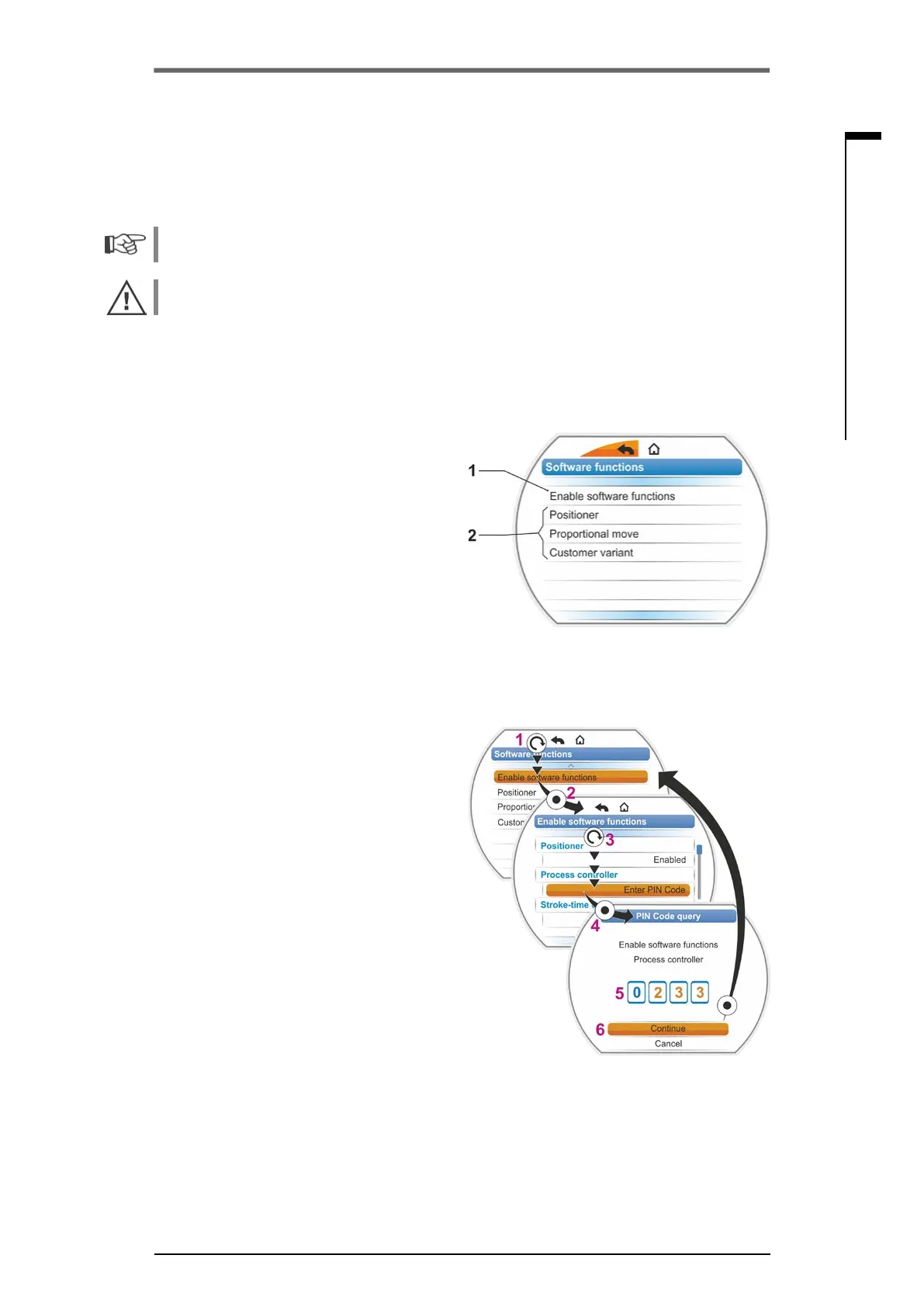
The ‘Software function menu’ with ‘Enable
softwarefunctions’menuitemopens(g.1,
item 1).
Should software functions and/or customer
variants, which can be programmed, already
be enabled, their names will be displayed,
g.1,item2.
2. Select'Enablesoftwarefunctions'(g.2,
item 1)andconrm(g.2,item2).
A menu listing all possible software functions
including status appears:
– ‘Enabled’ Function is already enabled.
– ‘Enter PIN Code’: Function is not en-
abled.
3. Select desired software function* ,g.,
item. 3; in our example ‘Process controller’.
4. Conrmselection,g.,item.4.
The display changes to the PIN code entry.
5. EnterPINcode,g.,item5.
Once all four characters of the PIN code
have been entered, ‘Continue’ will be high-
lighted.
6. Conrm'Continue'(item.6).
The display changes to the 'Software func-
tions' menu where the enabled function will
be display accordingly (see above operation
step1.andg.1,item2).
7. Select ‘Software functions’ for programming
the function.
Continue as described in the supplementary
operation instructions.
Procedures for programming software functions
and customer variants are described in separate
operation instructions.
*If a
customer variant is to be enabled, turn the
Drive Controller until “Customer variant’ is high-
lighted by the orange selection marker.
Fig� 1: Indication in the display: ‘Software
functions’ menu
Fig� 2: Enable software function
8�5�1 Enabling software functions and customer variants
The present chapter describes how to enable optional software functions and customer variants. A
software function or customer variant can only be enabled in the ‘Expert’ user level”. For information
on changing the user level, refer to „6 User management“ on page 31
Fig�: Activate software functions menu
Active
Enter PIN code
Enter PIN code
Customer variant XX
Customer variant XY
Enter PIN code
Activate software functions
Positioner
Positioning time curve
Proportional move
Customer variant
� � � � further software f.
Software functions
Alternative control mode


 To Next Page