S Class 3 User’s Manual
OPOS 3-8
If the same graphic design needs to be printed on multiple sheets, this feature can be used.
NOTE: The sheets should be of approximately the same size and the graphics on
them should be oriented and positioned in the same way.
First load the media (see section 1.5) and check whether the parameters of the OPOS marks
are set correctly.
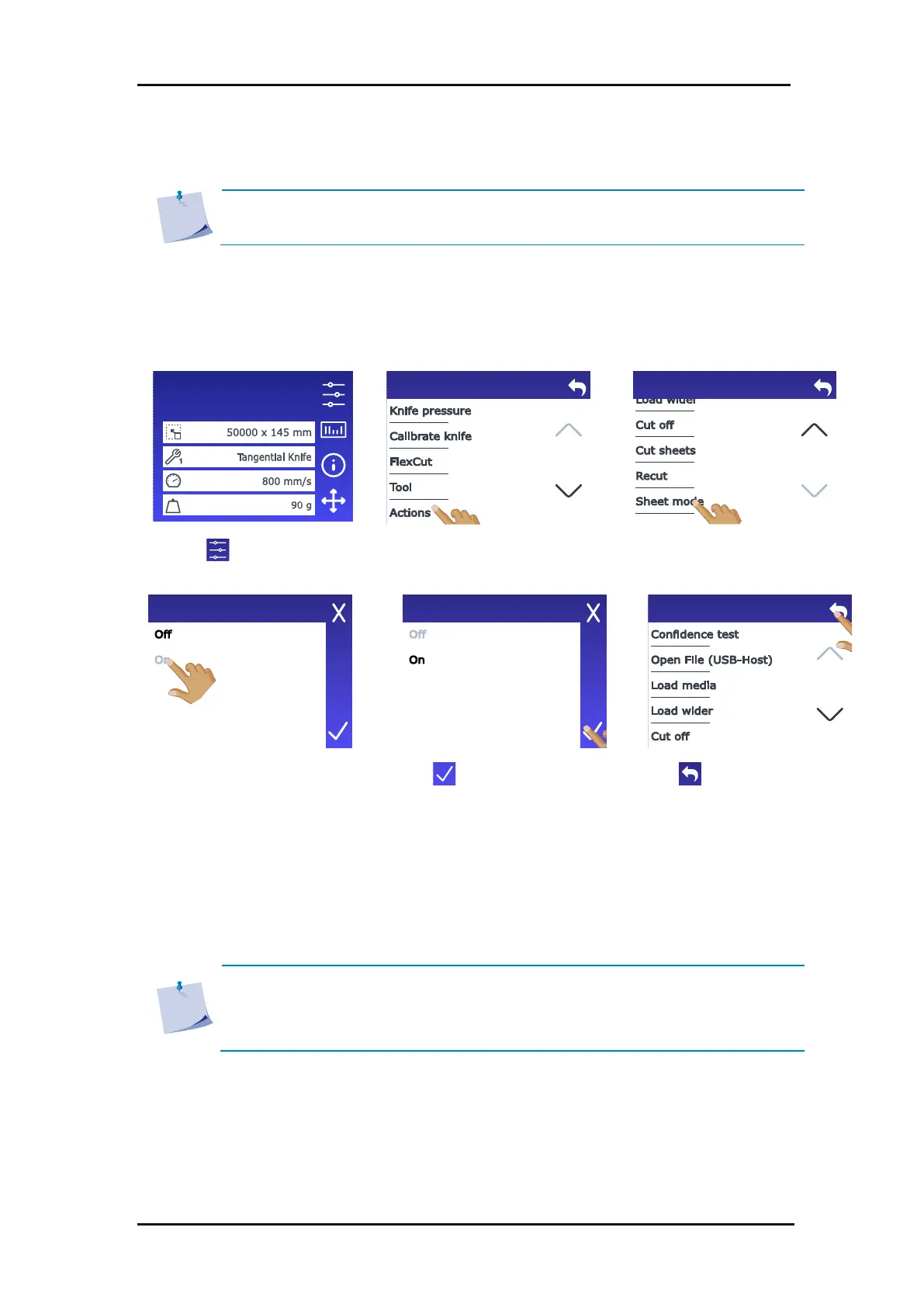
Cutting the same graphic on multiple media sheets:
3. Scroll down with the arrow
and tap Sheet mode.
6. Tap to get online again.
7. Perform the cutting job on the first sheet.
The cutter will stop after the first contour is cut and will go online again.
8. Raise the pinch rollers and remove the sheet manually.
9. Insert the next sheet into the cutter. Lower the pinch rollers.
NOTE: The second and subsequent sheets must be loaded into the cutter in the
same position and oriented the same way as the first sheet. In OPOS sheet mode,
the cutter stores the distance between the edges of the sheet and the first OPOS
mark.
Configuration 1
LAN 192.168.10.2
3.3.2 Cutting the same graphic on multiple media sheets






 To Next Page