6.4 Print Quality is Not Good
144
6
Troubleshooting
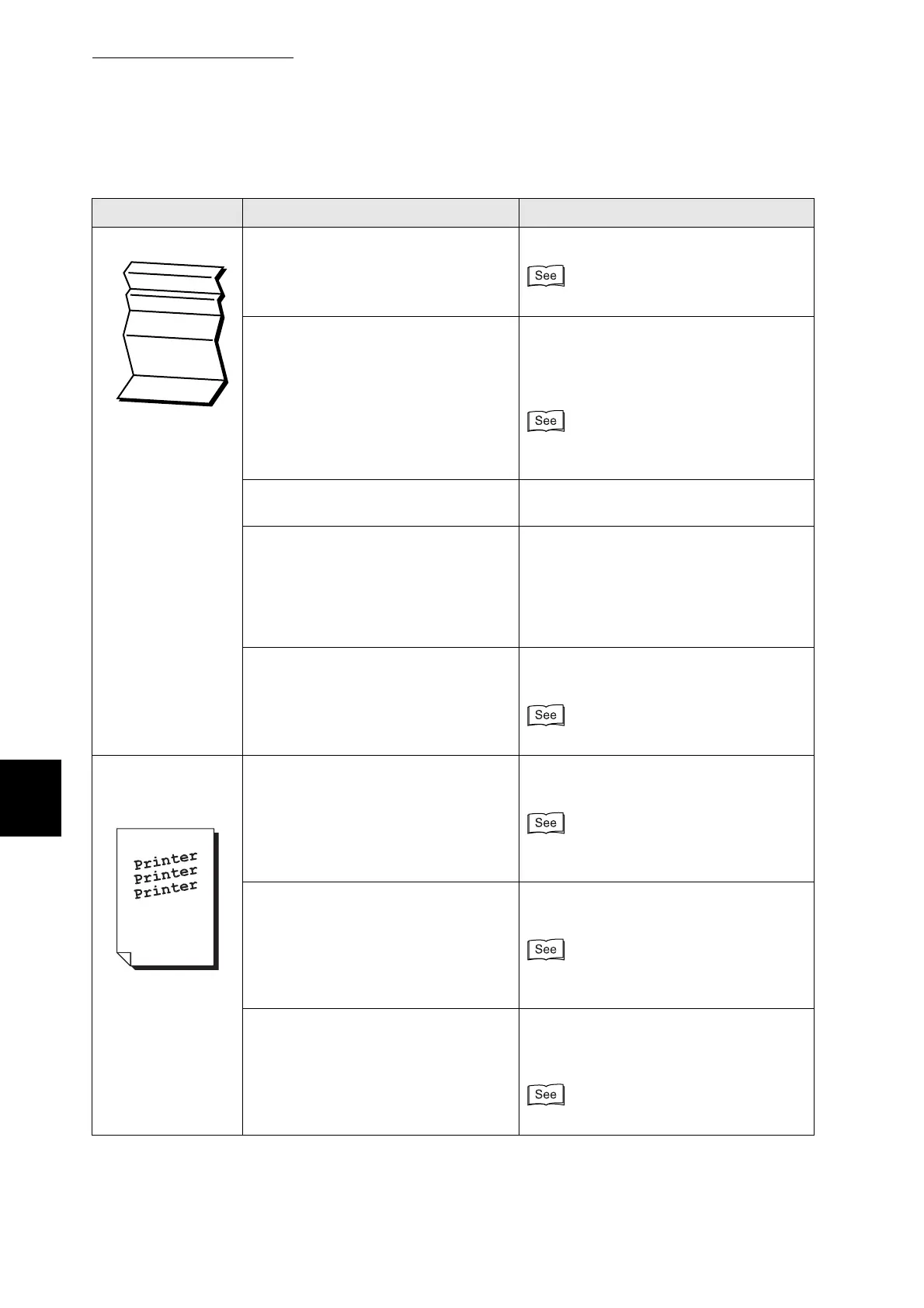
Creased paper Is the paper damp? Replace the paper.
"4.2 Loading Paper"
Is the media suitable?
Are you using warped paper?
Replace the media with a size and type
of media suitable for use with this printer.
Set the printer driver to the type of paper
you are using.
"4.1 Suitable and Unsuitable Paper
Types"
Is the paper tray properly inserted into
the printer?
Push the paper tray completely back into
the printer.
Is there paper or a foreign object
jammed in the printer?
Switch off the printer and remove the
jammed paper or foreign object. When
you cannot remove the obstruction,
switch off the printer and contact your
technician or dealer. Do not attempt to
disassemble the printer.
Is the transfer roller properly installed
in the printer?
Make sure that the transfer roller is
properly installed.
"8.3.2 Replacing the Transfer Roller"
Slanted printing/
Incorrectly
positioned printing
Are the paper guides of the paper tray
set correctly?
In the paper tray, set the side and end
guides to their correct positions.
●
"4.2.1 Loading Paper in the Paper
Tray"
Is the paper guide in the multi purpose
tray set at the correct mark?
Set the paper guide in the multi purpose
tray at the correct mark.
"4.2.2 Loading Paper in the Multi
Purpose Tray"
Did you correctly install the A5 spacer
when loading A5 paper into the paper
tray?
Make sure that the A5 spacer is properly
installed next to the end guide in the
paper tray.
"4.2.1 Loading Paper in the Paper Tray"
Symptom Possible Cause Action



 To Next Page