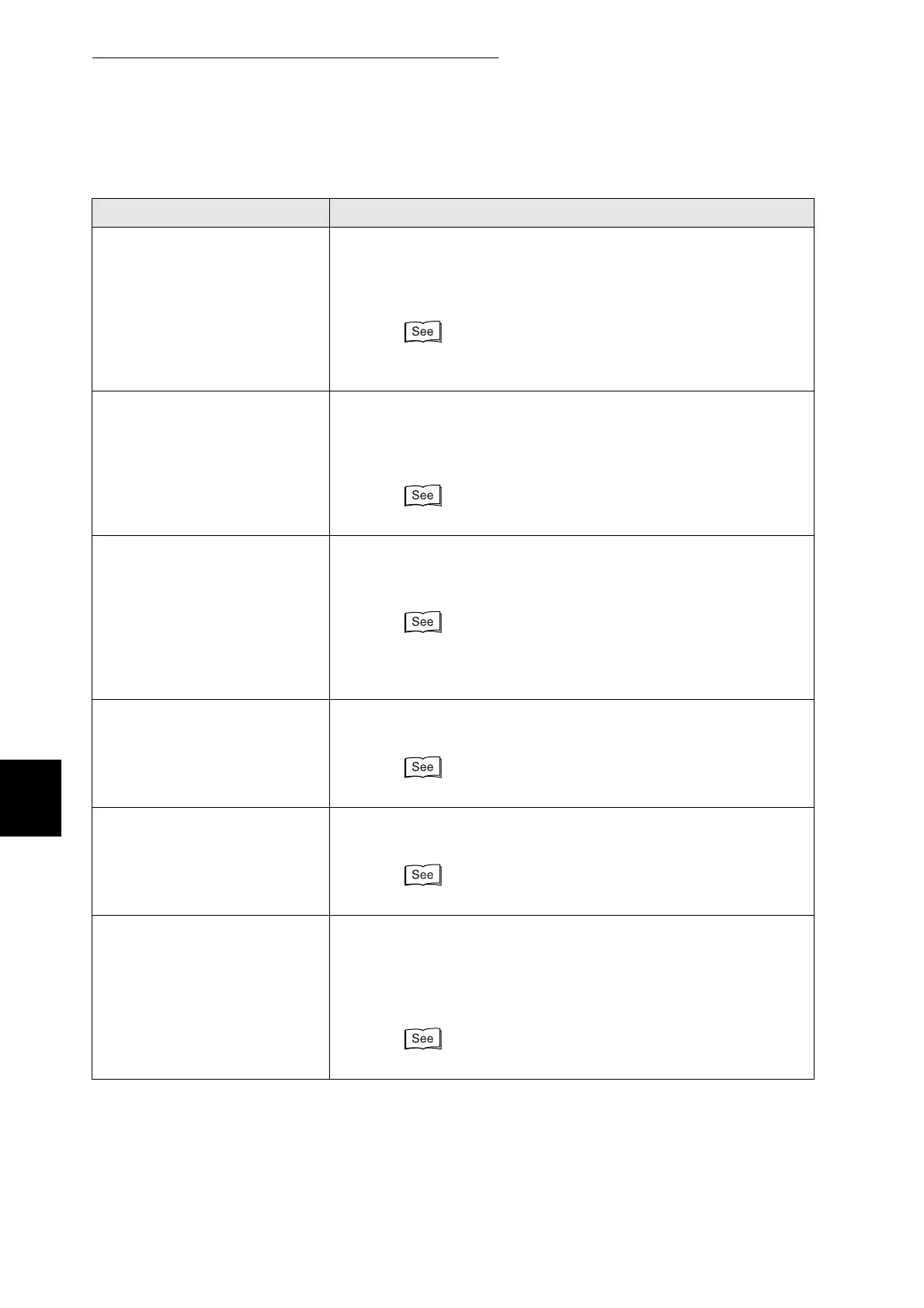
6.7 When an Error Message Appears on the Control Panel
154
6
Troubleshooting
Fuser Jam
Open Cover A & B
There is paper jammed in the printer.
Action: Press button A or B, open the front door and remove the
jammed media. Make sure there is no paper jammed in the
paper trays.
"7.4 Paper Jams between the Drum Cartridge and Fuser
Cartridge"
Duplex Jam
Open Cover B
There is paper jammed in the paper rotator used for two-sided
printing.
Action: Press button B, open the front door and remove the
jammed media.
"7.5 Paper Jams in the Duplexer"
Feed Jam
Check Tray
There is paper jammed in the multi purpose tray, the paper tray, or
the optional 2 tray module if installed.
Action: Pull out the tray and remove the jammed media.
"7.2 Paper Jams in Multi Purpose Tray"
"7.3 Paper Jams in the Paper Tray"
"7.6 Paper Jams in the Tray Module (1 or 2 cassettes)"
Drum Cartridge
ID Error
The drum cartridge is defective.
Action: Replace the drum cartridge.
"8.2.2 Replacing the Drum Cartridge"
Replace Cyan
Toner (C)
The cyan toner cartridge is empty.
Action: Replace the cyan toner cartridge.
"8.1.2 Replacing Toner Cartridges"
Reinsert Cyan
Toner (C)
There is no cyan toner cartridge inserted in the printer or the
cartridge is improperly set.
Action: Grip the levers at each end of the cyan toner cartridge with
your fingers, then push down firmly to rotate the levers
forward to install the cartridge.
"8.1.2 Replacing Toner Cartridges"
Message Meaning and Action



 To Next Page