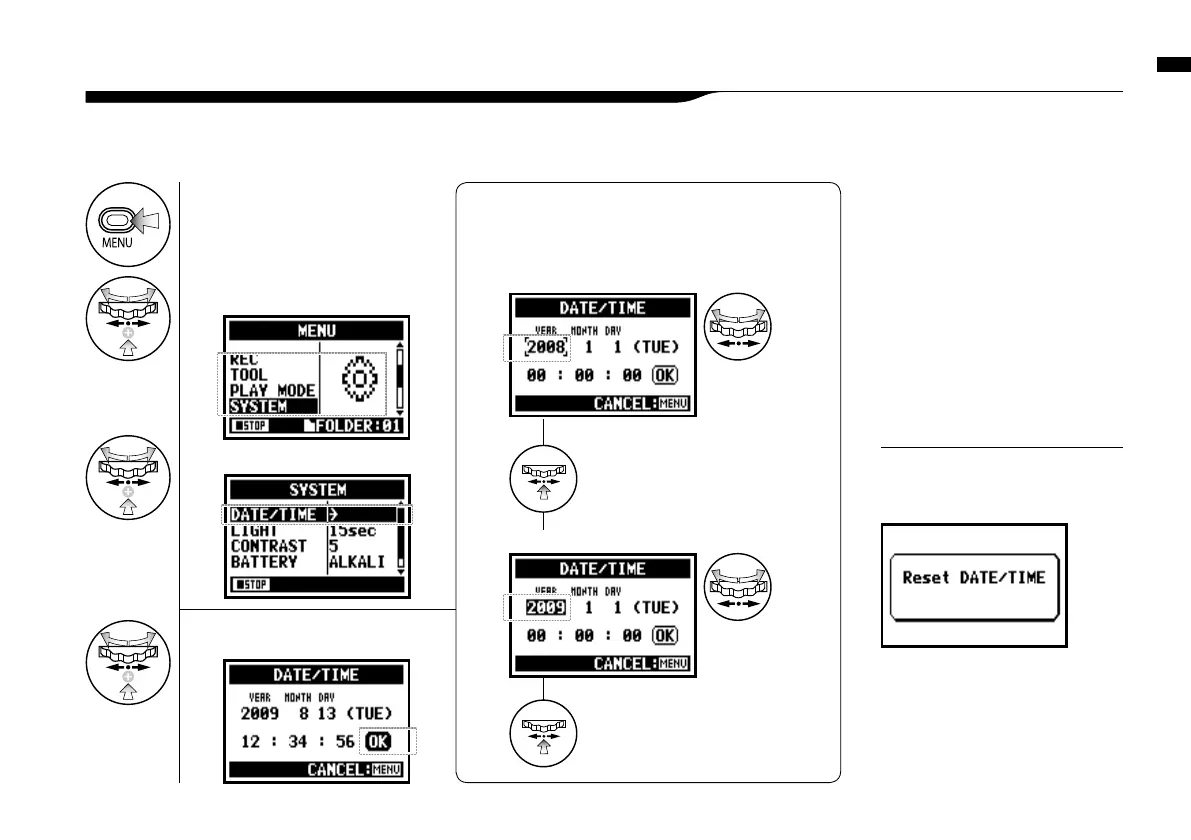
Set date and time <DATE/TIME>
028
5-2 Set date and time <DATE/TIME>
Each file will automatically record the date/time.
To facilitate searching for files by date, be sure to set the date/time after every battery change.
1
Press.
2
Select <SYSTEM> and press.
3
Select <DATE/TIME> and press.
5
Select <OK> and press.
4
Set YEAR
➝
MONTH
➝
DAY
➝
TIME
(Time: Minute: Second)
Select the item on <DATE/TIME>:
You can select the
item while moving
[ ] of the [DIAL].
[Change the figure number]:
You can select the
number by
rotating
the [DIAL].
Press the [DIAL] in
* The selected item values are highlighted.
Press the [DIAL] in
* [ ] comes out on display.
When “Reset DATE/TIME” is seen
during boot-up, the date/time needs
to be set.
NOTE:
• When there is no power source
connected for more than three
minutes, the DATE/TIME setting
will return to the default value.
• You cannot use this setting during
recording and playback.



 To Next Page