Setting / Recording: TRACK MENU in MTR mode
059
This is an exclusive menu available only in MTR mode to set a track.
Link tracks together, create a stereo track, or you can create a special setting for output effects.
1-07 Setting / Recording: TRACK MENU in MTR mode
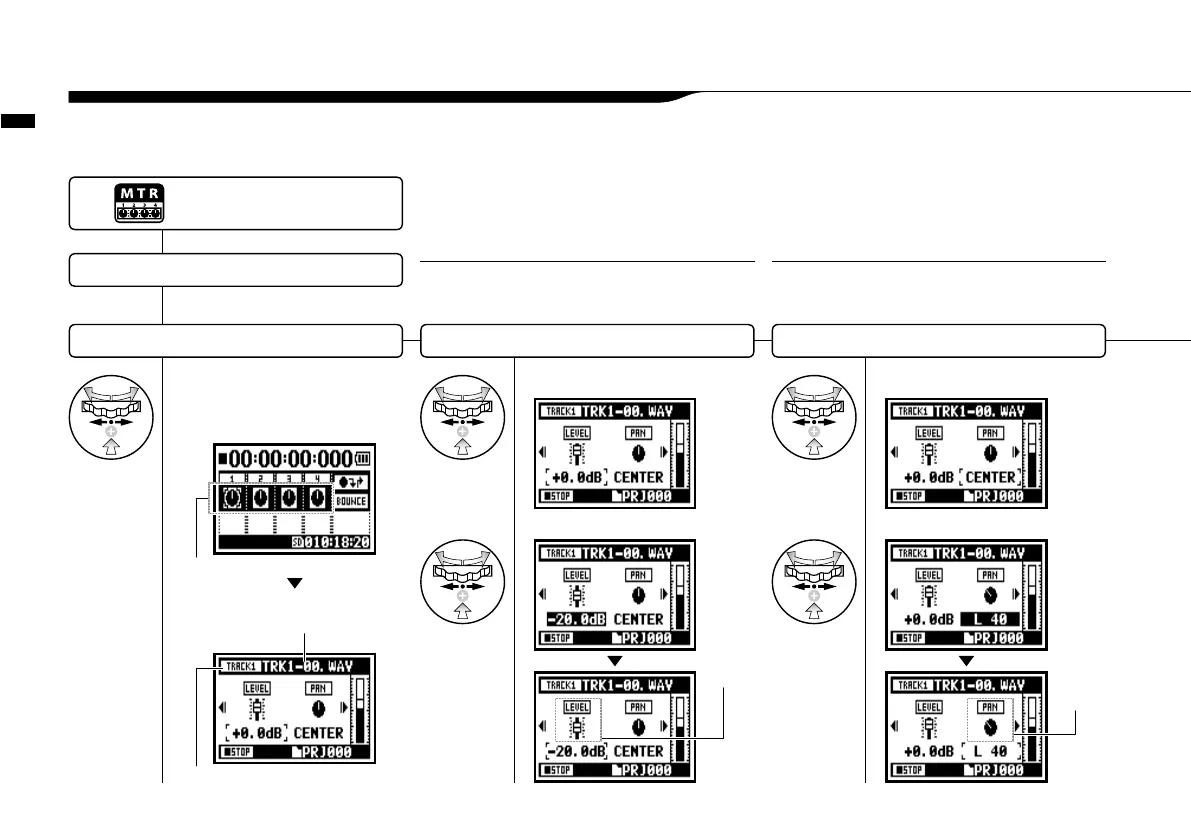
Select TRACK MENU
1
On the top screen select
'TRACK MENU ICON' and
press.
TRACK MENU icon
Select a target project and start ……P.119
HINT:
Set the balance of Left and Right position of the tracks
Setting value: L100 _ C _ R100
Default: C (Center)
PAN
HINT
Set the output level of a track
Setting value: Mute, −48.0dB _ +12.0dB
Default: 0.0dB
LEVEL
currently selecting track
TRACK MENU
file names allocated to tracks
Adjust the output level of a track
Set the value and press.
Select <LEVEL> and press.
fader Icon changes
Select <PAN> and press.
Adjust the output pan of a track
Set the value and press.
pan Icon
changes
Press the [MENU] button for
more than 2 seconds, and start
operation from the top screen.



 To Next Page