Setting up: INPUT [1], [2] connections and phantom power source
032
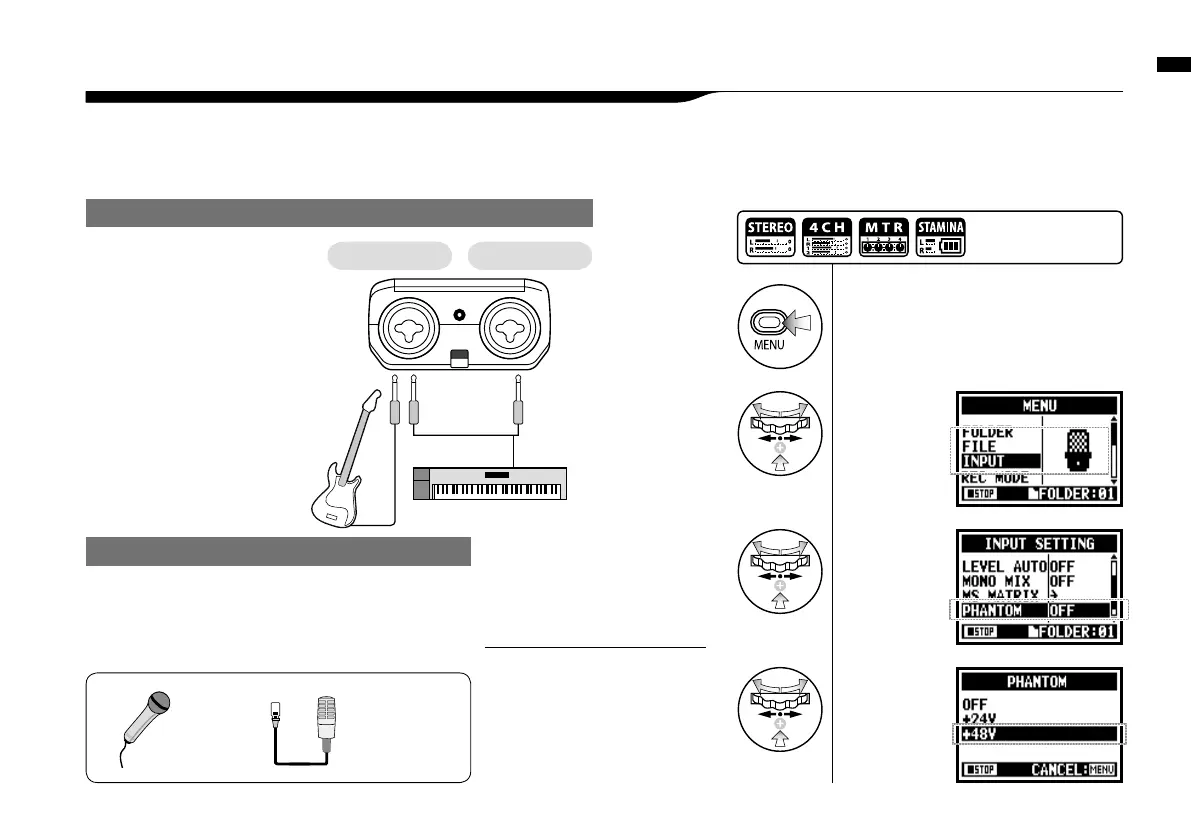
Using INPUT [1] and INPUT [2] you can connect to a guitar, a bass, a keyboard, etc.
6-4 Setting up: INPUT [1], [2] connections and phantom power source
For a guitar or a bass, you can
directly plug into either INPUT [1]
or INPUT [2].
For a keyboard with stereo output,
you can plug into both the INPUT
[1] and the INPUT [2].
Connecting to instruments
Connecting to a microphone
To connect a microphone you connect X L R plugs to INPUT
[1] and INPUT [2]. In case you need phantom power, such as
using a condenser microphone, be sure to select the following
setting.
1
Press.
3
Select
<PHANTOM>
and press.
[How to make setting of <PHANTOM> power]
4
Select
the voltage
and press.
2
Select
<INPUT>
and press.
Press the [MENU] button for
more than 2 seconds, and start
operation from the top screen.
Some condenser microphones
cannot operate with +24V
phantom power, but comparing
to +48V setting this function is
useful for battery operation to
economize electric consumption.
NOTE:
Condenser
microphone
*for phantom
power
Dynamic
microphone
INPUT[1] INPUT[2]



 To Next Page