Setting / Recording: Re-recording, <PUNCH IN/OUT> automatic
062
• You can set the position for <PUNCH IN / OUT> while
stopped by using the counter. First set each time and move
the cursor to <PUNCH IN / OUT>, and then press [DIAL].
• During <PUNCH OUT> _ Step 7-, if you press [DIAL]
again, all the setting will be cancelled.
HINT:
Appointing the time
using a counter
P.102
Ref.
☞
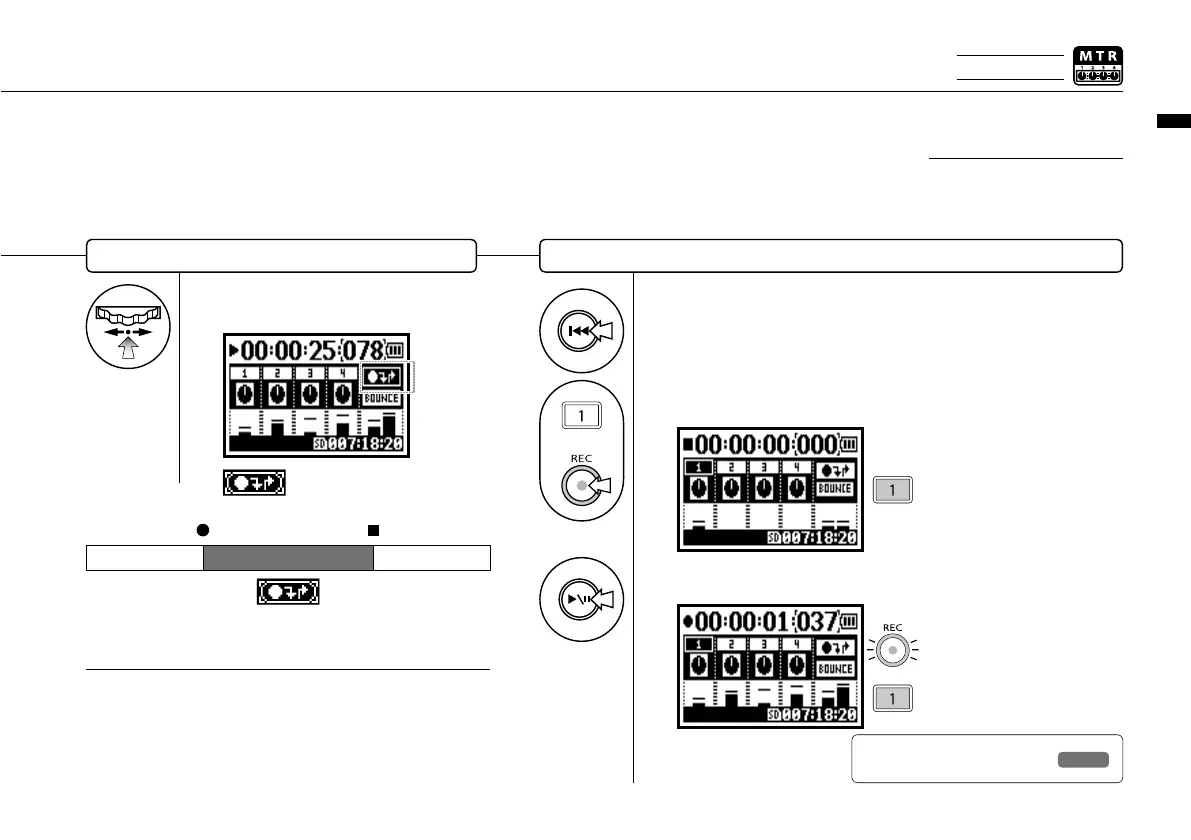
Set the recording end position, <PUNCH OUT>
7
Press the desirable position for
‘PUNCH OUT’.
The PUNCH OUT setting
confirmed
When the track reaches the ‘PUNCH
IN’ point, the REC light will turn on,
recording will start.
[1] When the track reaches the
‘PUNCH OUT’ point, the light will
blink and recording will stop.
[1] When in punch in / out mode,
the light is on during recording and
blinks during record standby.
→
PUNCH OUT
PUNCH OUT
Start Stop
the practical re-recording parts
PLAY
PLAY
REC
Re-recording
10
Press TRACK [1] [PLAYBACK _ RECORDING].
Rewind the file to the head
(Counter: 0) or to the position to
start re-recording ‘PUNCH IN’.
8
9
Press TRACK [1], Recording Standby.
+
Setting available on MTR
mode and <OVERWRITE>
recording.
NOTE
Only on MTR MODE



 To Next Page