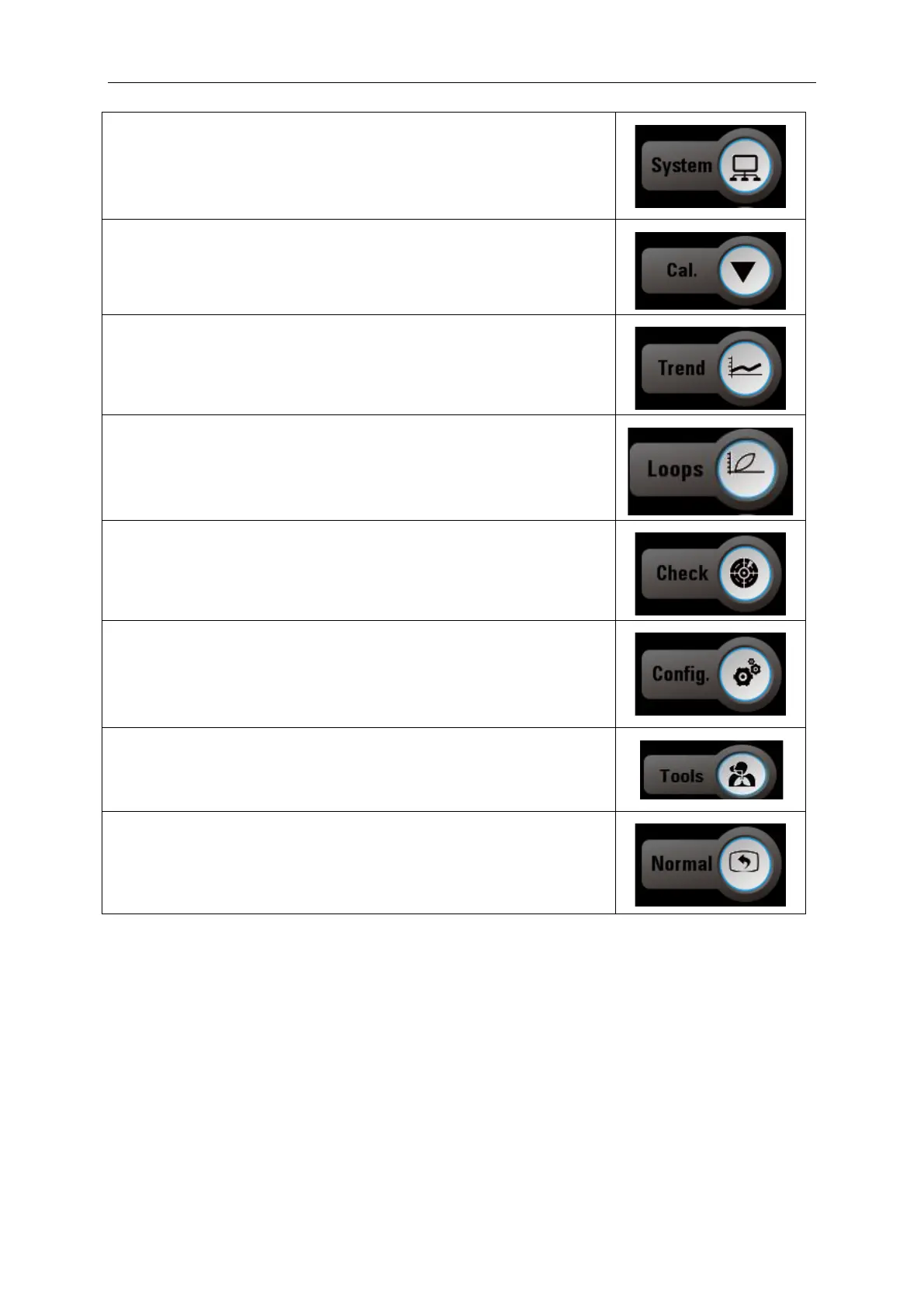
System settings: by pressing the system button, the system setup
menu appears. If the user has already entered the system setup
interface, the system settings menu disappears and the user returns
to the main interface.
Calibration: by pressing calibration key, the calibration menu
appears. If the user has already entered the calibration interface, the
calibration menu disappears and the user returns to main interface.
Trend: by pressing the trend button, the trend menu appears. If the
user has already entered the trend interface, the trend menu
disappears and the user returns to the main interface.
Loops: by pressing the Loops button, the loops menu appears. If the
user has already entered the loops interface, the loops menu
disappears and the user returns to the main interface.
Check: user will repeat the start-up test process, including leak
detection and system test. The user can only repeat the self-test in
standby mode.
Configuration: by pressing the configuration button, the user opens or
closes a menu that will cover the entire monitoring area. The shortcut
key is available only in standby mode. There is no configuration
shortcut key in other modes.
Tools: by pressing Tools key, the user opens or closes a menu that
will cover the entire monitoring area. There is no Tools shortcut key in
Standby mode.
Main Interface: when normal key is pressed, all menus will be closed
to return to main interface.



 To Next Page