Removing the bottom fan filter
You can view the video to maintain the top, bottom, and front fan filters. For more information, see QR code for fan filter
maintenance video.
Prerequisites
1. Follow the procedure in Before working inside your computer.
NOTE: You can set dust filter maintenance reminder in the BIOS under Integrated Devices menu. By default, the Dust Filter
Maintenance is disabled. Select the interval from the list to enable the Dust Filter Maintenance option. For more information,
see Setting the Dust Filter Maintenance interval in the BIOS.
NOTE: To clean the fan filter, use the compressed air to remove the dust. Then, use a microfiber cloth to wipe away any
remaining surface dust.
About this task
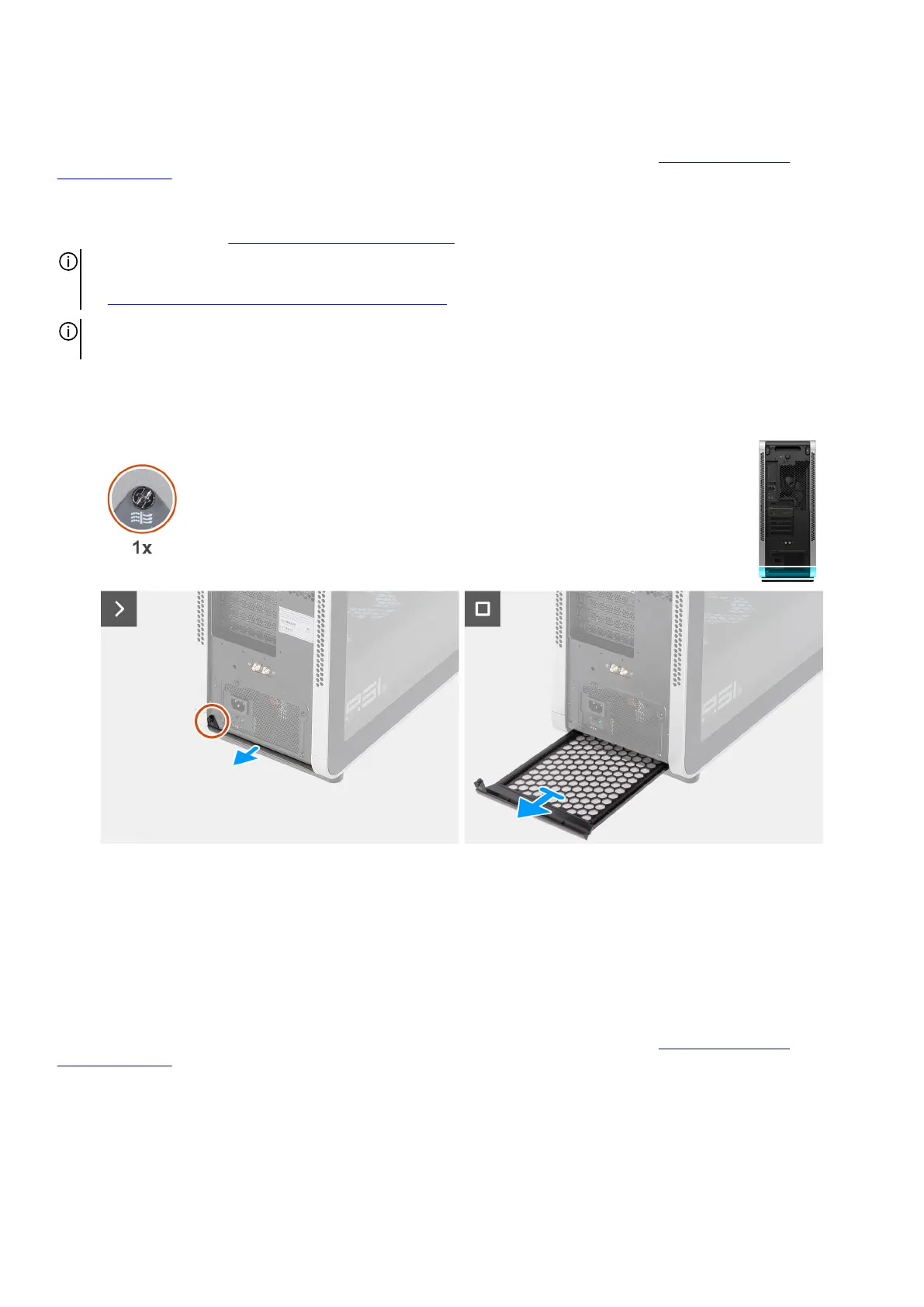
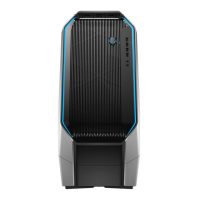
The following images indicate the location of the bottom fan filter and provide a visual representation of the removal procedure.
Figure 34. Removing the bottom fan filter
Steps
1. Loosen the captive screw that secures the bottom fan filter to the chassis.
2. Pull the bottom fan filter away from the chassis.
Installing the bottom fan filter
You can view the video to maintain the top, bottom, and front fan filters. For more information, see QR code for fan filter
maintenance video.
Prerequisites
If you are replacing a component, remove the existing component before performing the installation procedure.
52 Removing and installing Customer Replaceable Units (CRUs)











 To Next Page