www.ayyeka.com | +1 (310) 876-8040 | info@ayyeka.com 40
4. Click inside the box of the transmission interval you wish to change. For example, to change the Normal
transmission interval, click inside the green box.
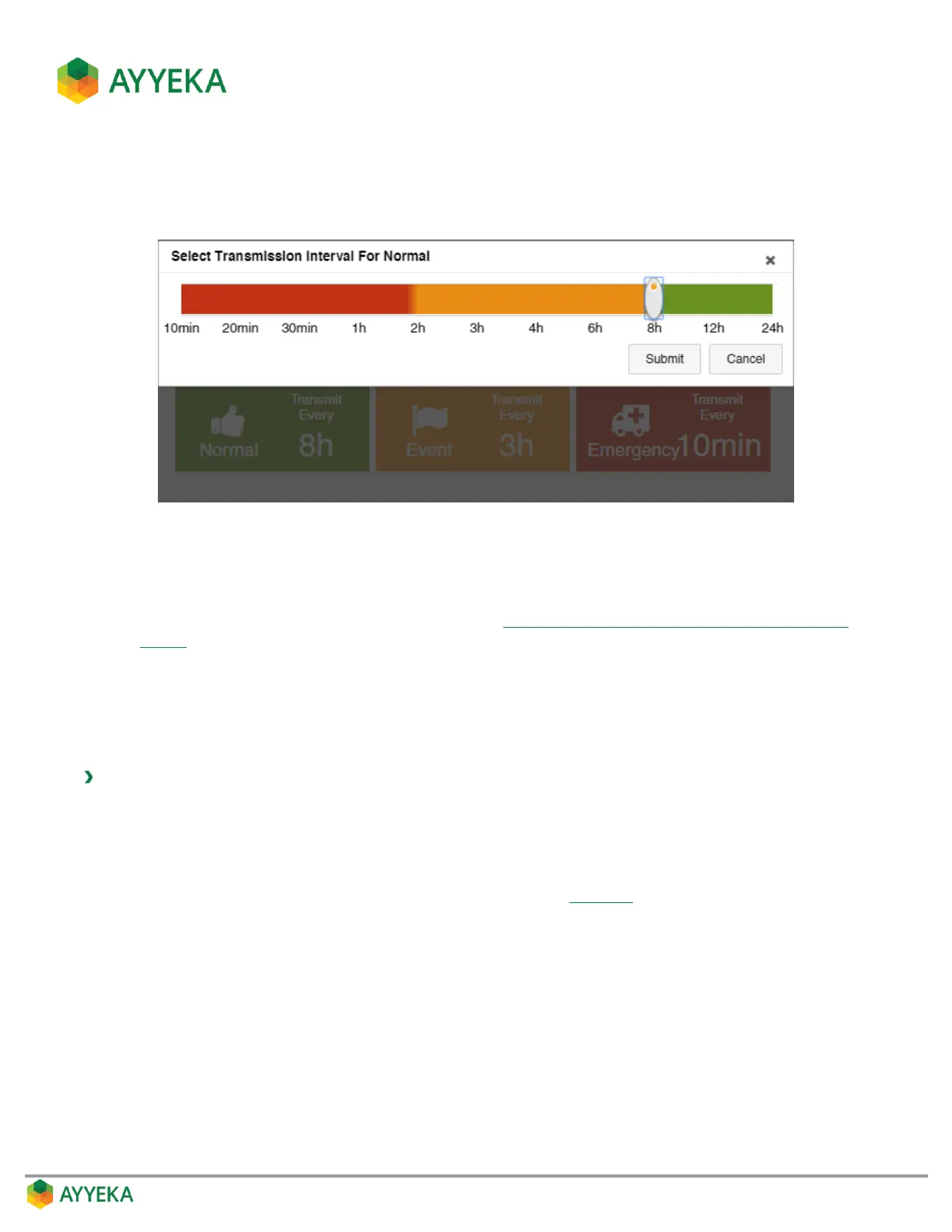
A Select Transmission Interval for Normal window appears, with a slider for setting the interval length.
Figure 26: Changing a transmission interval using the slider
5. Set the transmission interval time, and click Submit.
Note that the slider enables choosing from among the default intervals. If you wish to set the interval to
a value that does not appear in the slider, refer to Setting a Device Transmission Interval to a Custom
Setting.
Note also that the changes won’t take effect and won’t be visible on this screen until the Wavelet next
communicates with the server.
Setting a Device Transmission Interval to a Custom Setting
To set a device transmission interval to a custom setting:
1. Click Devices in the sidebar.
2. In the Sites Tree pane, click the device name.
3. In the right pane, click the Configuration tab.
The currently-defined transmission intervals are displayed (Figure 25).
4. Scroll to the bottom of the Configuration tab, and click Advanced Device Configuration to expand this
section.


 To Next Page