www.ayyeka.com | +1 (310) 876-8040 | info@ayyeka.com 96
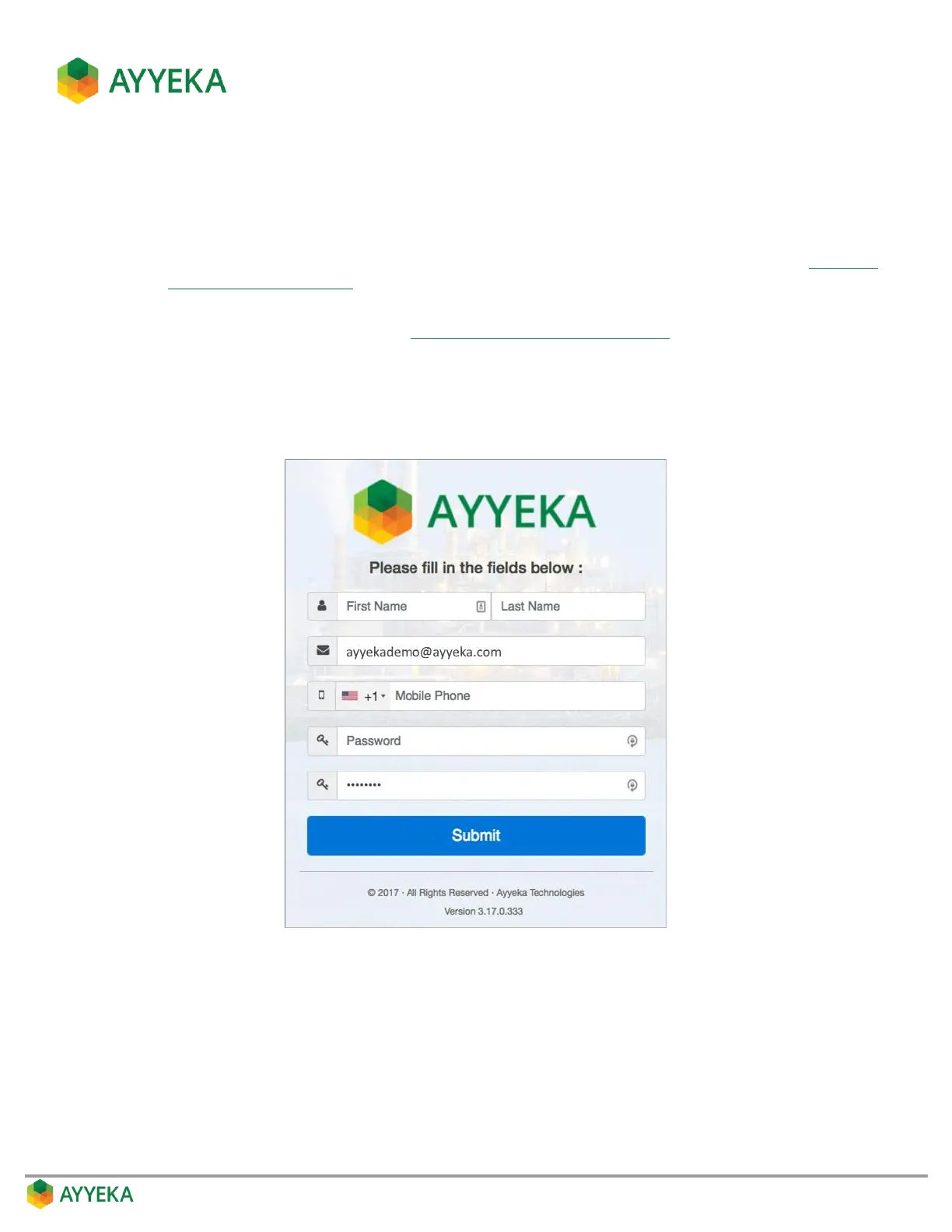
6. An Ayyeka Management Console page opens in the new user’s browser, displaying an Invited User
Details window. The new user should:
a. Enter the user’s actual First Name and Last Name.
b. Optionally change the email address, which currently lists the email address to which the invitation
was sent. Note that threshold alerts will be sent to this address/mobile number (refer to Defining a
Threshold’s Alert Recipients).
c. Optionally enter a mobile phone number. Note that threshold alerts will be sent to this
address/mobile number (refer to Defining a Threshold’s Alert Recipients).
d. Enter a password, and confirm the password. Note that a green line appearing under the password
box indicates a strong password; an orange line indicates a medium-strength password; and a red
line indicates an insufficiently-strong password.
e. Click Submit.
Figure 80: Invited User Details window


 To Next Page