8. Configurator, Projector adjustment settings
8.4 Status input window, visible - not visible
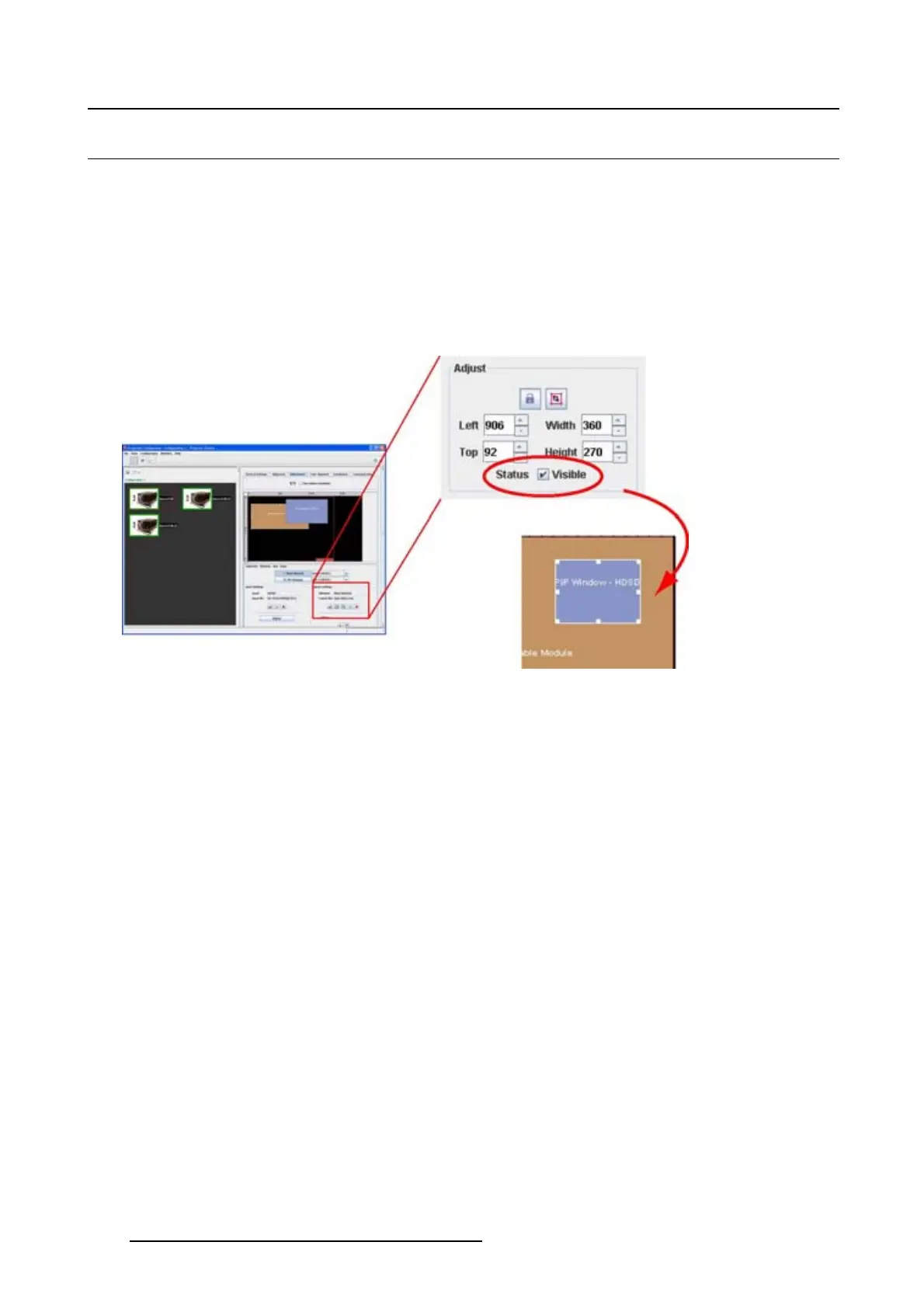
To toggle the status of a window via the properties
1. Select a window. (image 8-7)
The border color changes to white.
2. When the selected window is visible, to make this window not visible, uncheck the check box Visible.
When the selected window in not visible, to make this window visible, check the check box Visible.
When a window is not visible, the outline of the window remains visible in the Layout preview but the
background color becomes transparent.
Image 8-7
Window status via properties
To toggle the status of a window via the context menu
1. Right click on the window to change the status. (image 8-8, image 8-9)
A context menu opens.
2. Select Visible.
State when opening the context menu:
State when opening the context
menu:
Action:
Checked, window is visible
click to make the window not visible
Not checked, window not visible click to make the window visible, a window texture becomes
visible.
116
R5976924 PROJECTOR TOOLSET 16/04/2009



 To Next Page