13. Configurator, Warp User Interface
How to select the color
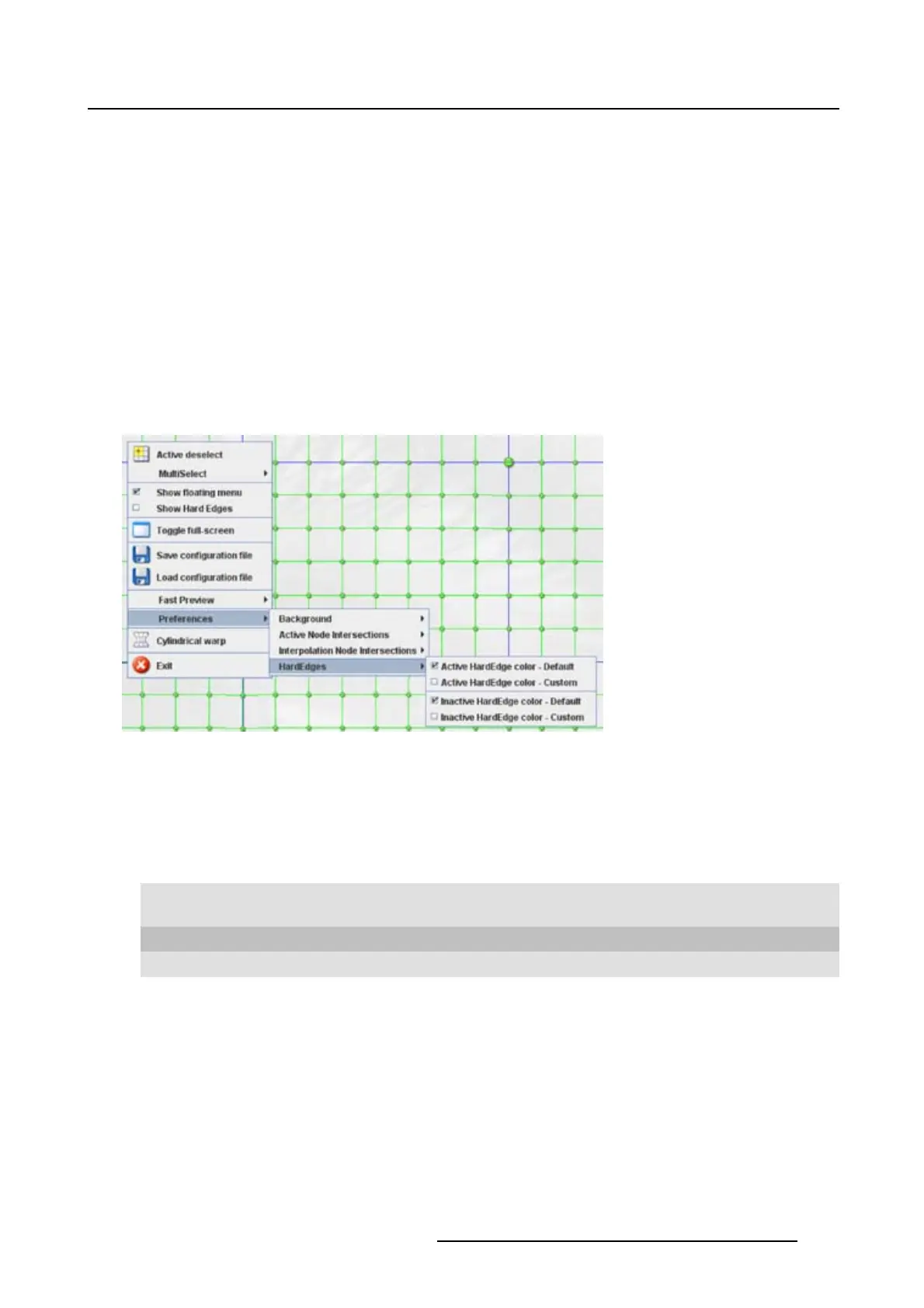
1. Right click on the grid. (image 13-35)
The context menu opens.
2. Select Preferences and move the mouse pointer to the right.
3. Select Hard Edges and move the mouse pointer again to the right.
4. To set the color for an Active hard edge:
for the default color, select Active HardEdgecolor - Default
for a custom color, select Active HardEdgecolor - Custom. See "Color selection", page 209 for more
information about how to select a color.
5. To set the color for an Inactive hard edge:
for the default color, select Inactive HardEdgecolor - Default
for a custom color, select Inactive HardEdgecolor - Custom. See "Color selection", page 209 for more
information about how to select a color.
Image 13-35
Hard edge color
13.20.5 Color selection
Select a color
1. 3 ways are now possible to select a color, represented by a tab in the Color value window.
Tab s watches = w a y
1
Via the swatches color window, step 2.
Tab HSB = way 2 Via the HSB color window, step 3.
Tab RGB = way 3 Via the RGB color window, step 4.
2. Select the desired color (via swatches = predefined color samples). (image 13-36)
The first selected color will be indicated in Recent. When others are selected for a preview, the color
indication will also be added in the Recent list as first one. Finally, the color selection can be done from
the Recent list or out of the color pallet.
Each time a color is clicked, a preview will be given in the preview pane. Continue with step 5.
3. Click on the HSB tab to display the color pallet (HSB = Hue - Saturation - Brightness). (image 13-37)
R5976924 PROJECTOR TOOLSET 16/04/2009
209



 To Next Page