13. Configurator, Warp User Interface
The Floating menu changes.
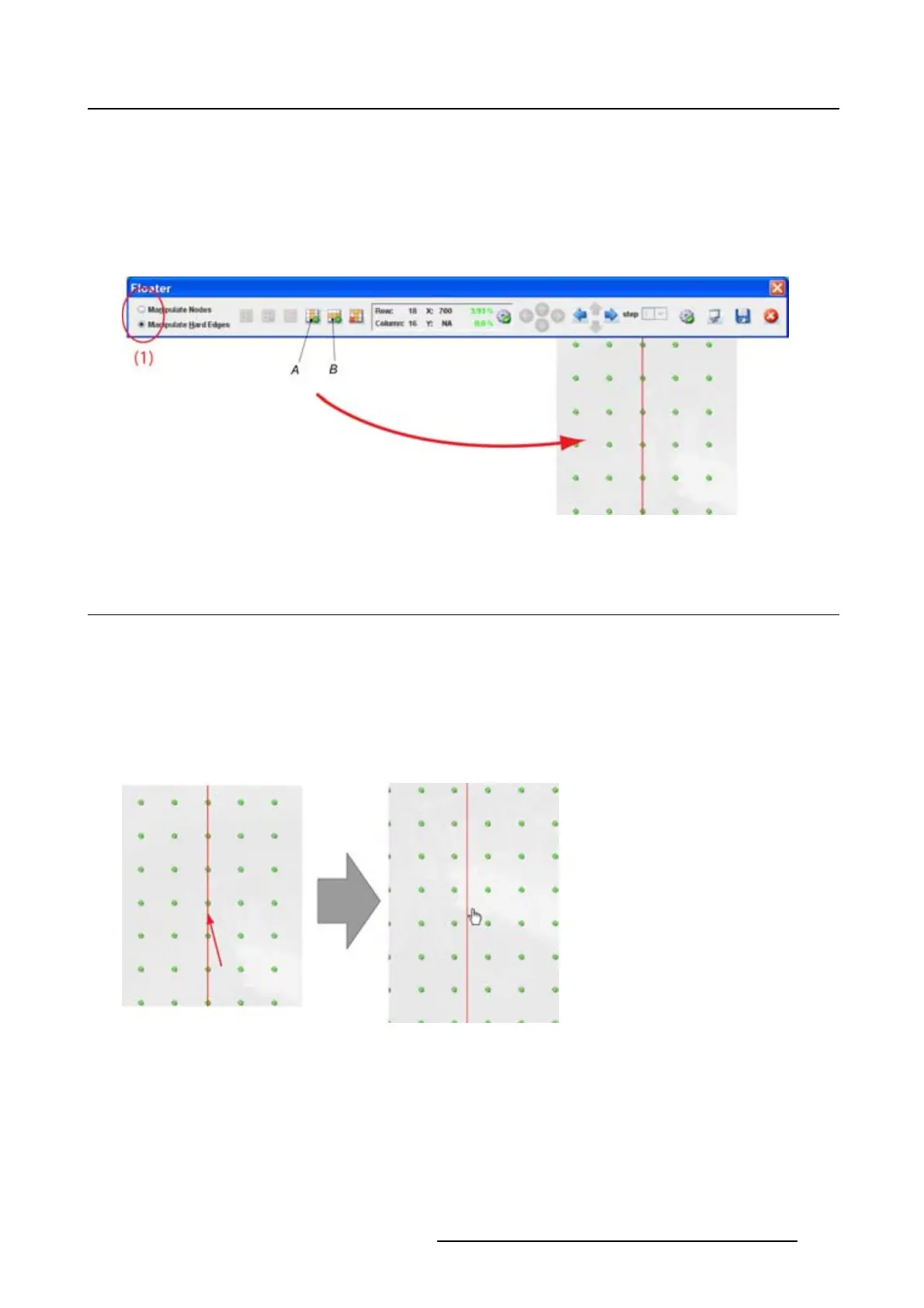
2. Click on Add vertical (A) and or Add horizontal hard edge (B) icon on the Floating menu.
A line is added on the grid.
Red line : selected hard edge
Greenline: nonselectedhardedge
Image 13-14
13.9 Moveahardedgeline
What can be done ?
An inserted hard edge can be moved to any place on the grid
Move via drag and drop
1. Click on the hard edge line to move and hold down the mouse button. (image 13-15)
2. Drag the line to the desired location and release the mouse button.
Image 13-15
Move hard edge
How to move with the menu or keyboard
1. Select the hard edge to move by clicking on it. (image 13-16)
The line becomes red.
2. Click on the arrow keys in the Floating m
enu until the desired place is obtained
Or,
press Ctrl + arrow keys on your keyboard until the desired place is obtained.
R5976924 PROJECTOR TOOLSET 16/04/2009
197



 To Next Page