8. Configurator, Projector adjustment settings
How to set native resolution
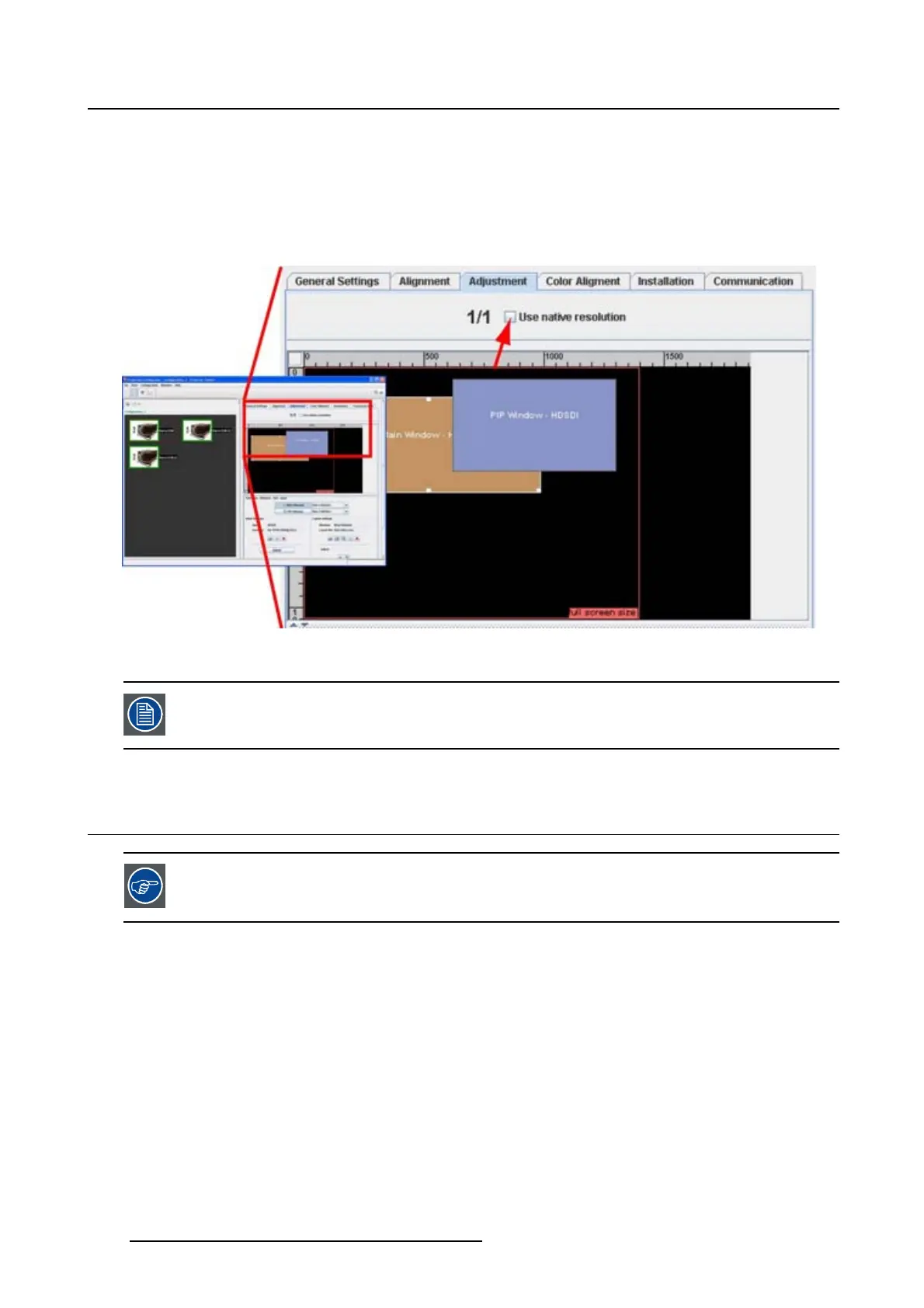
1. Check the checkbox in front of Use native resolution. (image 8-2)
Checked : image displayed in native resolution. The main source is displayed with its native resolution.
PiP is switched off.
Not checked : no native resolution used
Image 8-2
Show native resolution
When Use na tive resolution is checked, some other menus such
as Aspect ratio, timings
are greyed out.
8.2 Window and Source selection
When a certain window is not visible in the layout pane, that means that the window is
disabled.
What can be done?
The active window can be selected by clicking on a window in the window layout preview or by selecting
a window button.
The projectors can have a main window
and a PiP (picture in picture) window.
Window selection
1. Click on the corresponding window in the window layout preview (a1)
112
R5976924 PROJECTOR TOOLSET 16/04/2009



 To Next Page