7. Configurator, Projector alignment settings
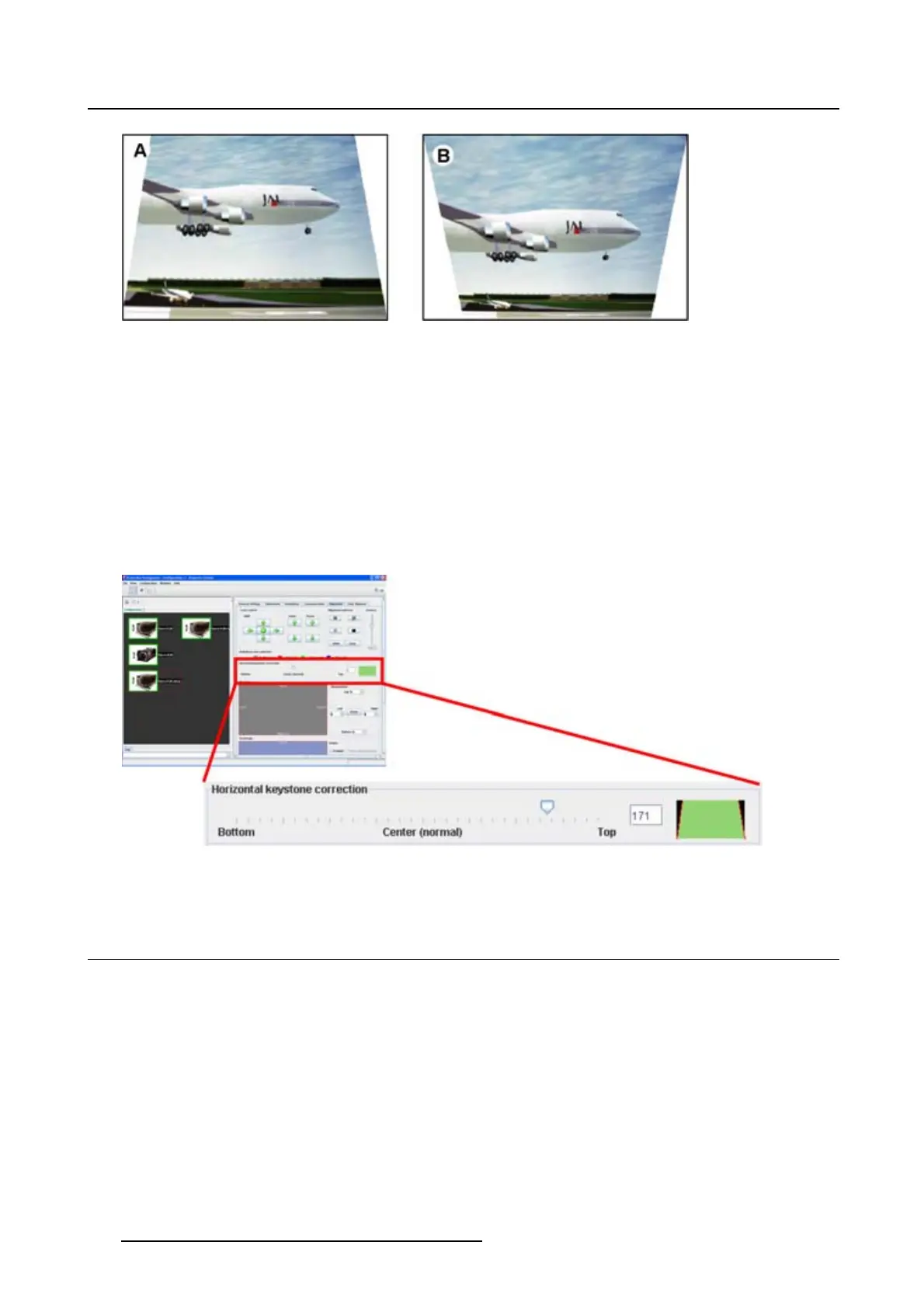
Image 7-9
Side keystone
A Keystone adjustment with positive values
B Keystone adjustment with negative values
How to adjust
1. Click on the slider, hold down the mouse button and drag the slider to the left (bottom correction) or the
right (top correction) until the desired keystone correction is obtained
Or,
click in the input fieldnexttothesliderandenterthedesiredvaluewiththekeyboard.
Value can change between - 255 and + 255. A negative value is a correction at the bottom side of the
image. A positive value is a correction at the top side of the image. (im
age 7-10)
Image 7-10
Keystone correction
7.6 Blanking adjustment
What can be done ?
Blanking adjustments affect only the edges of the projected image and are used to frame the projected
image on to the screen and to hide or black out unwanted information (or noise). A ’0’ on the bar scale
indicates no blanking.
Which blanking adjustments are available ?
• top blanking
• bottom blanking
• left blanking
• right blanking
98
R5976924 PROJECTOR TOOLSET 16/04/2009



 To Next Page