3. Menus
3. MENUS
Overview
• General
• Menu and button bar
• Main window
•Shortcutkeys
• Workspace Explorer
• How to adjust a setting
• About Projector Toolset
• Snapshot management
3.1 General
The right mouse button
The right mouse button is used in Projector Toolset for direct controls. The use of this button can be handy
throughout the complete software.
Ergonomics
Projector Toolset works on the principle of windows with adjustable sizes that can be positioned as you
like.
When Projector Toolset opens, it displays the main window along with the Menu and butt
on bar. The
drop-down menus include the usual functions of any software (File,etc.) and menus specific for Projector
To o lse t.
The button bar allows switching between the different modules.
An extra Workspace explorer window makes configuration management more easy.
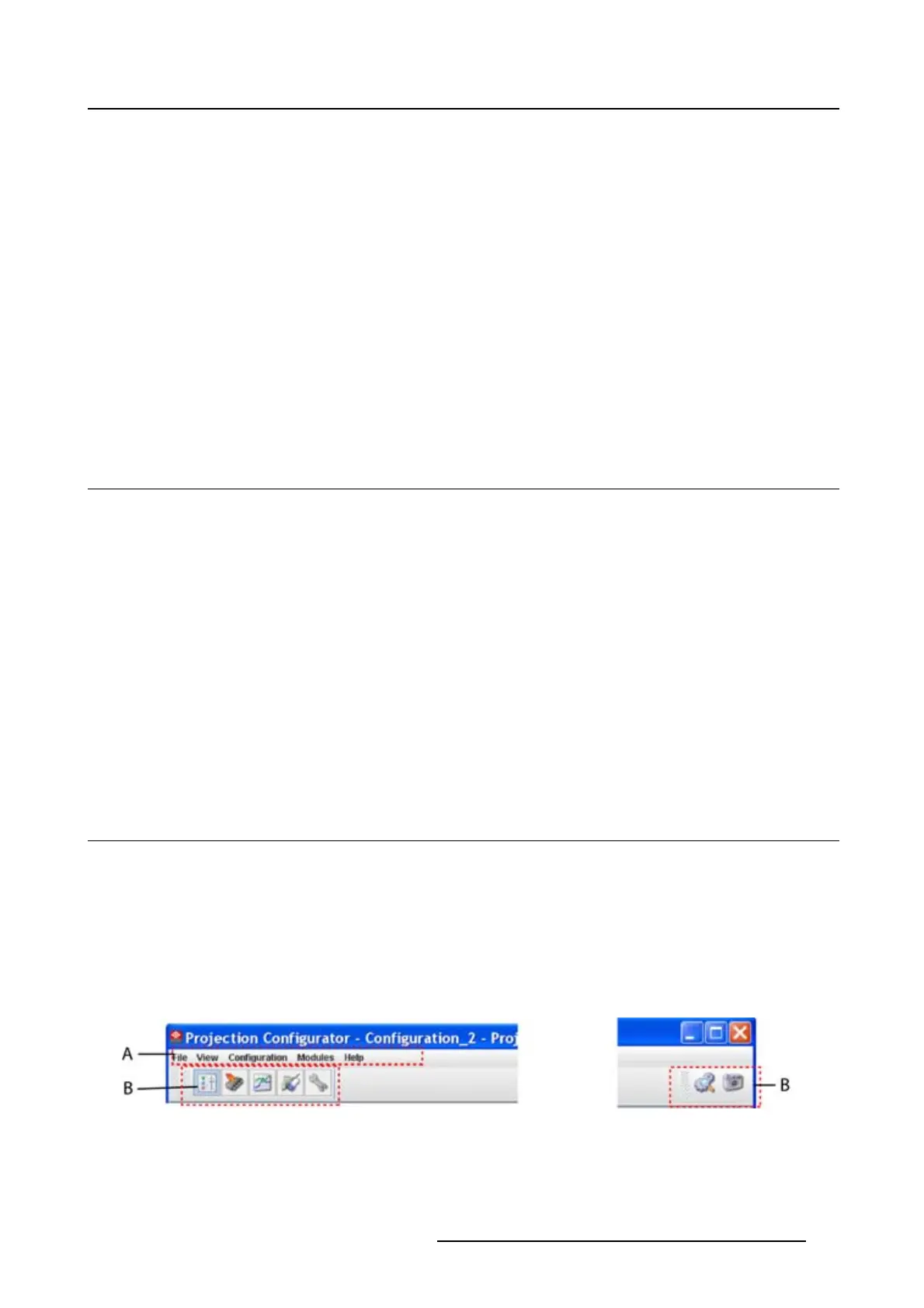
3.2 Menu and button bar
Structure
The menu contains drop down menus accessible by clicking with the mouse on an item. To select an item,
justclickonaniteminthedropdownlist.
The button bar contains on the left side navigation buttons to the different modules and on the right side
manage buttons to the workspace explorer and snapshot function
.
To activate a module, click on a navigation button. The window will change accordingly. When activating
some buttons, some extra items will be added to the menu.
Image 3-1
Menu and button bar
R5976924 PROJECTOR TOOLSET 16/04/2009 19



 To Next Page