8. Configurator, Projector adjustment settings
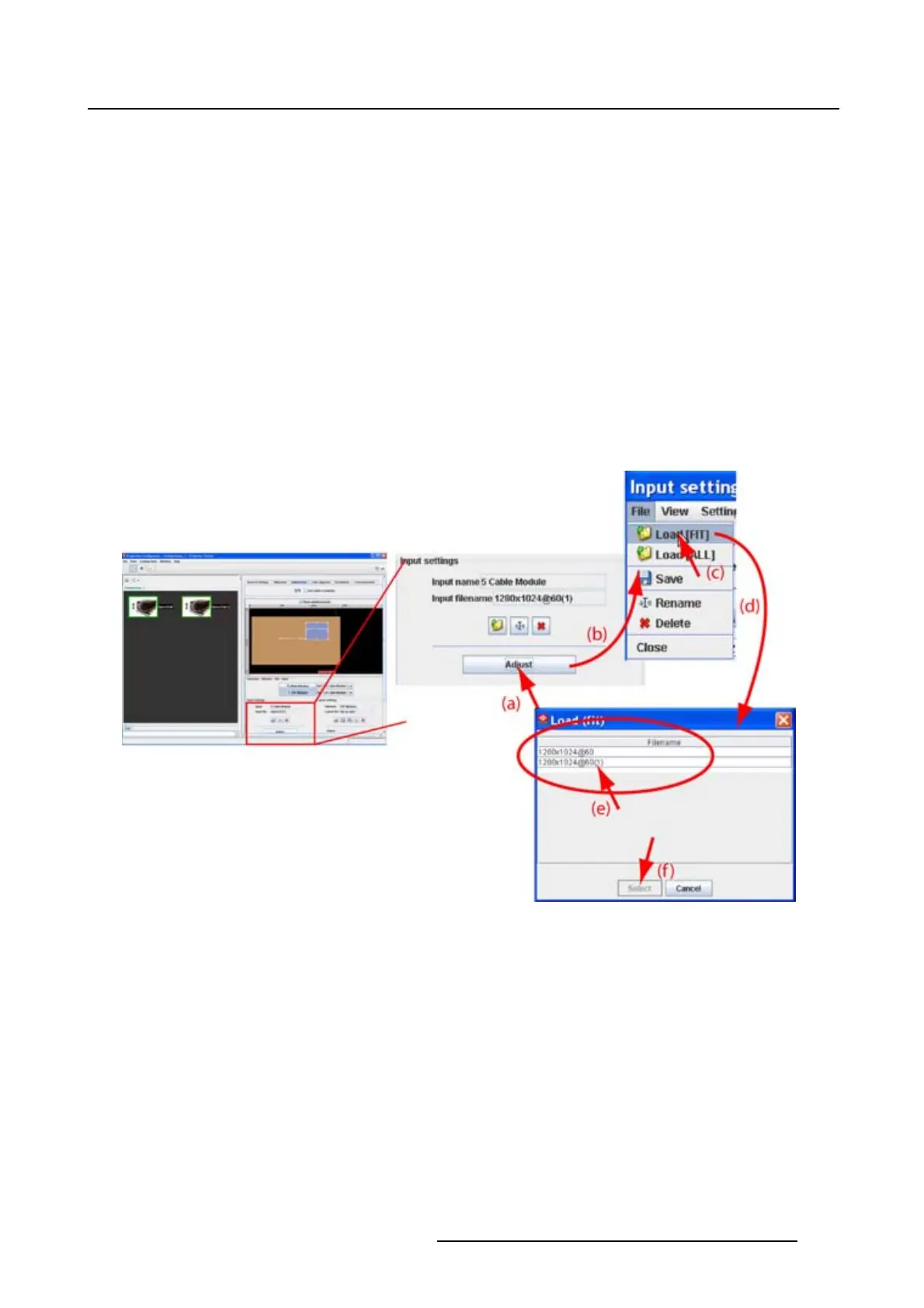
Load via the input window
1. Select first a window.
2. Click on Adjust (a). (image 8-11)
The Input dialog box is displayed (b).
3. Click File and select Load (FIT) (c).
Alistoffitting files is displayed in Load (fit) dialog box (d).
4. Select a file from the list (e).
5. Click Open or Select to load the selected fi le (f).
Whenastandardfile is selected or a not exactly matching custom source file, Projector Toolset will ask
to create a new custom file by copying the settings of the selected file into the custom file.
6. Click OK to create a new custom source file. If Cancel is pressed the previous selected file is loaded
again.
The new created filecanbeedited.
Image 8-11
Load fitting file
8.5.3 Load a file from all files
What is possible?
A file can be loaded from the complete list of all files.
How to load
1. Select first a window.
2. Click on Adjust (a). (image 8-12)
The Input dialog box is displayed (b).
3. Click File and select Load (ALL) (c).
A list of all fi lesisdisplayedinLoad (All) dialog box (d).
R5976924 PROJECTOR TOOLSET 16/04/2009
119



 To Next Page