BD FocalPoint™ GS Imaging System Instrument User’s Manual
100
11.1 Main Window
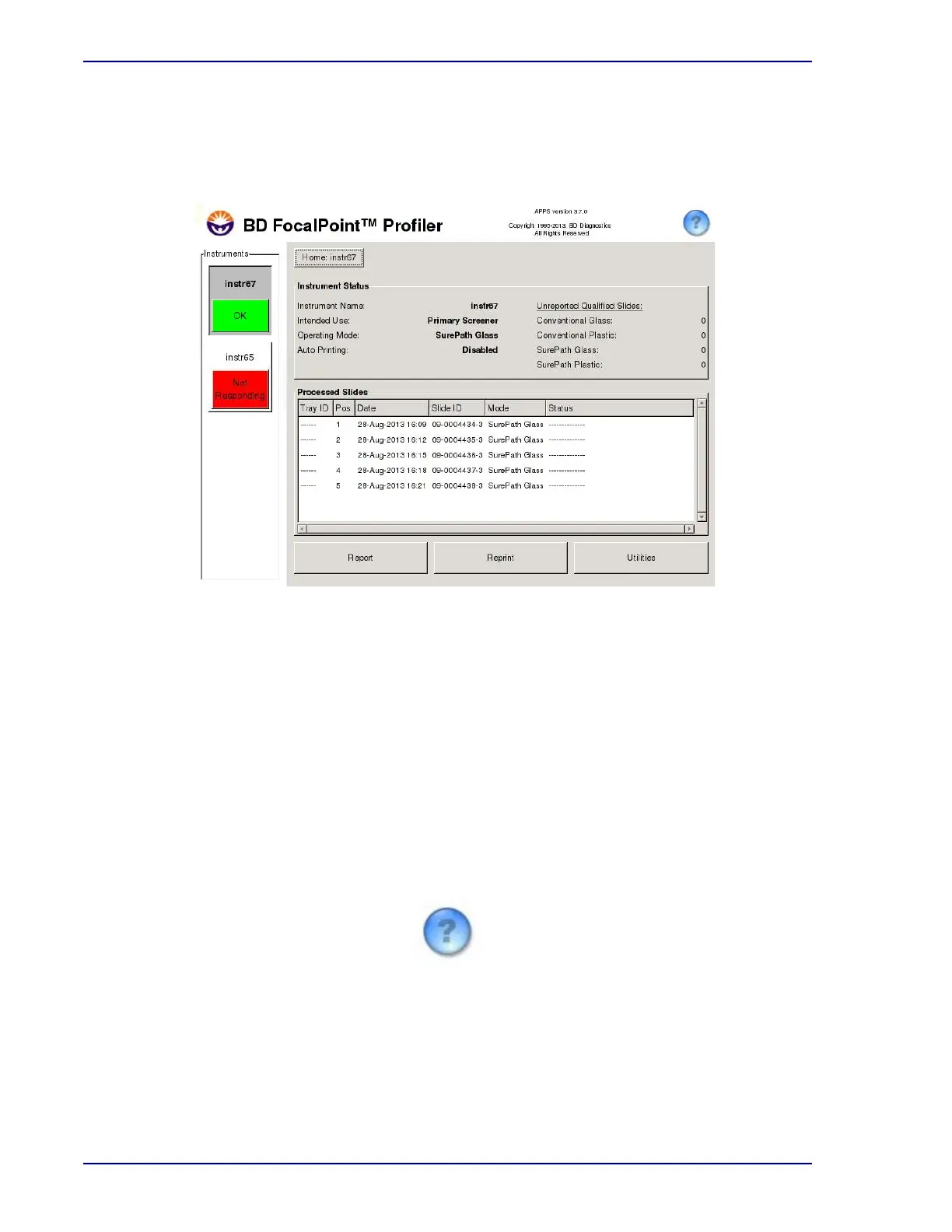
The BD FocalPoint™ Slide Profiler Main Window is the highest level window. That is, it appears
when the workstation software is started and it remains visible while performing various
screening tasks. Figure 11-1 illustrates a typical BD FocalPoint™ Slide Profiler Main Window.
Figure 11-1 – BD FocalPoint™ Profiler Main Window
The BD FocalPoint™ Slide Profiler Main Window shown above displays the status for up to four
BD FocalPoint™ instruments. In this example, instr67 is selected, indicating that the user can
print reports, eject trays, and so forth for that instrument. Only one instrument can be selected at
a time.
Each component of the Main Window is described in the following sections. In some cases,
cross references are provided to direct the user to a more complete description of a particular
component.
11.1.1 Help Icon
Click the icon (see Figure 11-2) featured in the top right corner of the Main Window
(see Figure 11-1) to display the online Help files. Each major window or menu contains a Help
icon. Choose Help at any time to display a window containing instructions and information
relevant to the task being performed.
Figure 11-2 – Help Icon



 To Next Page