BD FocalPoint™ GS Imaging System Instrument User’s Manual
32
3.5.3 Using the Navigation Buttons
Use the mouse to select Navigation. See Figure 3-10.
Figure 3-10 – Navigation Buttons
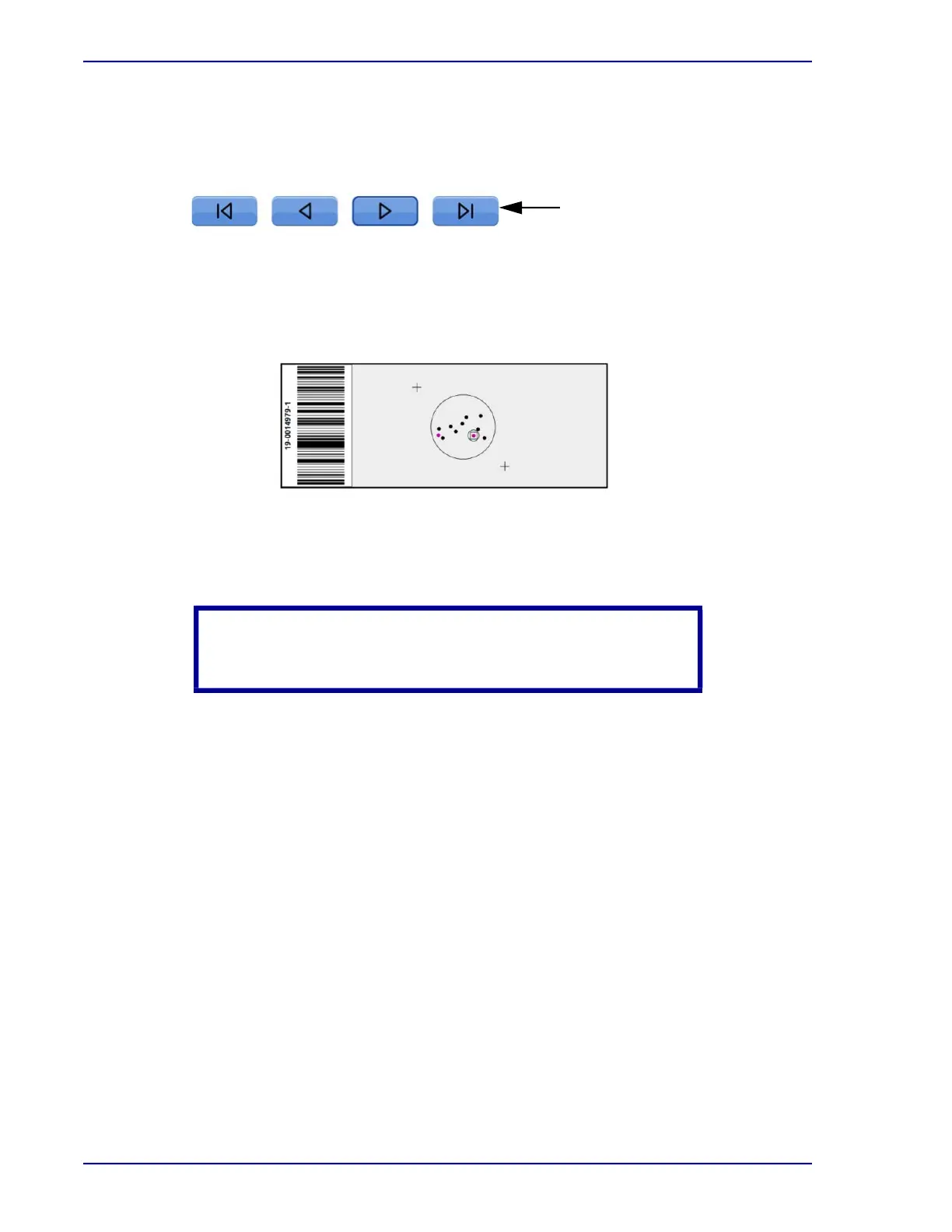
When advancing from FOV to FOV, the color of the dot on the slide map changes from black to
pink indicating the FOV has been reviewed. Refer to Section 5 for detailed information regarding
slide map color.
Figure 3-11 – Second FOV in the slide map
The manual microscope controls can be used at any time. If returning to FOV review is needed,
advance the mouse wheel and it will advance to the next FOV.
3.6 Screening and Triaging Slides
The cytotechnologist is responsible for evaluating the entire area displayed in the FOV at 10x
magnification as abnormal cells can be located outside the center area and along the edge of the
FOV. All FOVs must be reviewed regardless of whether an abnormality or cells of interest are
seen before the last FOV. If an abnormality is not identified in any of the FOVs and the slide is
satisfactory, the slide can be signed out. Evidence of abnormality or inadequacy requires that a
full manual review is performed (see Section 4).
CAUTION
All FOVs must be reviewed before performing full slide review.
Navigation
Buttons
First FOV
Back
Forward
Last FOV



 To Next Page