Customizing BD FocalPoint™ GS Review Station Lists
89
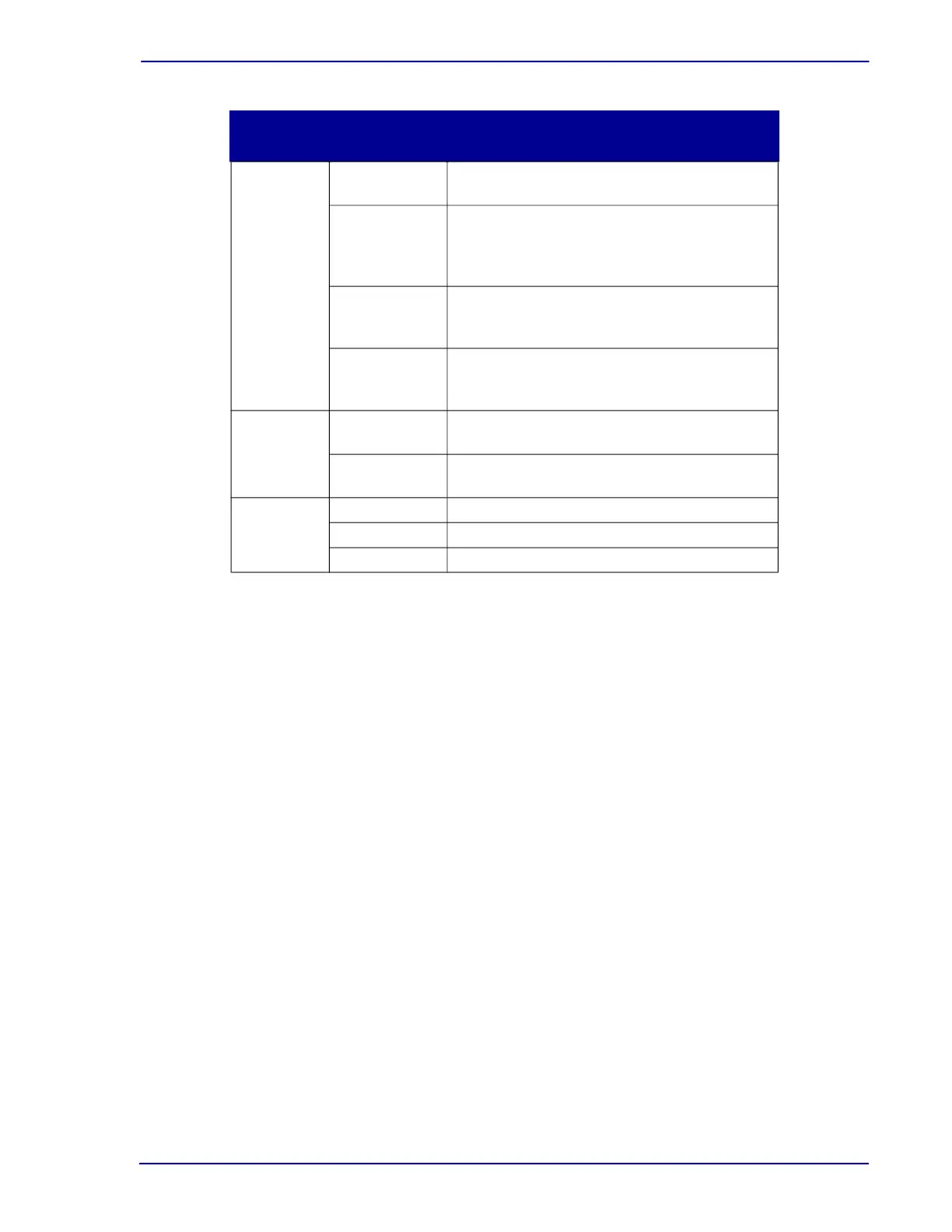
Table 9-1 – BD FocalPoint™ GS Administration Tool controls
The controls discussed in Table 9-1 are common to all four lists. The steps performed to add,
delete, or edit a list are essentially the same. All that differs is the name and type of list that is
being worked on. Consequently, one set of procedures is provided.
9.1.2 Revising the lists
To delete a type
1 Open the BD FocalPoint™ GS Administration Tool.
2 Click the list type button that corresponds to the desired list.
3 Position the cursor over the row that needs to be deleted, and click the left mouse button.
4 Click the Delete button.
The type will be removed from the list.
5 To close the window, either click Finish on the control panel, or click the Windows exit icon in
the top right corner.
List type
buttons
Annotation
Categories
This functionality has been disabled.
Organisms/
other Non-
neoplastic
Findings
Entries in this list are available as selections
in the Organisms/Other Non-Neoplastic
Findings drop-down box on the Evaluation
form.
Specimen
adequacy
Entries in this list are available as selections
in the Adequacy of specimen box on the
Evaluation form.
Interpretation/
Results
Entries in this list are available as selections
in the Adequacy of specimen box on the
Evaluation form.
Label and
description
Label This box specifies the name of the type or
category as it will appear in the user interface.
Description This box is used to describe the type or
category. Descriptions are optional.
Control
buttons
Insert Add a blank line before the current line.
Append Add a blank line after the current line.
Delete Remove the current line.
Group
Name
Control Associated Function



 To Next Page