Screening Slides
41
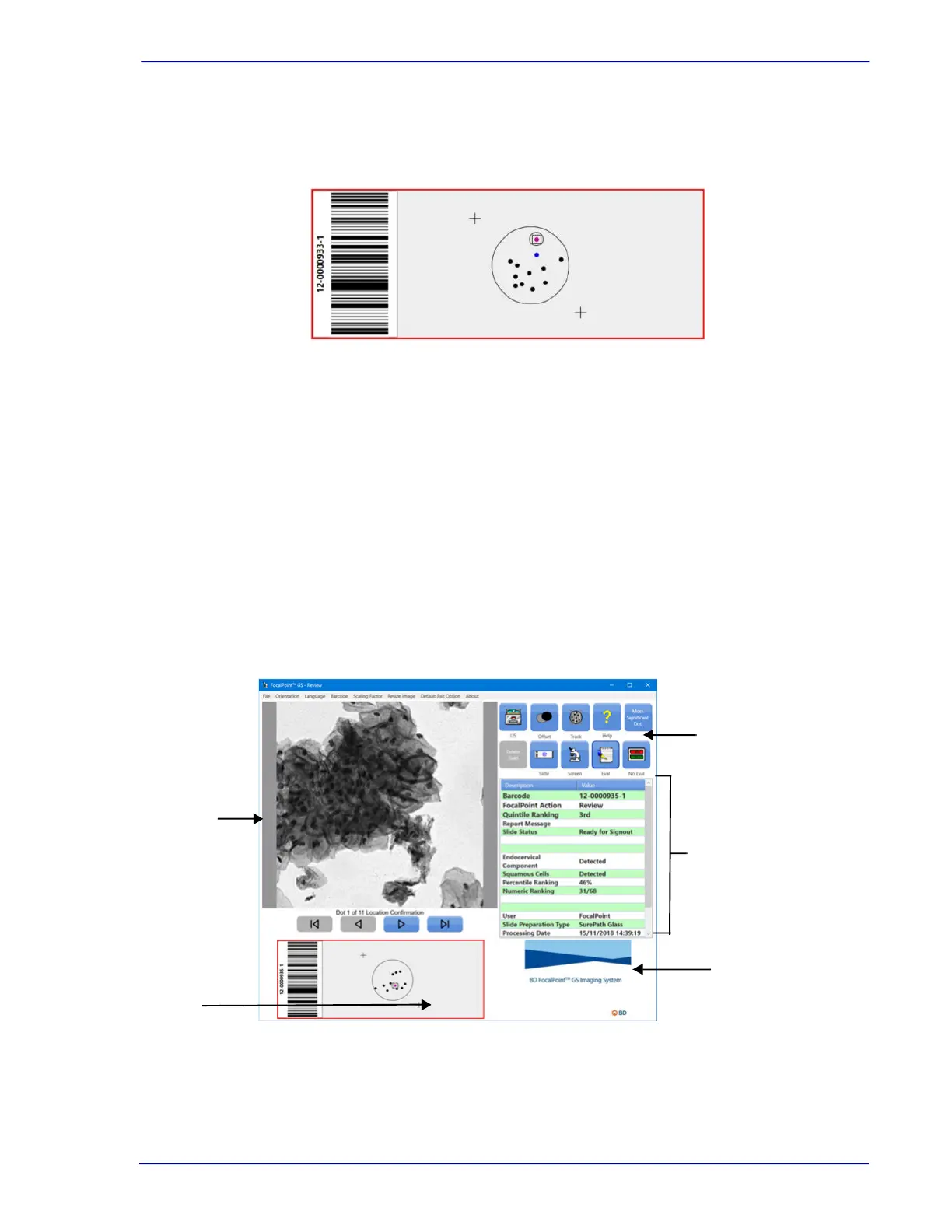
When adding an electronic dot, the BD FocalPoint™ GS Review Station adds a blue dot to the
slide map and saves the location coordinates. Figure 4-3 illustrates the BD FocalPoint™ GS
Review Station display as it appears when adding a new dot.
Figure 4-3 – Electronically added dot
To remove a dot, move the stage to that location and select the Delete key along the right side of
the control panel.
4.3 Screening Slides
4.3.1 BD FocalPoint™ Slide Profiler Processed Slides
To begin a full slide review in Screen mode for slides processed by the BD FocalPoint™ Slide
Profiler, use the following procedure.
1 Click the Screen button. This icon can be accessed from a number of windows:
• From the Slide Selection window (illustrated in Figure 3-7).
• From the toolbar (illustrated in Figure 3-8).
2 The main screening display appears as illustrated in Figure 4-4.
Figure 4-4 – Main screening display
Slide map
Primary image
area
History Panel
Secondary
image area
Toolbar



 To Next Page