BD FocalPoint™ GS Imaging System Instrument User’s Manual
78
8.1.2 Selecting the report type
Select the type of report to be created.
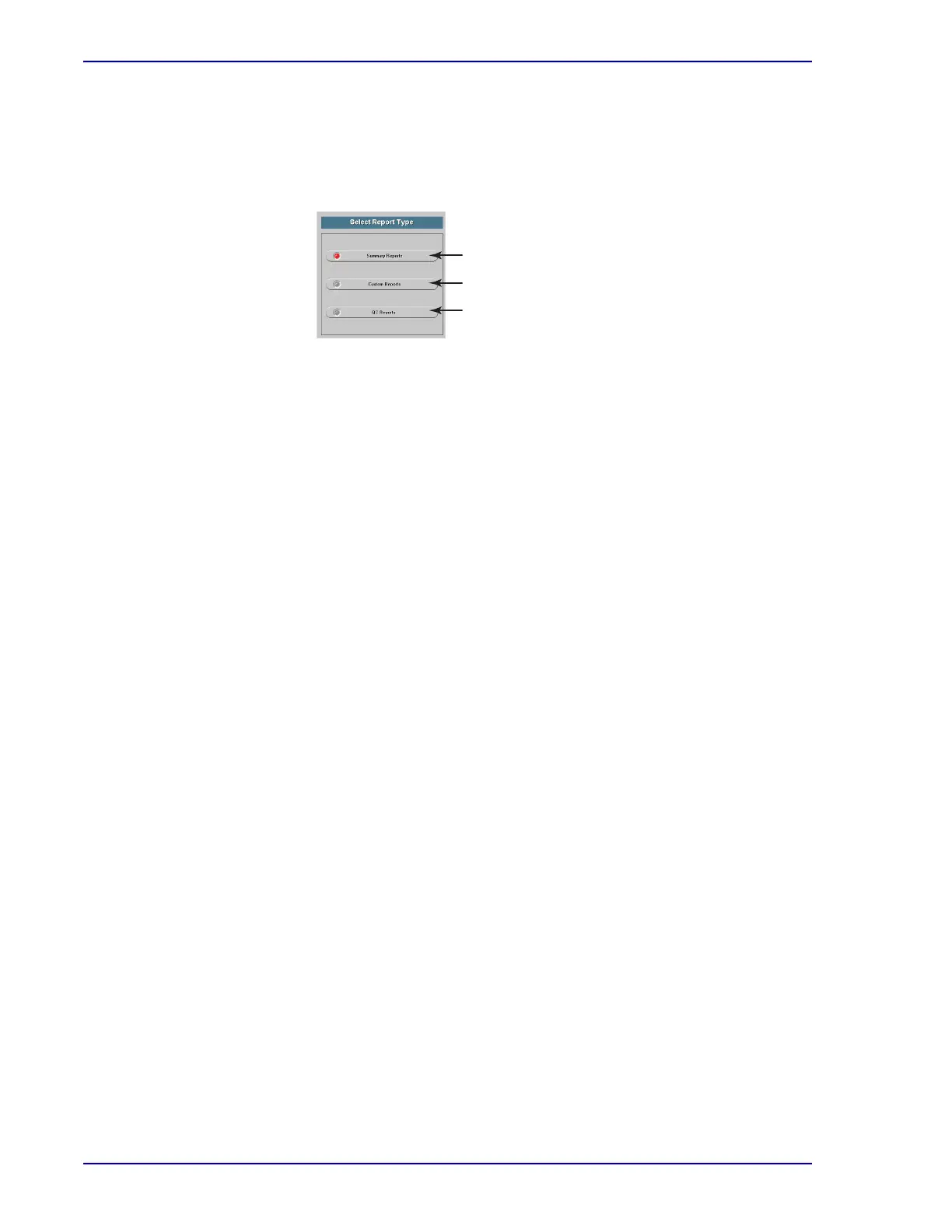
1 From the Report utility work flow panel, click the Select Report Type button.
The Select Report Type panel is displayed beneath the work flow panel.
Figure 8-2 – Select Report Type panel
2 Choose the type of report to generate. See Section 8.2 for details on the information
provided by each type of report.
8.1.3 Selecting the report style
From the report work flow panel, click the Select Report Style button.
The next set of choices depends on the report type selected:
• For a summary report, choose: monthly, weekly, daily, Archive/Eval Count or Discrepant
Evaluations.
• For a QC report, choose FocalPoint™ GS System Results - By Rank.
8.1.4 Previewing and printing the report
Select the report style to be created, and then from the report utility work flow panel, click
Generate Report.
A preview of the selected report (QC Report, sorted by Rank) is displayed on screen. Figure 8-3
illustrates an example of this preview.
Summary Reports
Custom Reports
QC Reports



 To Next Page