BD FocalPoint™ GS Imaging System Instrument User’s Manual
56
6.1.1 Enabling Enhanced QC
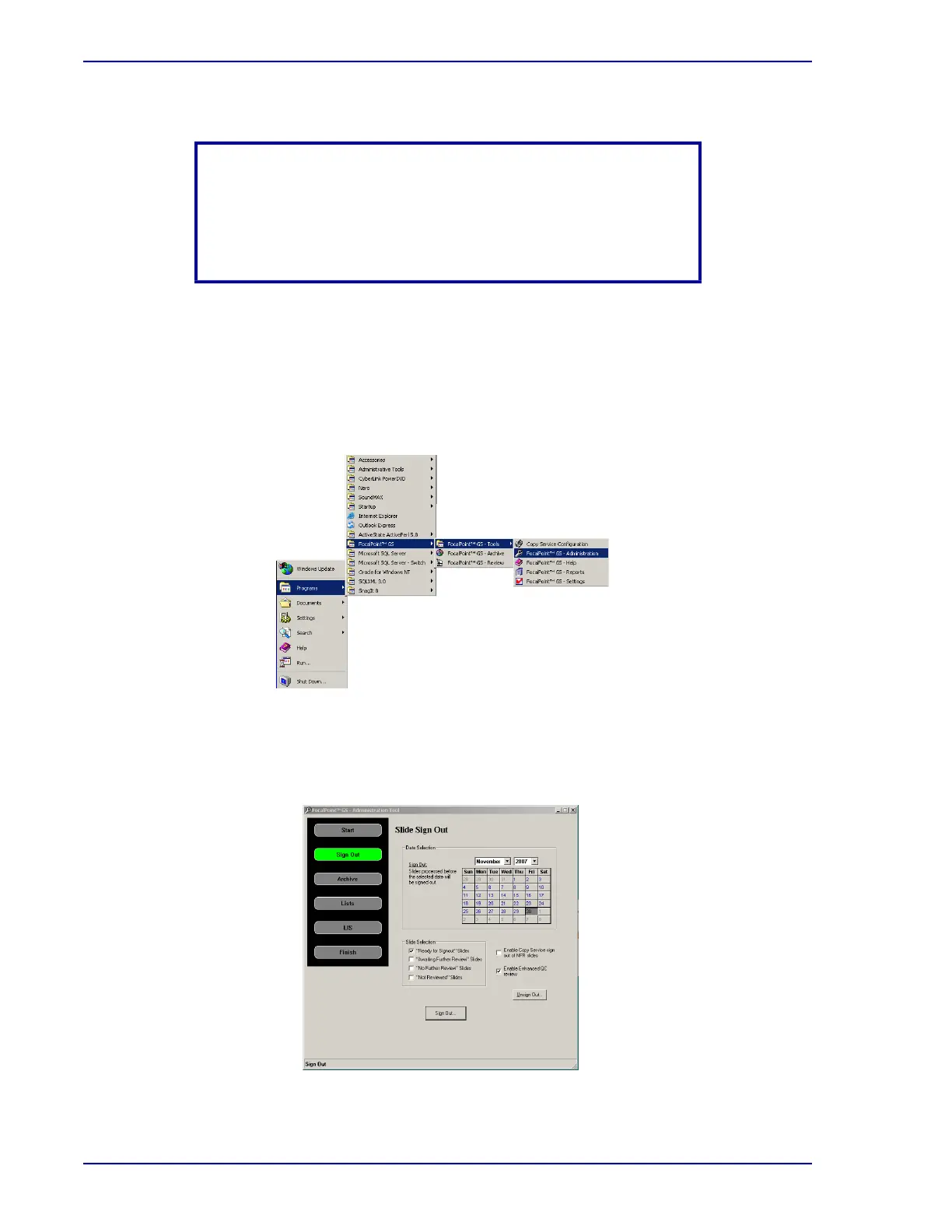
On the GS Server, to enable the Enhanced QC Review option, from the Start menu, Do the
following:
1 Select: Programs†FocalPoint™ GS†FocalPoint™ GS - Tools
FocalPoint™ GS - Administration (see Figure 6-2).
Figure 6-2 – Opening the Administration Tool
2 The BD FocalPoint™ GS Administration Tool main screen is displayed (see Figure 6-3).
From the main screen, select Sign Out.
Figure 6-3 – Enabling Enhanced QC review
NOTE
If the function is not enabled this message will not appear. All slides
(with status of RFS and QC Review) will be in the QC Mode slide
list. If Enhanced QC is disabled, all slides will have a green status
icon (see Table 5-3).



 To Next Page