BD FocalPoint™ GS Review Station MD and QC Modes
57
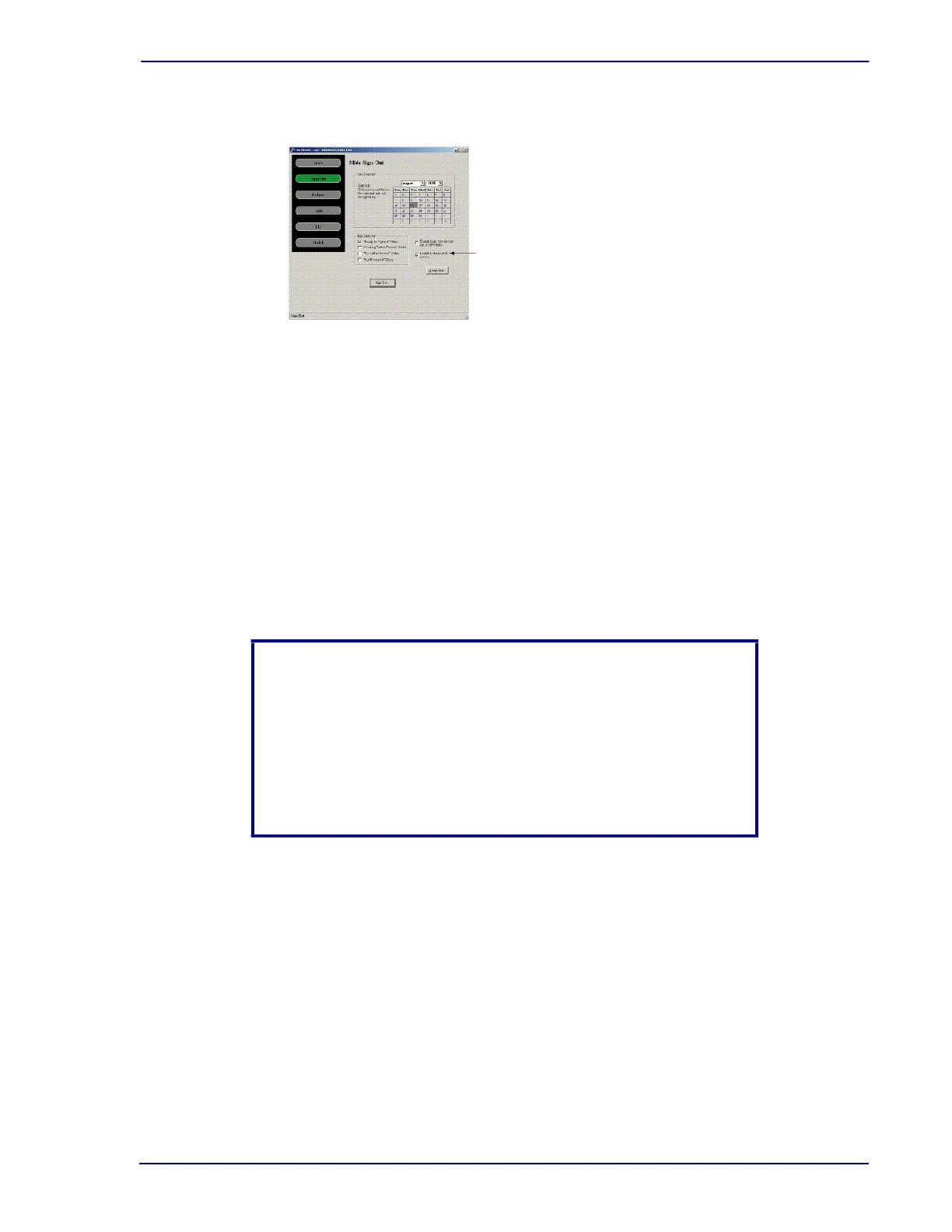
3 From the Slide Sign Out screen, check the Enable Enhanced QC review box.
Figure 6-4 – Enabling Enhanced QC review
4 Click Finish to exit the BD FocalPoint™ GS Administration tool.
When Enable Enhanced QC review is selected, after a slide's initial review, information is
provided whether or not it was selected by the BD FocalPoint™ Slide Profiler for QC review.
Slides selected this way are assigned the status Awaiting QC Review.
The QC application is the only means available for reviewing these slides on the
BD FocalPoint™ GS Review Station. Slides not selected for QC review will remain on the
Ready for signout list. To keep the list at a manageable size on the database server,
archive data at regular intervals. Details on how to manage the database are included in
Section 7.
If the slides are not selected for QC review they will remain on the RFS list. To keep the list at
a manageable size on the database server, archive data at regular intervals.
NOTE
After evaluation, QC review slides are indicated with a yellow
exclamation mark next to their slide ID in the slide list on the Slide
Selection window.
Although the BD FocalPoint™ Slide Profiler and status information
for these slides will be viewable while using the FocalPoint™ GS
Review mode, they can only be finalized using the BD FocalPoint™
GS Review Station’s QC application.
Enable/
disable
Enhanced QC



 To Next Page