55
6 BD FocalPoint™ GS Review Station MD and
QC Modes
In general, the MD and QC operating modes function identically to FocalPoint™ GS Review
mode. However, there are several important differences:
• The New Slide button is only available in Review mode.
• Only Awaiting Further Review slides and slides evaluated in MD mode as Ready
for
signout will show up in the slide list for MD mode.
• Only slides evaluated in FocalPoint™ GS Review or QC mode as Ready for signout or
those Awaiting QC Review will show up in the slide list for QC mode.
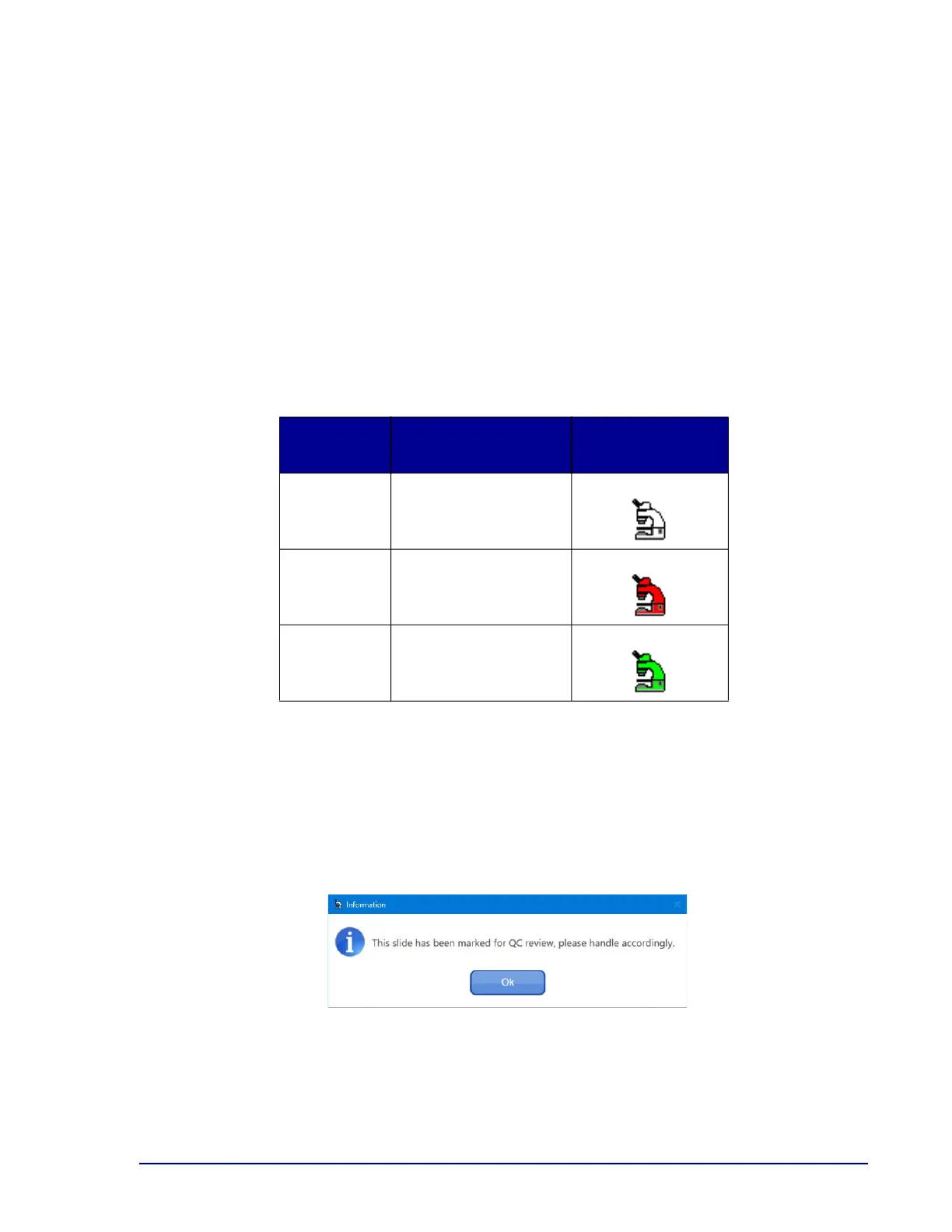
• User-created LOI dots and annotations appear in a mode-specific color, and evaluations
made in each mode create tabs with icons indicative of that mode (refer to Table 6-1).
Table 6-1 – Operating modes
6.1 Enhanced QC Review option
The enhanced QC option notifies the user of slides that the BD FocalPoint™ Slide Profiler
designated as QC Review. This option is enabled by default. This notification (see Figure 6-1)
occurs when the slide is assigned the Ready for Signout status. Slides designated Awaiting
Further Review are excluded from enhanced QC review.
Figure 6-1 – QC Review message
Operating
Mode
Color of added dots
History/Evaluation
tab icons
FocalPoint™
GS Review
When an LOI is added,
the dot that appears is
blue.
QC When an LOI is added,
the dot that appears is
red.
MD When an LOI is added,
the dot that appears is
green.



 To Next Page