BD FocalPoint™ GS Imaging System Instrument User’s Manual
216
27.2 Reports settings
In addition to the BD FocalPoint™ GS Review Station custom settings already discussed, there
is one more control that governs the performance of the BD FocalPoint™ GS Review Station.
This control is accessed via the FocalPoint™ GS - Reports utility.
1 Access the report utility:
• From the Windows desktop double click on the Report tool shortcut (contact your system
administrator to have the shortcut added to your desktop),
or
• From the Start menu, select Programs†FocalPoint™ GS†FocalPoint™ GS -
Tools†FocalPoint™ GS - Reports.
The report utility is displayed, the lower left corner displays the Report Setup button.
Figure 27-6 – Report Setup portion
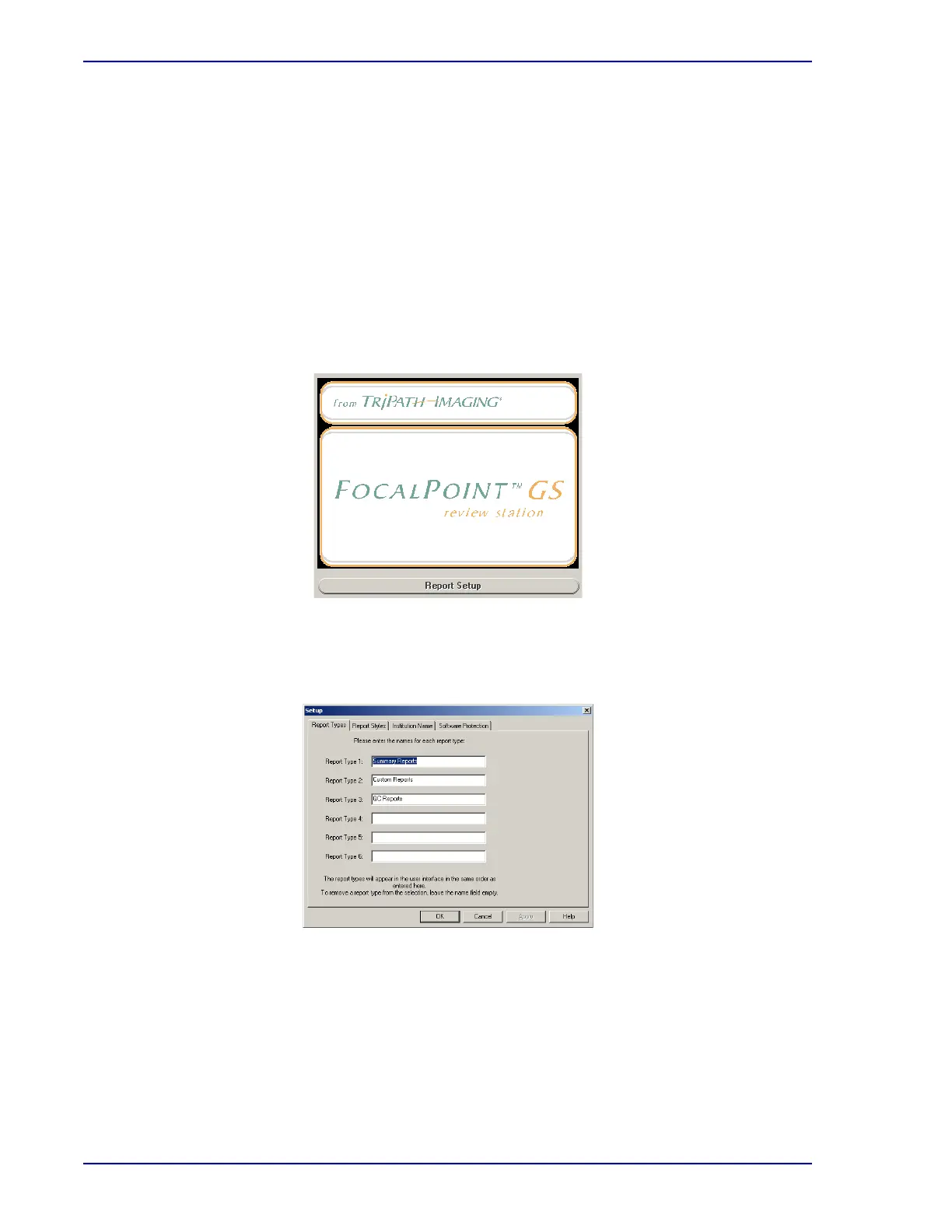
2 Click the Report Setup button.
The Report Setup dialog box is displayed.
Figure 27-7 – Report Setup dialog box
3 Click the Institution Name tab.



 To Next Page