BD FocalPoint™ GS Imaging System Instrument User’s Manual
106
5 Choose Back again to return to the Statistic Reports window; click on the question mark to
view the Help screen.
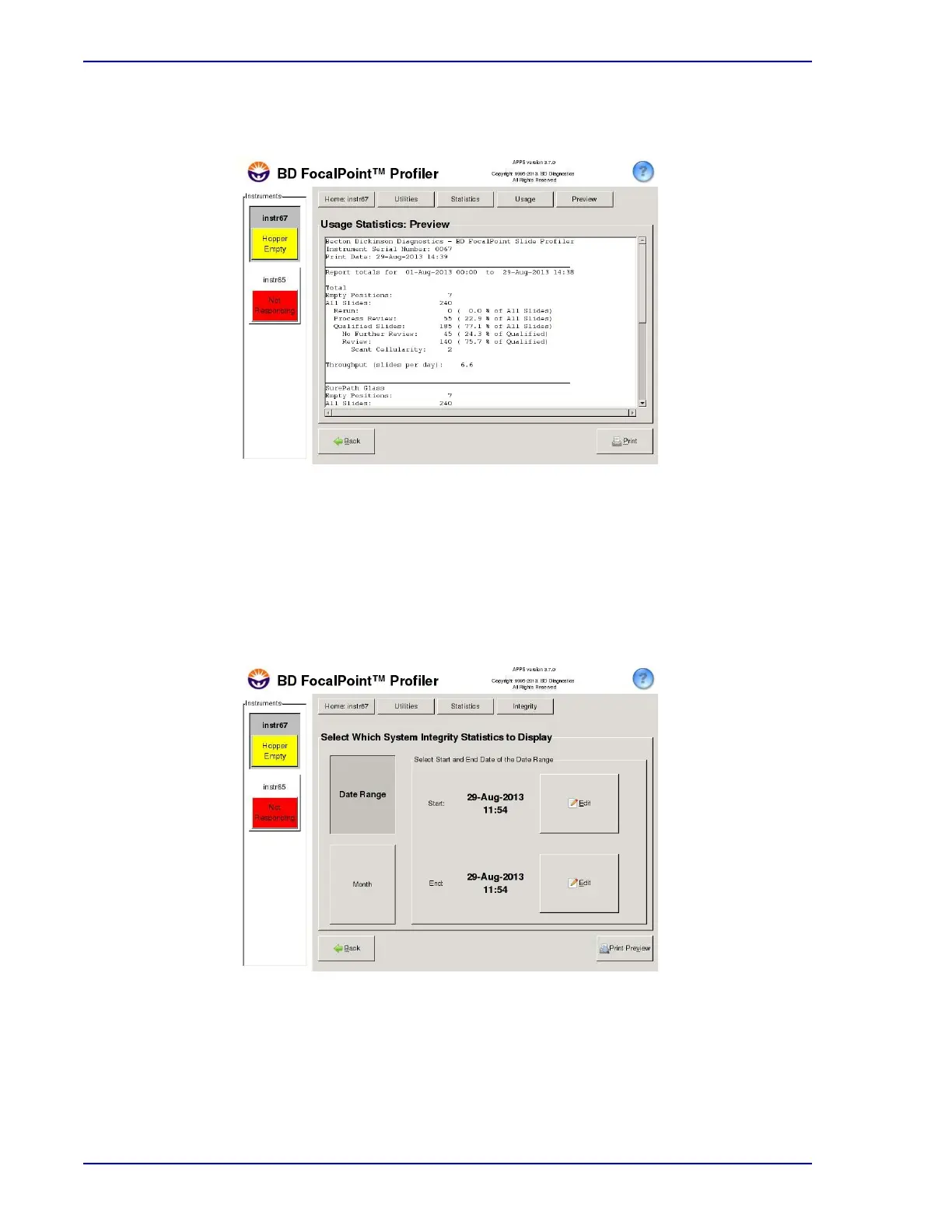
Figure 11-10 – Example of daily usage statistics
11.2.2 System Integrity
This command allows the user to monitor the system’s performance for quality assurance
purposes. For instructions on how to use these statistics to monitor the system’s performance,
see Tracking SI Results in Section 19.
To display the system integrity statistics:
1 Choose Statistics†System Integrity to display the window shown in Figure 11-11.
Figure 11-11 – View SI Statistics window
2 Click the appropriate button for the desired time period.
Time period choices are:
DateRange
— The system defaults to daily statistics and the current date. No action is required
to view the current day’s statistics. To specify a different date, select the
Edit
button in the
appropriate field (day, month, or year) and use the arrow buttons to select the desired date.



 To Next Page