Guided Screening
31
Perform additional offsets as needed.
In the event the unique object in the Location Confirmation FOV is markedly out of alignment,
consider a complete re-calibration. On the right side of the control panel select Slide. This
returns the user to the Slide Selection window. Select Calibration and start over (making sure
the Offset button is disabled).
3.5 Navigating Through FOVs
Remember, the Review button enables FOV review. If the slide has been successfully processed
on the BD FocalPoint™ Slide Profiler and FOV images are available, the system enables the
review mode.
Use the mouse, foot pedal or Navigation buttons to navigate to each FOV as described below.
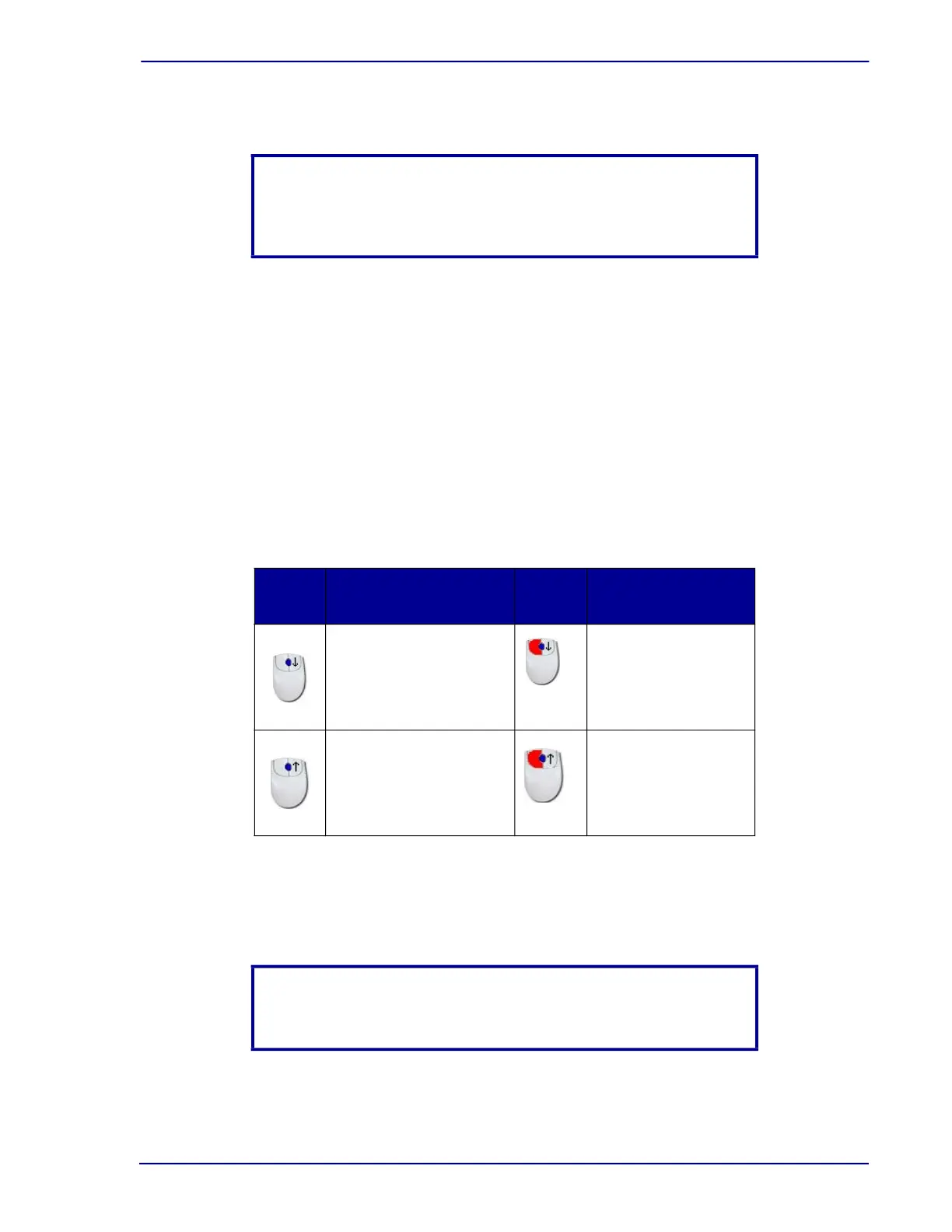
3.5.1 Using the Mouse to Navigate
Table 3-3 – Mouse action functions
3.5.2 Using the Foot Pedal to Navigate
Clicking the foot pedal moves the stage forward to the next FOV in sequence.
NOTE
The Offset button must be disabled when starting the calibration
process, or if need be, the recalibration process.
Mouse
Action
Function Performed
Mouse
Action
Function Performed
Move the mouse wheel
backward to move to the
previous field
While depressing the
left-mouse button,
move the mouse
wheel backward to go
back to the first field
Move the mouse wheel
forward to advance to
the next field
While depressing the
left-mouse button,
move the mouse
wheel forward to go
to the last field
NOTE
The foot pedal is an optional accessory.



 To Next Page