BD FocalPoint™ GS Imaging System Instrument User’s Manual
90
To add a new row to a list
1 Open the BD FocalPoint™ GS Administration Tool.
2 Click the list type button that corresponds to the list to be viewed or edited.
3 Position the cursor over the desired row, and click the left mouse button.
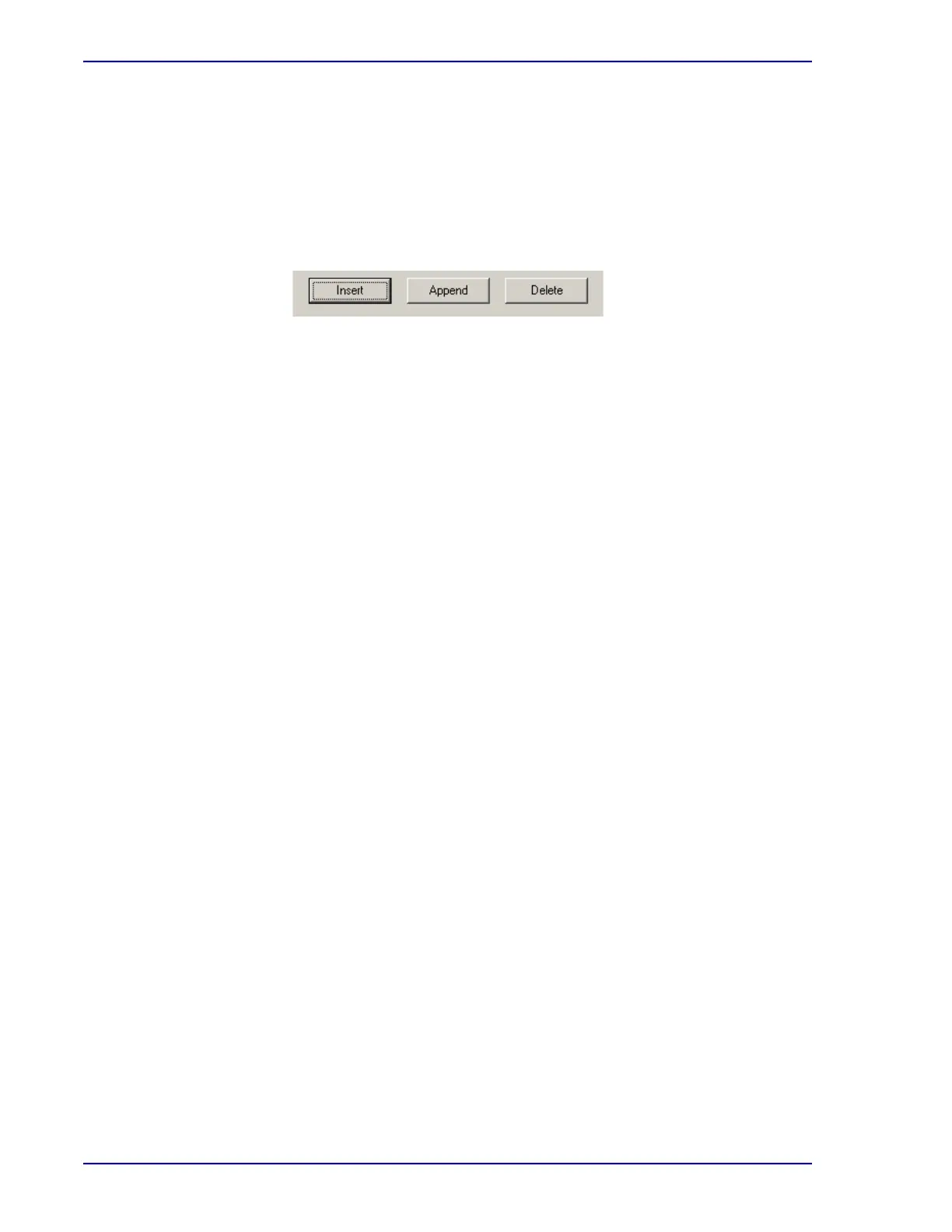
4 Click either the Insert or Append button.
An empty row will appear as illustrated in Figure 9-3.
Figure 9-3 – Adding a row to a list
5 Type in a label and optional description for the new type.
6 To close the window, either click Finish on the control panel, or click the Windows exit icon in
the top right corner.
To edit an existing type
1 Open the BD FocalPoint™ GS Administration Tool.
2 Click the list type button that corresponds to the list to be viewed or edited.
3 Edit the Label and Description boxes so that they contain the information for the type to be
changed.
4 To close the window, either click Finish on the control panel, or click the Windows exit icon in
the top right corner.



 To Next Page