My BERNINA
2 Introduction 23
Lock
Main Menu
►
Lock
With the Lock function, you can lock the screen and
the sewing functions. With the Lock Sewing
Functions function, the motor will be blocked and the
machine cannot be started.
1. To lock the screen, tap Lock
.
2. To unlock the screen, swipe up and tap Unlock
.
Settings
Main Menu
►
Settings
With the Settings function, you can open the
Settings directly. [}see page44]
Sewing
Main Menu
►
Sewing
With the Sewing function, you can open sewing
mode. [}see page49]
BERNINA Integrated Stitch Regulator
Main Menu
►
BERNINA Integrated Stitch
Regulator
With the BERNINA Integrated Stitch Regulator
menu entry, you can open the BISR Mode. [}see
page72]
Embroidery
Main Menu
►
Embroidery
With the Embroidery function, you can open
embroidery mode. [}see page79]
Help Center
Main Menu
►
Help Center
With the Help Center function, you can open the
Help Center. [}see page24]
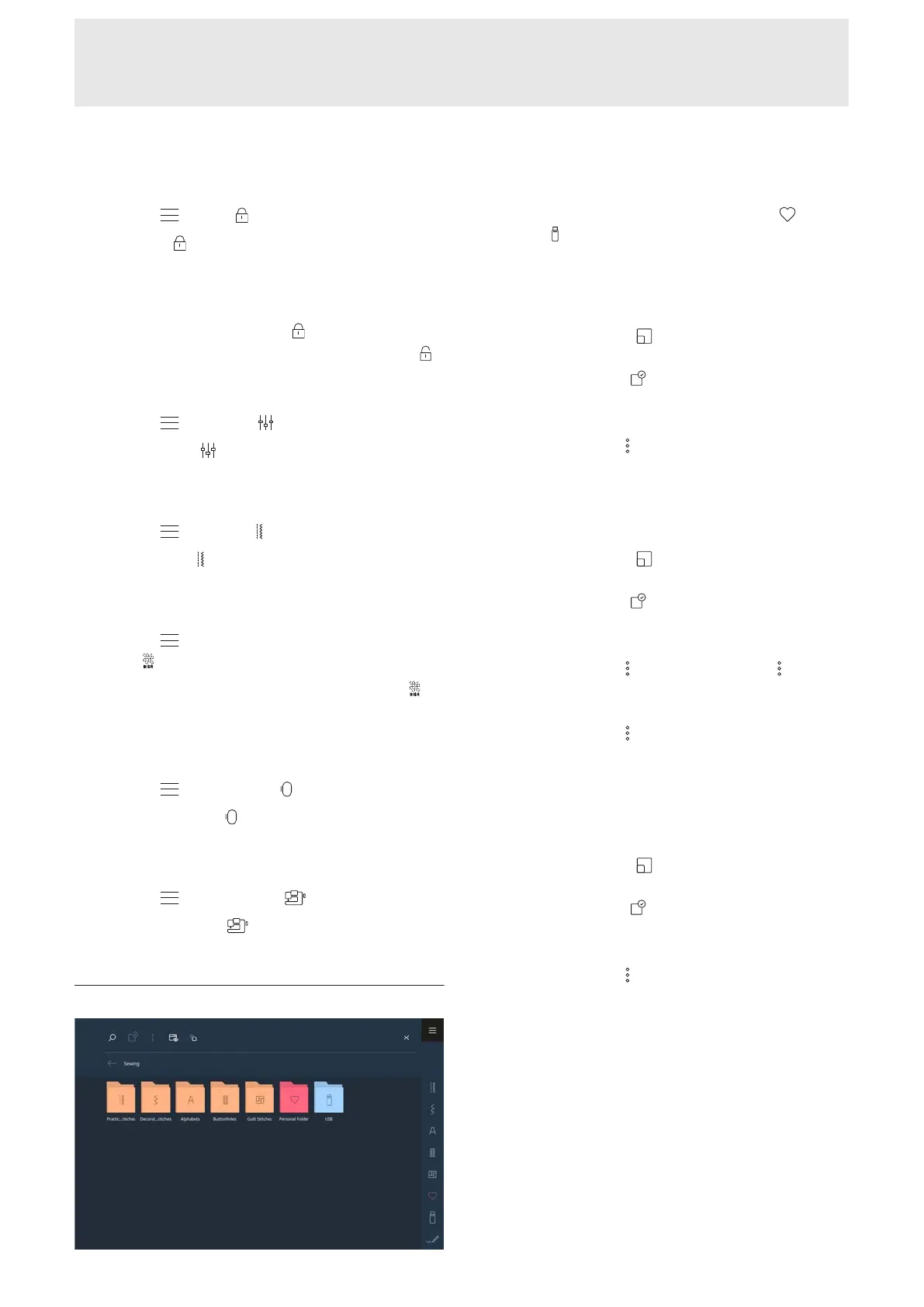
File Management
In the File Manager, you can manage your own stitch
patterns and designs in the Personal Folder
and
USB Stick
folders. You can create folders and move,
copy, rename and delete files and folders.
Renaming a File or Folder
1. Tap the Fullscreen
icon in the toolbar to
display the management options.
2. Tap the Selection
icon.
3. Tap the desired object.
ð The object is marked with a check mark.
4. Tap the Options
Rename icon.
5. Enter the name and confirm.
Copying or Moving a File or Folder
1. Tap the Fullscreen
icon in the toolbar to
display the management options.
2. Tap the Selection
icon.
3. Tap the desired objects.
ð The objects are marked with a check.
4. Tap the Options
►
Copy or Options
►
Cut
icons.
5. Navigate to the target folder.
6. Tap the Options
►
Paste icon.
ð As soon as the process is complete, a message
appears.
Delete Files or Folder
1. Tap the Fullscreen
icon in the toolbar to
display the management options.
2. Tap the Selection
icon.
3. Tap the desired objects.
ð The objects are marked with a check.
4. Tap the Options
►
Delete icon.
5. Confirm the query.



 To Next Page