Embroidery
12 Prepare and Edit Embroidery Designs 90
4. Select the Morph
or Fit option.
ð The design is placed inside a bounding box.
5. To maintain the size of the embroidery design,
activate the Retain Size
function.
6. If necessary, set a margin spacing from the grid.
Borders
Embroidery
►
Edit
►
Position
►
Endless
Embroidery
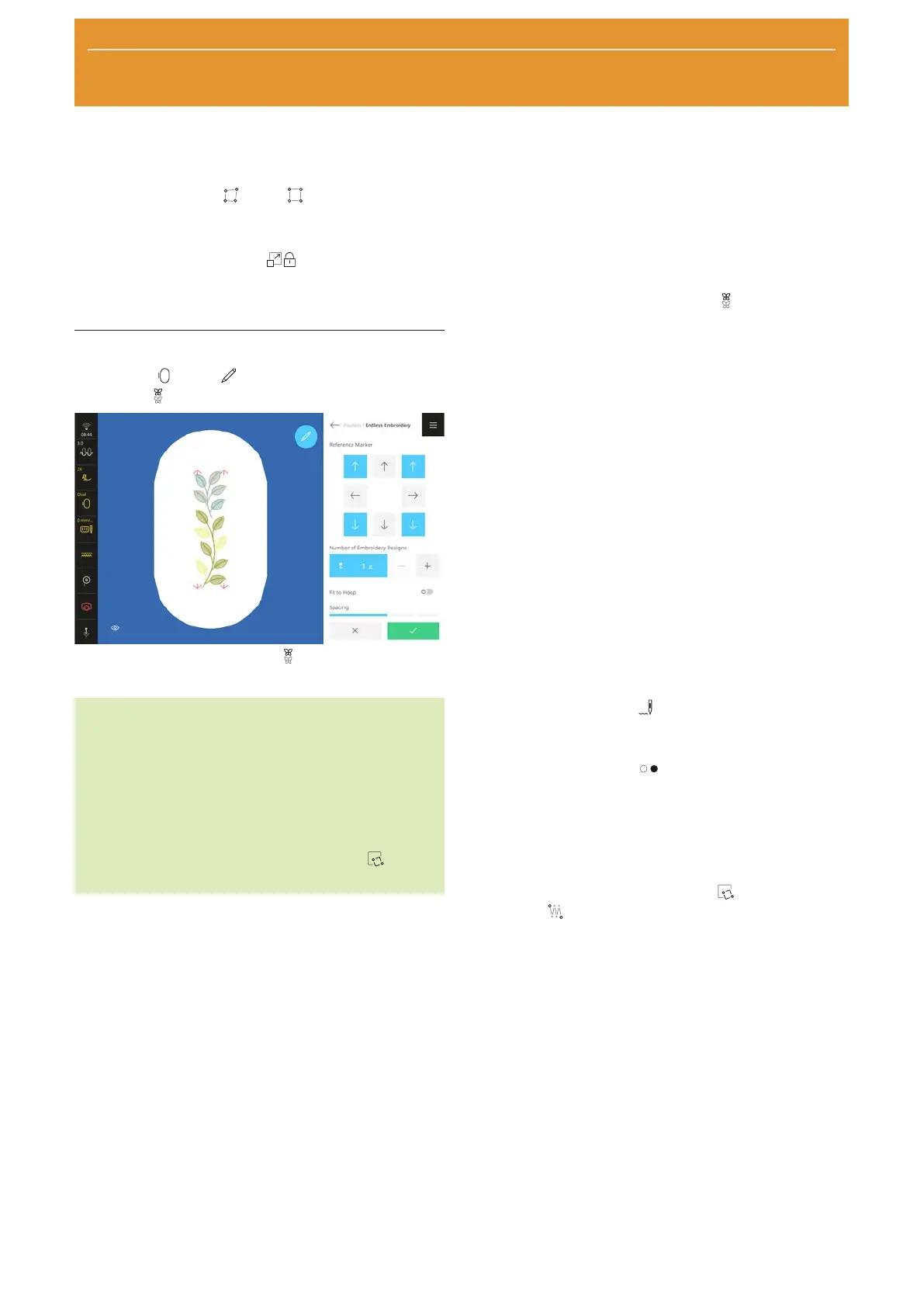
With the Endless Embroidery function, you can
stitch combinations that are longer than the hoop.
TIP
n Using a larger hoop will require less re-hooping.
n To help keep the designs straight, draw guide
lines on the fabric and use the template for
clamping and re-hooping. Make sure that the
guide lines run parallel to the lines of the
template. You can also reposition the embroidery
design using the Pinpoint Placement
function.
Creating Borders
Prerequisite:
n A hoop with the hooped project is attached.
1. Select an embroidery design.
2. Select the Endless Embroidery
function.
ð The embroidery design is multiplied to match
the hoop.
ð Marker positions are inserted.
3. If necessary, insert additional marker positions. The
marker points are also embroidered and help to
align the project when rehooping.
4. If necessary, enter the number of repetitions of the
embroidery design.
5. If necessary, adjust the size of the embroidery
design so that it fits into the hoop.
6. If necessary, adjust the spacing between the
embroidery designs.
7. Confirm settings.
Endless Embroidery
Prerequisite:
n A hoop with the hooped project is attached.
1. With the Stitchout
function, open the
Stitchout Summary screen and confirm the
settings.
2. Use the Start/Stop
button to start stitching
out.
3. Once the embroidery design has been fully stitched
out, remove the hoop and re-hoop the fabric so
that the stitched-out marker positions are located
in the upper embroidery area of the hoop.
4. Using the Pinpoint Placement
►
Free
Point
function in the embroidery design,
connect at the stitched marker postions. [}see
page86]
5. Continue stitchout.
6. Repeat these steps until the required length of the
trim has been achieved.



 To Next Page