Embroidery
12 Prepare and Edit Embroidery Designs 87
the embroidery design while doing so in order to
ensure that it is correctly stitched, even if the fabric is
not clamped straight. [}see page88]
Endless Embroidery
Embroidery
►
Edit
►
Position
►
Endless
Embroidery
With the Endless Embroidery you can stitch combi-
nations that are longer than the hoop. Reference
markings can be programmed and stitched, which are
useful for repositioning the hoop after re-hooping. You
can also create combinations of designs and stitch
patterns, duplicate them and use them to fill the area
of the hoop, e.g. as a patterned background for an
embroidery project. [}see page90]
Show Start/Stop
Embroidery
►
Edit
►
Position
►
Show Start/
Stop
With the Show Start/Stop function, you can
display the first and the last stitch of each individual
embroidery design in the design preview.
n Green: First stitch
n Red: Last stitch
Flip Start/Stop
Embroidery
►
Edit
►
Position
►
Flip Start/Stop
With the Flip Start/Stop function, you can reverse
the stitch sequence of Customizable Quilt Designs.
Changing the Colors
Embroidery
►
Edit
►
Edit
►
Colors
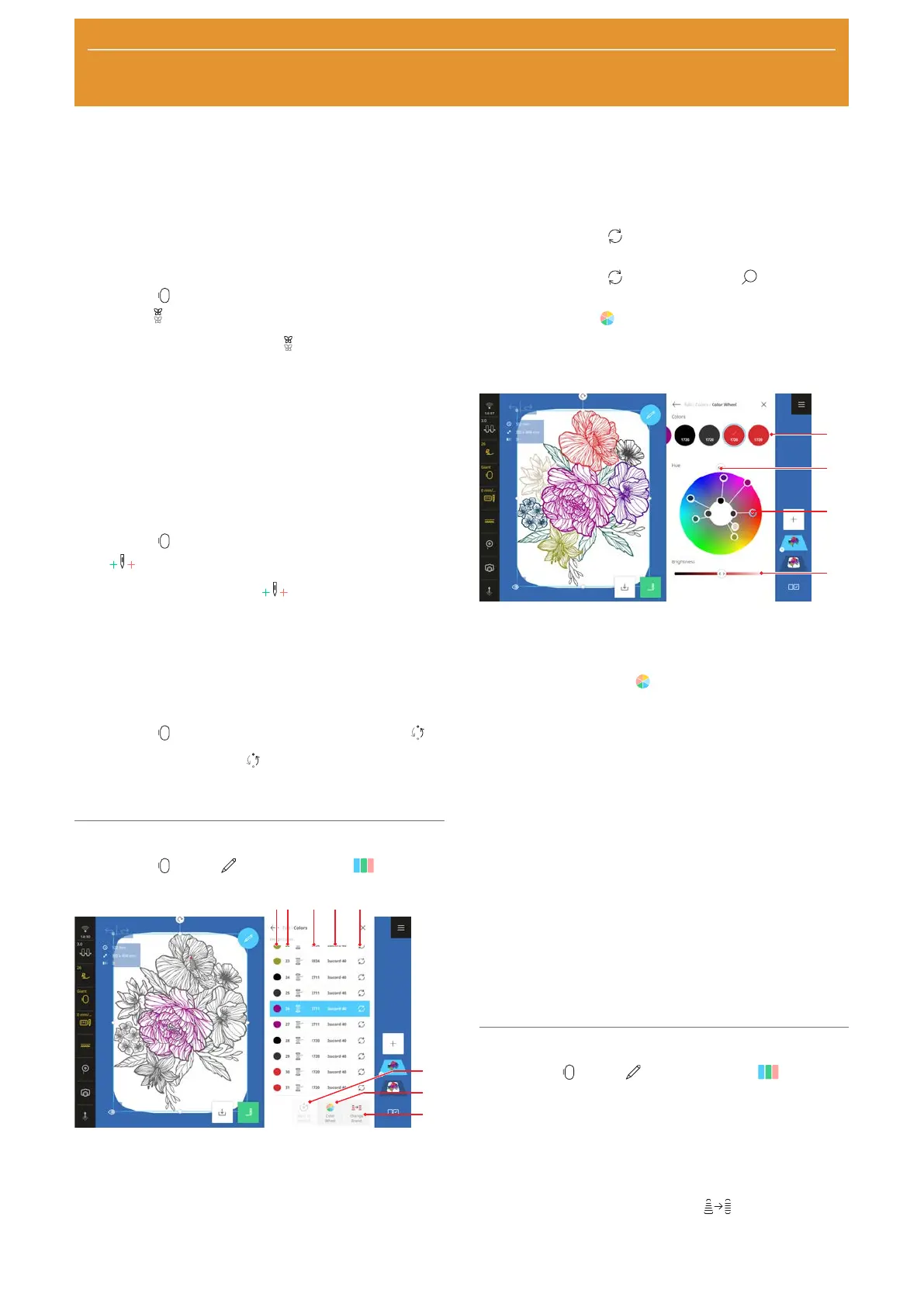
1Color 2Embroidery Sequence 3Color Number
4Thread Brand 5Change Color 6Back to Default
7Color Wheel 8Change Brand
There are the following options available for changing
a color in an embroidery design:
n Change Color
: Select a color from a color
palette.
n Change Color
: Use the Search function to
search for a color by color number.
n Color Wheel
: Modifying colors with the color
wheel.
Modifying Colors with the Color Wheel
1Color Bar 2Slider Hue 3Selected Color
4Brightness
With the Color Wheel
function, you can change all
the colors in an embroidery design simultaneously or
modify each color separately.
1. Select the color to be changed in the color bar.
ð The selected color is highlighted in the color
wheel.
2. To modify the hue of all colors, turn the color
wheel with the Hue control.
3. To change the hue of an individual color, pull the
highlighted color in the color wheel to the desired
point.
4. To change the brightness of the selected color,
move the Brightness control.
ð The changes are displayed in the color bar and
in the design preview.
Change Thread Brand
Embroidery
►
Edit
►
Edit
►
Colors
The embroidery designs are programmed with the
Isacord 40 thread brand. If you would rather work with
embroidery threads from other brands, you can change
the thread brand.
1. To change the thread brand for all threads in the
layer, tap the Change Brand
icon and select
the thread brand from the list.



 To Next Page