Sewing
4 Sewing Screen 51
TIP
Toggle the light on/off to make it easier to insert the
Bobbin Case when the Slide-on Table is attached.
Camera
The Camera
icon shows the status of the camera.
n White: Camera off.
n Yellow: Camera on.
n Red: Camera not available.
You can switch the camera on and off for a live image
of the sewing area by tapping the icon.
Laser
The Laser
icon shows the status of the laser.
n White: Laser off.
n Yellow: Laser on.
By tapping the icon, you can switch the laser on and
off.
The laser indicates the next stitch point in sewing mode
and the exact needle position in embroidery mode.
Depending on the presser foot and needle position, the
entry point may be concealed by the presser foot. To
avoid the deflection of the laser with transparent
presser feet, you can lower the presser foot before the
sewing start, e.g. with the Knee Lifter.
4.2 File Manager
In the File Manager, you can load and manage stitch
patterns. The File Manager is opened when you tap a
stitch patttern category, the tabs Personal Folder
and USB Stick in the Quick Access Bar.
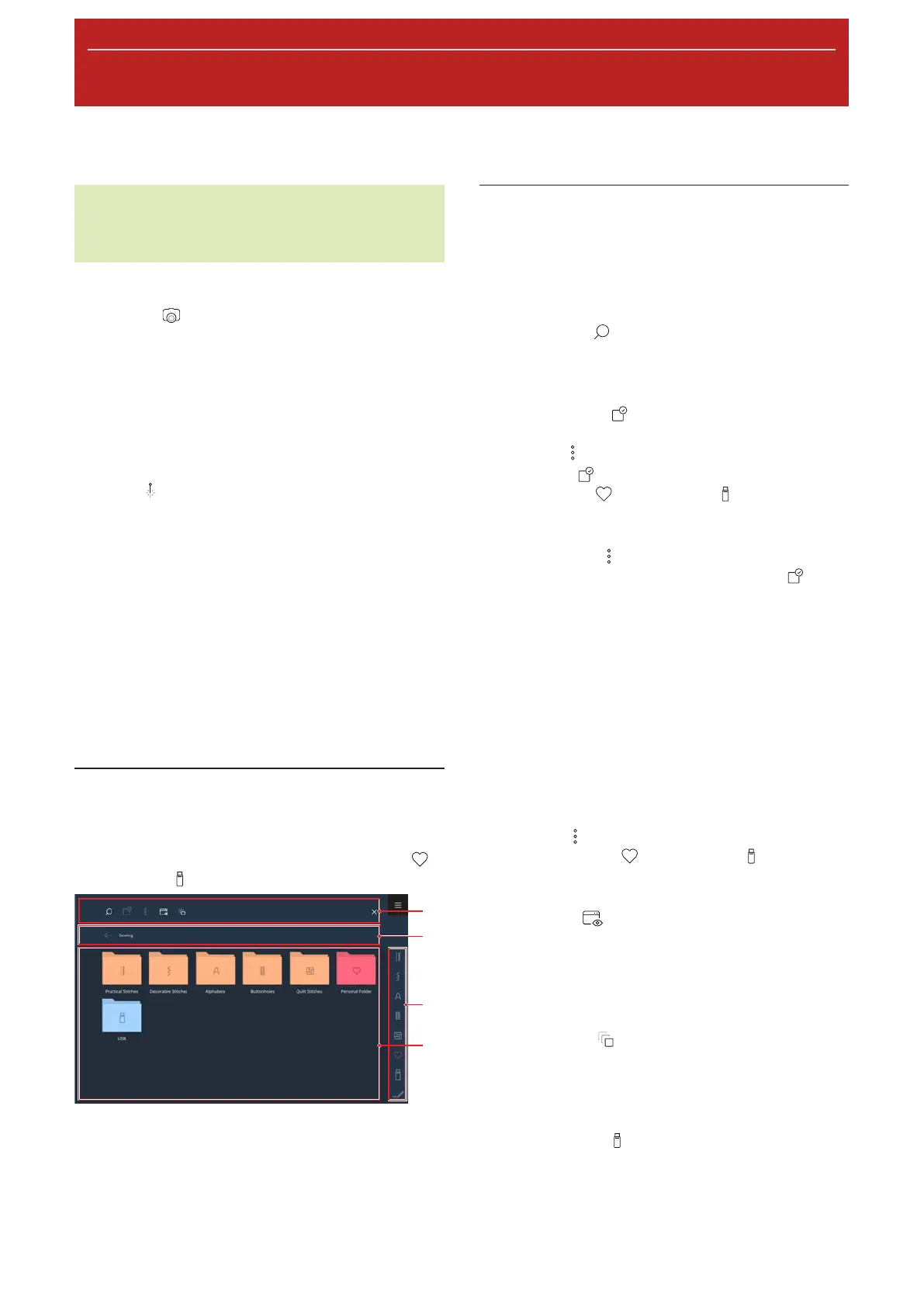
1Toolbar 2Navigation Bar 3Quick Access Bar
4Selection Area
Toolbar
In the toolbar, you will find functions for searching for
files, adjusting the view and managing your own files in
your Personal Folder and on a USB stick.
Search
With the Search
function, you can search for stitch
patterns by stitch number.
Selection
With the Selection
function, you can select folders
or files that you wish to manage using a function from
the Options
menu.
The Selection
function is only available for the
Personal Folder
and USB Stick folders.
Options
With the Options
menu, you can manage the
selected file(s) or folder(s) using the Selection
function.
n Rename: Renaming a File or Folder [}see page23]
n Cut: Cut File(s) or Folder(s). [}see page23]
n Copy: Copy File(s) or Folder(s). [}see page23]
n Paste: Paste cut or copied File(s) or Folder(s). [}see
page23]
n New Folder: Create New Folder.
n Information: Show preview and further infor-
mation on the stitch pattern.
n Select All: Select all displayed File(s) and Folder(s).
n Delete: Delete File(s) or Folder(s). [}see page23]
The Options
menu is only available for objects in
the Personal Folder
and USB Stick folders.
View
With the View
function, you can switch the view
in the selection area between grid and list view. In the
grid view, you can choose between large and small
icons.
History
With the History
function, you can display and
choose the most recently sewn stitch patterns. The
History is retained after restarting the machine.
USB Stick
With the USB Stick
function, you can switch
between your Personal Folder and the USB Stick in the
selection area.
This function is only available if a USB stick is inserted.



 To Next Page