Embroidery
12 Prepare and Edit Embroidery Designs 85
Colors
Embroidery
►
Edit
►
Edit
►
Colors
With the Colors function, you can display and
modify the colors and thread brands of the selected
layers.
The following functions enable you to edit the thread
brand and the color:
n Change Color
: Modify the color and thread
brand of the selected color. [}see page87]
n Back to Default
: Reset all changes to default
settings.
n Color Wheel
: Modify all colors at the same
time or modify colors individually. [}see page87]
n Change Brand
: Modify the thread brand for
all colors simultaneously. [}see page87]
Shape Designer
Embroidery
►
Edit
►
Edit
►
Shape Designer
With the Shape Designer function, you can
arrange the selected layers around a shape, e.g. around
a circle. You can change the arrangement to create
unique embroidery design combinations. [}see
page88]
Delete
Embroidery
►
Edit
►
Edit
►
Delete
With the Delete function, you can delete the
selected layers.
TIP
You can also drag and drop selected layers out of the
layer bar to the left to remove them.
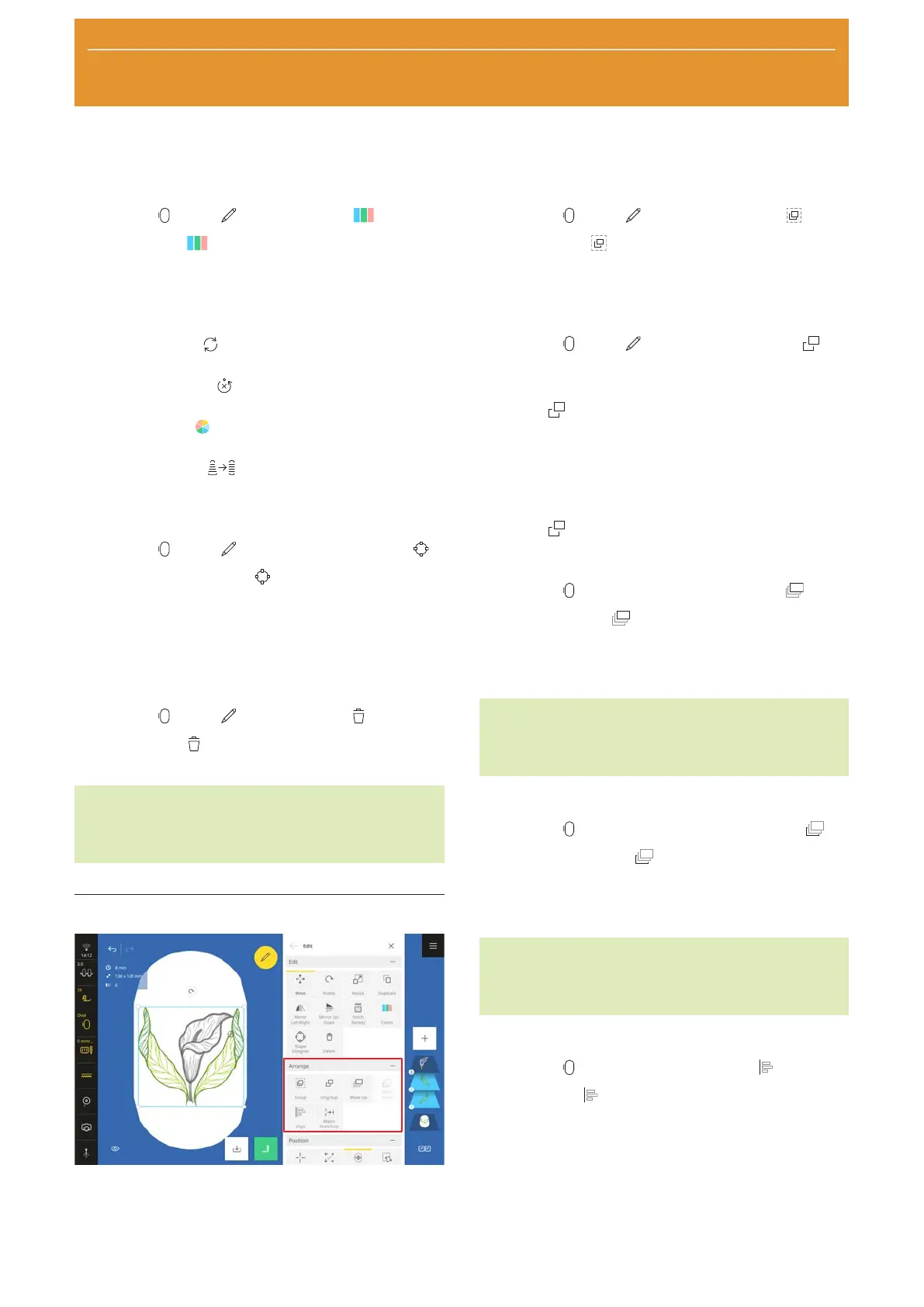
Arranging Functions
The arranging functions for embroidery designs are
grouped together in the Arrange submenu.
Group
Embroidery
►
Edit
►
Arrange
►
Group
With the Group function, you can group together
the selected layers. The group is displayed in place of
the lowest selected layer in the layer bar.
Ungroup
Embroidery
►
Edit
►
Arrange
►
Ungroup
Multi-colored embroidery designs are saved as a single
group, where each color forms its own layer. With the
Ungroup
function, you can split up an embroidery
design into its color layers and up to its connecting
stitches. The layers are displayed separately in the layer
bar and can be edited separately.
Embroidery designs that have previously been grouped
together can also be split up again with the
Ungroup
function.
Move Up
Embroidery
►
Edit
►
Arrange
►
Move Up
With the Move Up function, you can move the
selected layer upward step by step in the layer bar.
Moving layers upward will cause them to be stitched
later. The top layer is stitched last.
TIP
You can also move a layer within the layer bar with
finger gestures.
Move Down
Embroidery
►
Edit
►
Arrange
►
Move Down
With the Move Down function, you can move the
selected layer downward step by step in the layer bar.
Moving layers downward will cause them to be stitched
earlier. The bottom layer is stitched first.
TIP
You can also move a layer within the layer bar with
finger gestures.
Align
Embroidery
►
Edit
►
Arrange
►
Align
With the Align function, you can align multiple
selected layers with each other, center multiple selected
layers together, or distribute multiple selected layers
evenly.



 To Next Page