Sewing
6 Prepare and Edit Stitch Pattern 61
6.1 Load Stitch Pattern
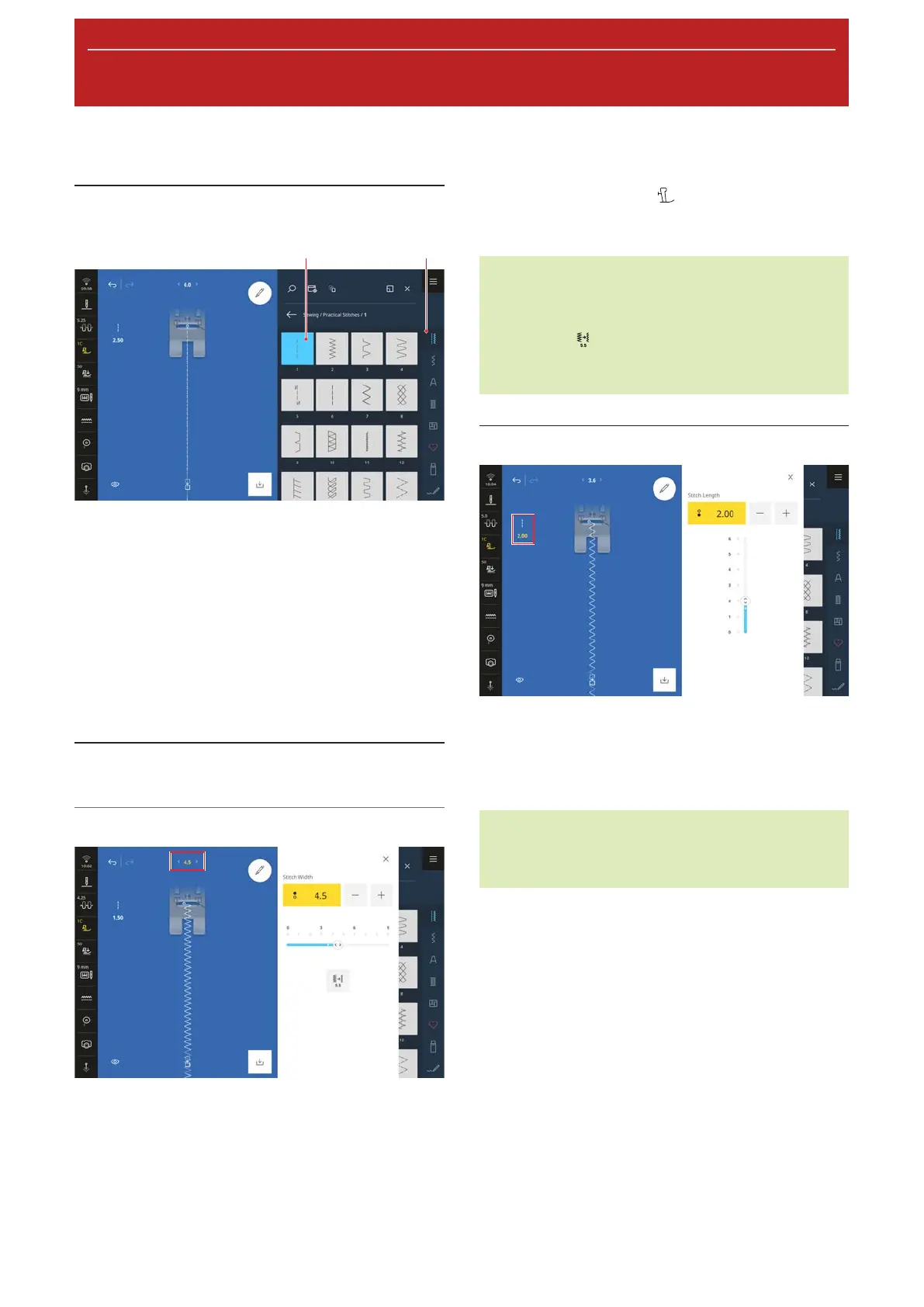
1Selection Area 2Quick Access Bar
1. Tap the stitch category in the Quick Access Bar.
2. Find and load the desired stitch pattern in the File
Manager.
ð The stitch pattern is displayed in the stitch
preview.
Further information on the selection area can be found
in the File Manager. [}see page51]
6.2 Stitch Pattern Editing
Stitch Width
The recommended stitch width is indicated for each
stitch. You can modify the stitch width for most
stitches, alphabets and buttonholes. The stitch width
depends on the needle used, the presser foot and the
stitch plate.
The machine checks the compatibility between the
needle, presser foot, stitch plate and stitch. To do this,
the attached presser foot must be selected in the Status
Bar with the Presser Foot
icon. If the stitch cannot
be sewn with the selected presser foot and the
attached stitch plate, the stitch is shown in red.
TIP
You can also modify the stitch width during sewing
with the Upper Multi-function Knob.
With the 5.5
function, you can set the stitch
width directly to 5.5mm, e.g. if you are using a
narrow presser foot.
Stitch Length
The recommended stitch length is indicated for each
stitch. You can modify the stitch length for most
stitches, alphabets and buttonholes.
In the case of decorative stitches and alphabets, the
pattern length is shown instead of the stitch length.
TIP
You can also modify the stitch length during sewing
with the Lower Multi-function Knob.



 To Next Page