My BERNINA
2 Introduction 24
2.4 Help and Consultant
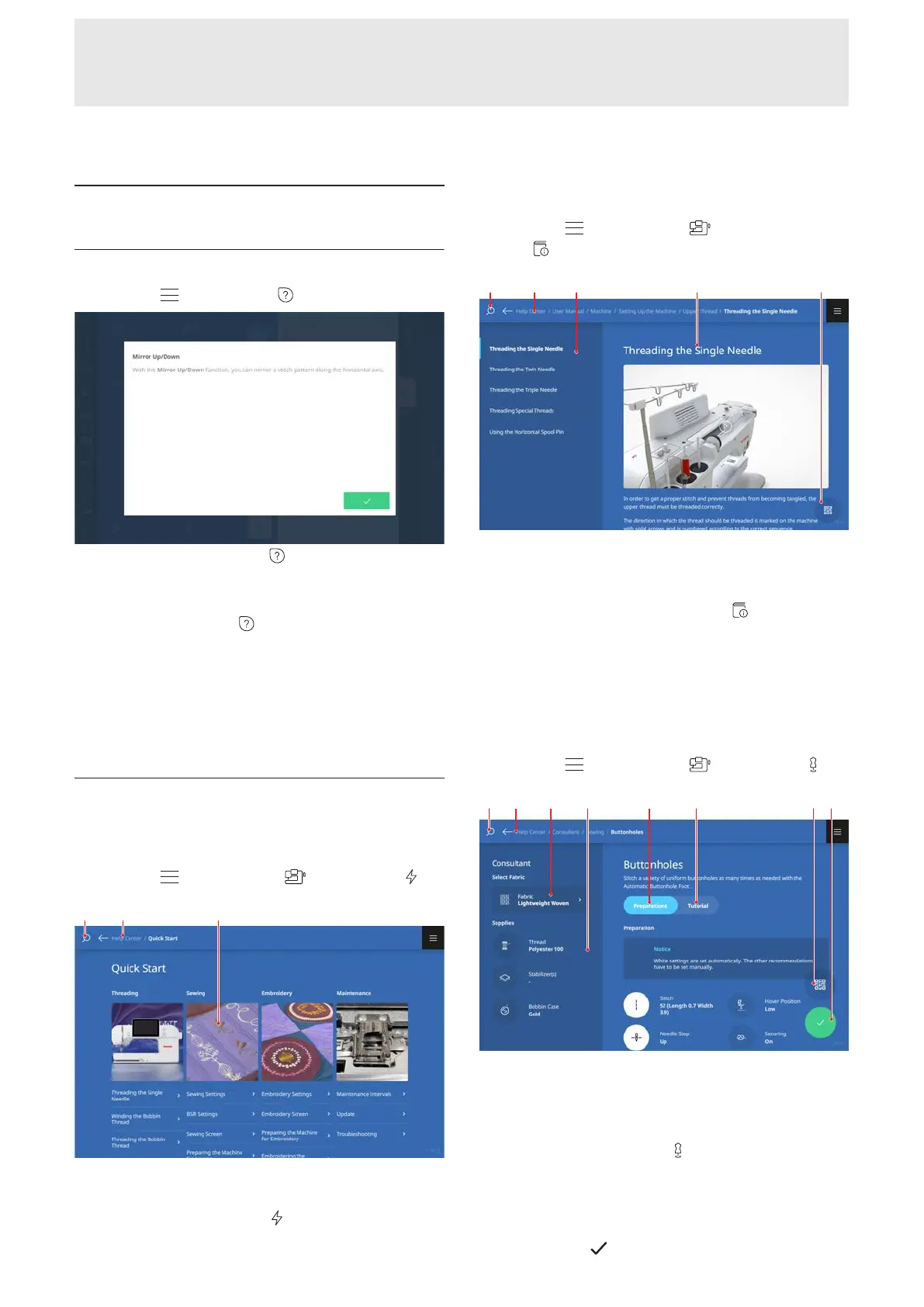
Quick Help
Main Menu
►
Quick Help
You can use the Quick Help function to open the
Quick Help for many screen elements, such as icons,
buttons or entire screen areas.
1. Tap the Quick Help
menu item.
2. Tap the screen element for which help is required.
ð The Quick Help for the screen element appears.
ð If there is further information on the screen
element in the operating instructions, a link is
displayed that calls up the Help Center.
Help Center
Quick Start
Main Menu
►
Help Center
►
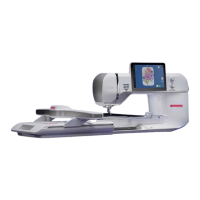
Quick Start
1Search 2Navigation Bar 3Selection of Topics
You can use the Quick Start
function to access
frequently searched instructions and information.
Instruction Manual
Main Menu
►
Help Center
►
Instruction
Manual
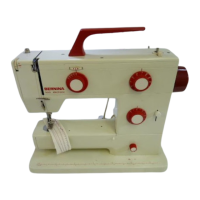
1Search 2Navigation Bar 3Table of Contents
4Content Area 5QR Code
You can use the Instruction Manual
function to
access the contents of your machine's user manual.
If your tablet is on the same WiFi network as your
machine, you can display the content on the tablet by
tapping the QR Code icon and scanning the QR code.
Consultant
Main Menu
►
Help Center
►
Consultant
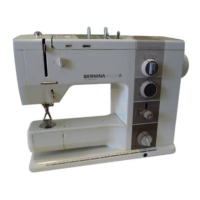
1Search 2Navigation Bar 3Fabric Selection
4Supplies 5Preparations 6Tutorial 7QR Code
8Apply Settings
You can use the Consultant
function to obtain
recommendations for preparing and setting the
machine and corresponding tutorials for various
sewing, embroidery and quilting techniques. Settings
with a white circle can be applied automatically using
Apply Settings
icon.



 To Next Page