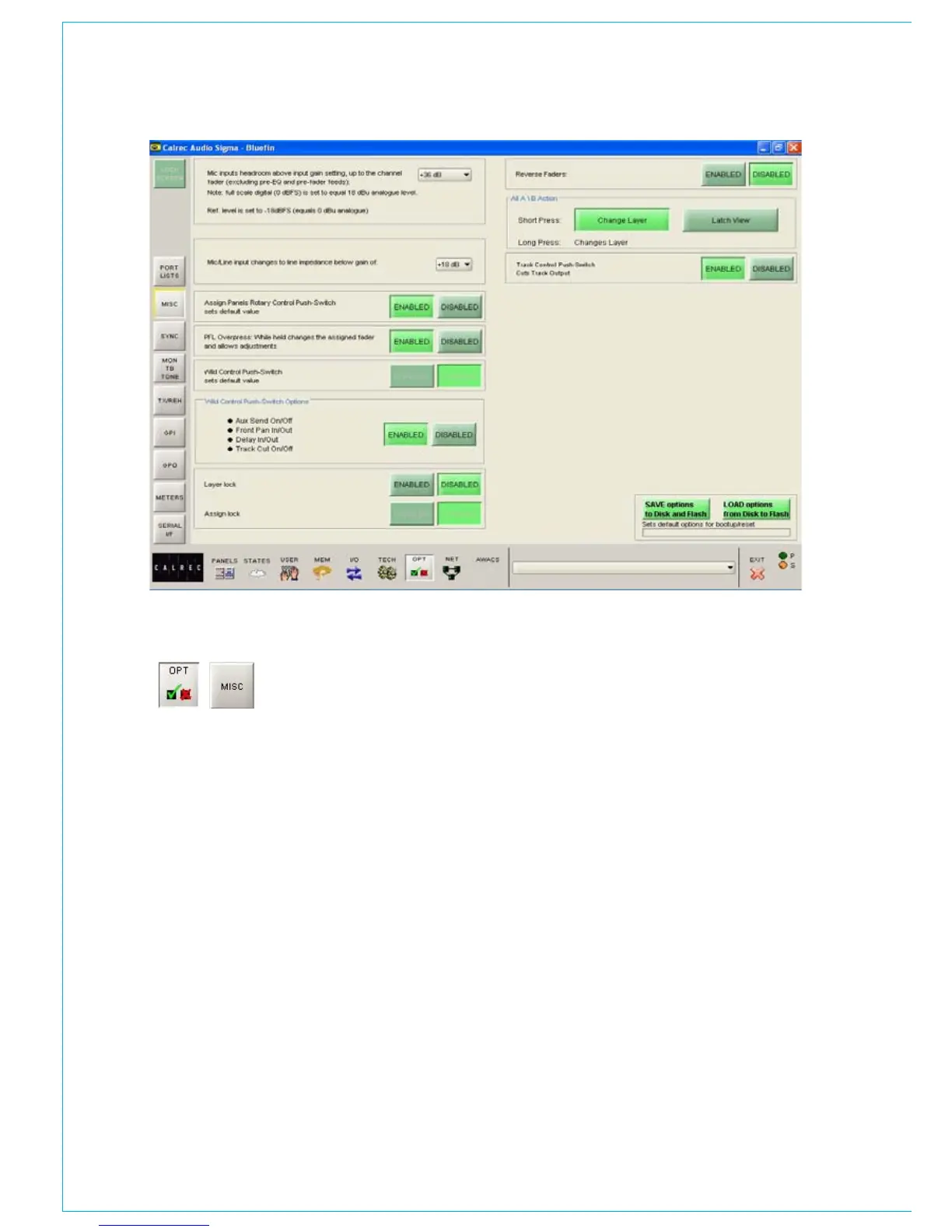
The Options - Misc Screen allows
console functions to be enabled.
Mic input headroom
This is the headroom available above the
input gain setting, up to the channel fader.
For example, if the input gain is set to 40
dB and the mic input headroom to 36 dB,
the channel will handle up to -4 dB pre-
fade. Post fade feeds can be kept below
clipping by holding the fader back to -4 but
this may cause clipping of pre-fade insert or
pre-fade feeds to auxes, tracks, and direct
outputs.
Selecting an excessive headroom value will
compromise the noise performance, though
this will not normally be noticeable.
Mic/Line input impedance
The point at which the Mic/Line input
impedance changes can be set here.
MISCELLANEOUS SCREEN
Assign panel rotary control push
switch sets default value
Each rotary control incorporates a switch
which is operated by pushing the control.
This rotary control push-switch can be used
to set the value of the control to its default.
This feature is enabled and disabled using
the buttons on this screen.
PFL overpress
When enabled, holding a fader in the PFL
overpess mode causes that channel to
become active on the assign panels. When
the fader is released, the panels revert to
the previously assigned fader.
Wild control push switches
Similar push switches to those on the
assign panels exist on the Wild controls.
If the Wild control push switch is enabled,
pushing the wild control sets the default
value. When disabled, an ON/OFF or IN/
OUT status switch can be available for Aux
Send, Input Delay or Front Pan controls if
enabled in the field below.
Layer lock
This enables the Layer Locking function
under the USER screens. Locked faders
will not change between the A and B layers
when the All A or All B buttons on the
Assign fader are used.
Assign lock
As a step beyond the Layer lock above, the
A/B layer switches of faders can also be
disabled. If a locked button is pressed, it
flashes rapidly.
All A/All B button functions
These set the functionality for a short
press of the All A and All B buttons on the
assignable fader. A long press will switch all
the channel faders to display either their A
path or their B path permanently.
If set to change layer, a short press on the
ALL A and ALL B buttons will switch all the
channel faders to display either their A path
or their B path permanently.
If set to “Latch View”, a short press of an
All A or All B button will display the paths
on the control surface until the button is
pressed again. This is so that the console’s
A/B display pattern is not lost and it will
revert to the previously displayed layer on
each fader when the All button is released.


 To Next Page