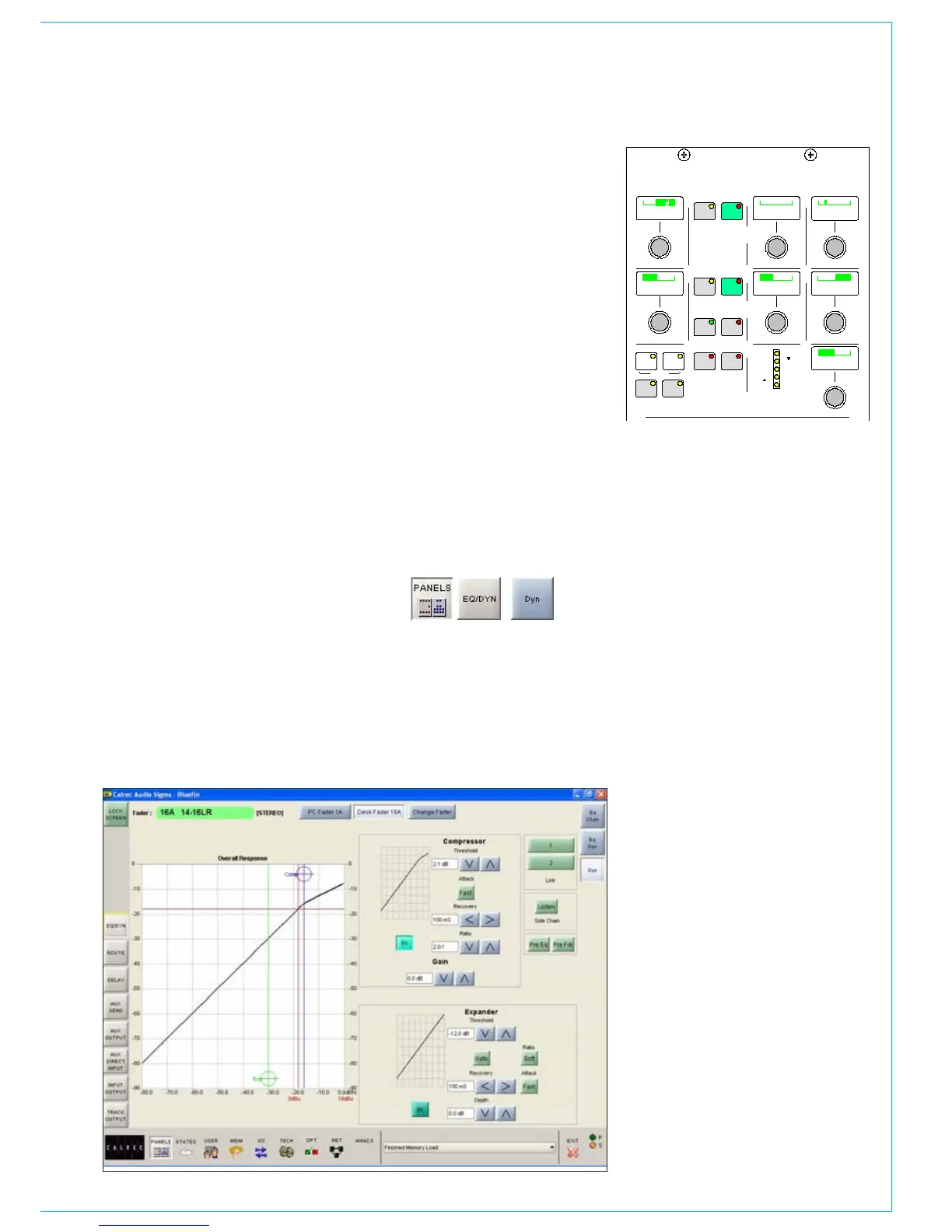
Once a channel has been selected by
pressing its Assign button (A or B), its
dynamics can be adjusted using the
following controls.
Compressor
Threshold: +20dB to -20dB
Recovery: 75ms to 4 sec + AUTO
(Max clockwise setting)
Ratio: 1.0:1, 1.3:1, 1.5:1, 1.7:1, 2.0:1, 2.5:1,
3.3:1, 5.0:1, 10:1, 50:1 (Limiter).
Attack: 30ms (Fast Attack: 250µs)
Soft knee (on channel paths only)
Sidechain Listen
The sidechain listen facility allows the
user to listen to the signal driving the
compressor sidechain. This allows the
effect of sidechain EQ to be “previewed”.
Expander
Threshold: 0dB to -40dB
Recovery: 75ms to 4 sec + AUTO
(Max clockwise setting)
Depth: 0dB to 40dB
Fast attack: 300µs (normal 16ms)
Ratio: 2/1 or SOFT
dyNAMICS
Gate
Threshold 0dB to -40dB
Recovery 75ms to 4 sec + AUTO
Depth 0dB to 40dB
Fast attack 300µs (normal 16ms)
Make up gain is adjustable from 0dB to
+20dB.
Dynamics Linking
It is possible to have the dynamics of many
channels linked by assigning them to one
of two available link busses. This is useful
for when the same dynamics settings need
to be applied to more than one channel.
With the channel selected, press Link 1 or
2 to assign the channel to the bus.
Panels - EQ/DYN Screen
The user can view and manipulate the
dynamic response, using the Panels-
Dynamics screen. All of the dynamics
controls available on the control surface
are also available on this screen.
In addition, the user can choose whether
to control the dynamics of the currently
assigned fader path, or to select a
different fader, known as the “PC Fader”
to which dynamics settings can be applied
independently of the current assignment.
Compression or expansion settings can
be adjusted using the touch screen,
or trackball, by selecting the required
crosshair and moving it around within the
editable area. As it moves, the values will
change. Nudge buttons to the right of the
editable response window can also be
used to make adjustments.
The dynamics response is only visible
if dynamics is switched into the path.
Otherwise, it remains flat.


 To Next Page