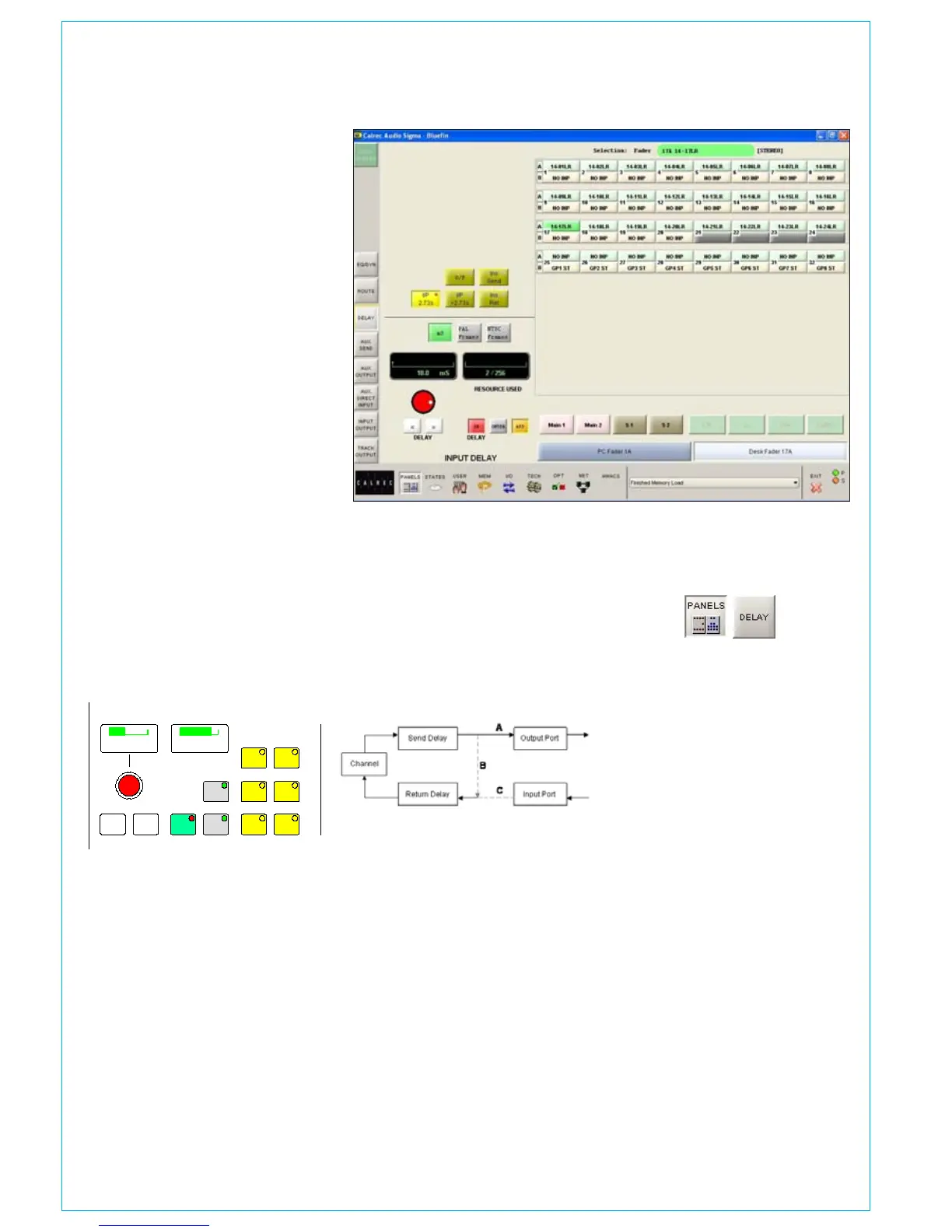
Either or both channel inputs (1 & 2)
•
Channel, group and main insert sends•
Channel, group and main insert returns•
A second leg of delay on either or both •
channel inputs (allows up to 5.46 secs)
Channel and group direct outputs
•
In addition, group inputs each have 2.73
seconds of delay permanently allocated.
Assigning Delay
Select the path either by pressing its fader
assign button or by selecting it from the
screen. The yellow selection buttons allow
the user to specify where the delay will be
assigned. The delay value is adjustable in
0.1ms steps using the rotary control, and
10ms steps using the nudge buttons.
The ASS button is used to assign the delay,
and the IN button switches the set value of
delay in and out of the path.
The RESOURCE USED display shows the
number of legs assigned. If an attempt is
made to assign more than the available
delay resources a popup message will be
reported on the screen.
Delay on Surround Channels
On 5.1 surround channels, delay is assigned
and adjusted using the surround master.
Each spill leg of a surround channel will
always have the same delay properties.
The delay settings of an individual spill leg
can not be assigned, adjusted or cleared
independently of its surround master.
Insert Send/Return Delay
The delay in the Insert Send and Return
paths can be used in the channel as
extra delay (in addition to Input Delay) by
assigning an insert to a channel and having
the insert NOT switched IN. In this case,
the audio follows path B in the diagram.
With these settings, an output port
patched to the Insert Send will follow the
Send Delay (path A).
Switching the insert IN replaces path B
with path C and the return audio is from
the input port patched as Insert Return.
With delay assigned to both Send and
Return it is possible to have up to 5.46
seconds of extra delay in the path.
Interrogation
Holding down the interrogate button will
indicate the channels which have delay
assigned by lighting their fader assign
buttons. It is not possible to perform
interrogation from the screen when
controlling a “PC Fader”.
Panels - Delay Screen
The Delay screen provides a set of delay
controls on the screen in addition to those
on the control surface.
In addition, the user can choose to control
a different fader, known as the “PC
Fader” to which settings can be applied
independently of the current assignment.
Control is chosen using the screen’s
selection buttons.
PAL Frames, NTSC Frames or ms
The selection buttons on the Panels
- Delay screen allow the information
to be displayed in ms, PAL frames or
NTSC frames. Changing the display
units changes the resolution of the
delay shaft, nudge up and nudge down
buttons accordingly. Display units are not
adjustable on the control surface.
Wild Control Delay
Delay controls can be assigned to Wild
controls, such that the delay value can be
adjusted using the channel control module.
If the wild shaft push feature is enabled
on the Options-Misc screen, then the wild
delay control shaft can be used to switch
the delay in and out of the channel’s path.
Delay can also be assigned to Wild
controls using the User-Chan screen. A
screen button is provided, for use instead
of the rotary control push-switch.
dELAy
40 SIGMA with Bluefin


 To Next Page