26 SIGMA with Bluefin
LAyER LOCkING
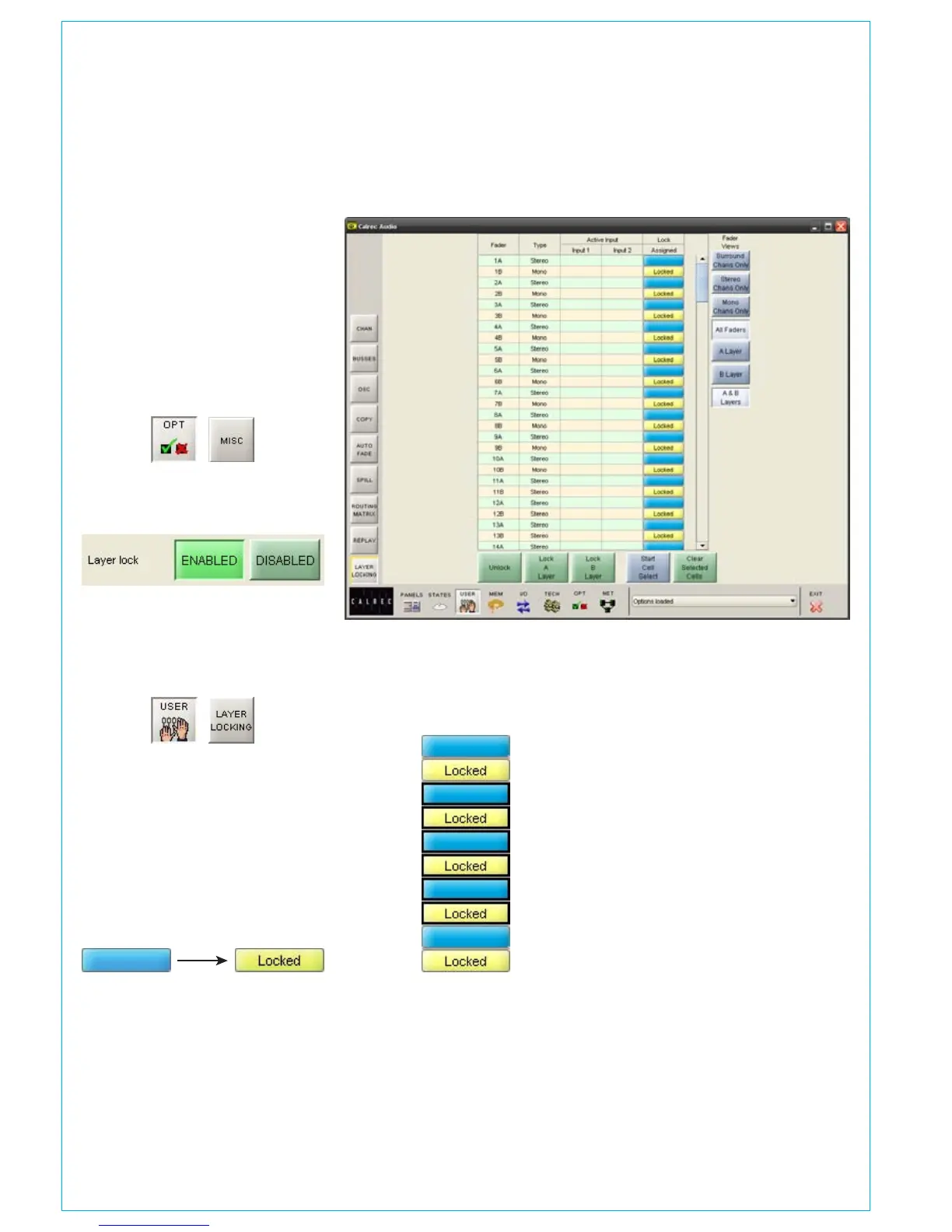
Enabling layer locking
To enable layer locking navigate to the
Options - Misc screen.
Locate the Layer Lock option and ensure
the ENABLED button is selected.
Defining locked layers
To choose which layers are locked to
which faders, navigate to the User - Layer
Locking screen.
You will be presented with a list of all
faders on the surface which can be
filtered using the Fader Views buttons to
the right.
To lock a layer to a fader, press the
relevant blue assignment button in the
‘Lock Assigned‘ column. This will change
to a yellow ‘Locked’ button to confirm the
assignment.
Multiple cell selection
To select multiple cells and simultaneously
assign a layer lock, press the ‘Start Cell
Select’ button. This allows you to click
and drag over multiple lock assignment
buttons. Selected buttons will be
highlighted with a black border.
With multiple cells selected, pressing
either the ‘Lock A Layer’, ‘Lock B Layer’
or ‘Unlock’ buttons will lock all selected
faders to the A layer or B layer or remove
all layer locks respectively. Press the
‘Clear Selected Cells’ button to remove
the multiple cell selection.


 To Next Page