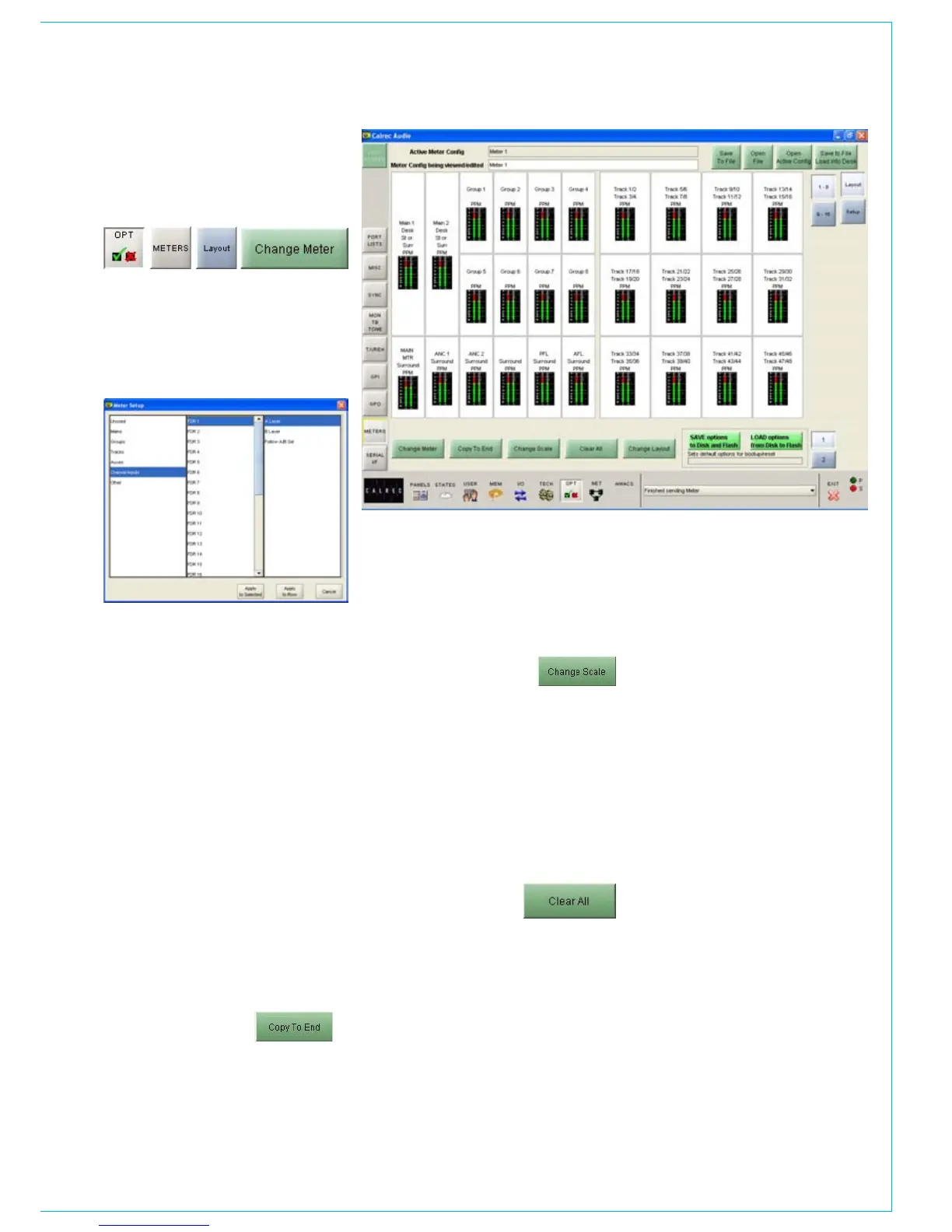
A dialogue box will appear which allows
the meter source to be chosen. Select
the required source from mains, groups,
tracks, auxes, channel inputs or other.
Subsequent columns will list the available
options for that source.
When all options are selected, APPLY TO
SELECTED will apply the source to the
selected meter position only.
In the case of TFT, twin or multiple-way
meters, APPLY TO ROW will allocate that
source to the selected meter position,
and subsequent sources in the list will be
applied to all the meter positions to the
right of the selected meter position in the
row, until the row is full, or you run out of
sources in the list.
When selecting channel inputs to be
metered, the fader number is selected,
and the path A or B. Alternatively, the
meter can be set to follow the fader’s
currently assigned path selection (A or B).
For surround CRLS and Meters 1-3, the
width of the TFT meter will automatically
change to match the source.
Copy to End
If a source has been allocated to a meter,
and that meter is selected, COPY TO
END can be used to allocate subsequent
sources in the list to all the meter positions
the screen width (that half of the screen
being set to 4 columns wide), then 4
tracks can be displayed allowing the
track metering to occupy a smaller space.
When selecting Tracks to meter, the
first available options column allows two
tracks to be selected for display in that
meter position. The next available options
column will then allow selection of the
next two tracks. It is useful to change the
colours for pairs of mono meters such
as tracks, so that the left of the pair is a
different colour to the right.
to the right of the selected meter position
in the row, until the row is full, or you run
out of sources in the list. This is similar to
APPLY TO ROW in the pop up dialogue
box, COPY TO END allows you to do this
after the first meter has had a source
allocated.
Change Scale
Each meter can be PPM, VU or Phase.
There can be up to 128 phase meters
assigned in the configuration, after all have
been assigned the option will no longer be
available.
The scale type can be selected individually
for each meter or globally for all meters.
Scales available to the user are set in the
Set-up Application from a list which is
longer than the system is capable of.
Clear All
“Clear All” resets all the meter positions,
clearing all settings on all meters in the
upstand. A confirmation box must be
accepted before this action is carried
out, this is to prevent against accidental
changes.
Tracks on TFT Meters
2 tracks can be displayed in any single
meter position. However, if the meter
position occupies a column which is 1/8 of
METER CONfIGURATION


 To Next Page