TOUCH SCREEN LAyOUT
The Front End screens are divided into
groups which are accessed using the buttons
along the bottom of the display. Within
each group there are a number of screens
accessed by buttons up the left side of the
display. On some screens, there are additional
buttons to access sub-sets of the screen’s
function.
Options Settings
Options settings are not stored in the individual
console memories but are saved and loaded
separately using the buttons on each Options
screen. This allows changes to be made without
invalidating any saved memories. Changes to
options take effect as soon as they are made,
however if they are not saved, the next time the
desk boots up the options will revert to their
previous settings. Upon loading the options
settings from the file on the hard disk, any
changes made will be over-written unless they
have been saved. This allows changes to be
tried out without losing the original settings and
these original settings can be restored without
having to re-boot the system.
Second PC screen
The software now supports use of a second
PC screen which is configured as a Windows
‘extended desktop’. Any of the screens showing
a LOCK SCREEN button can be sent to that
second monitor by pressing the button. They
will remain on the second monitor whilst
the main monitor is reassigned to any other
required functions.
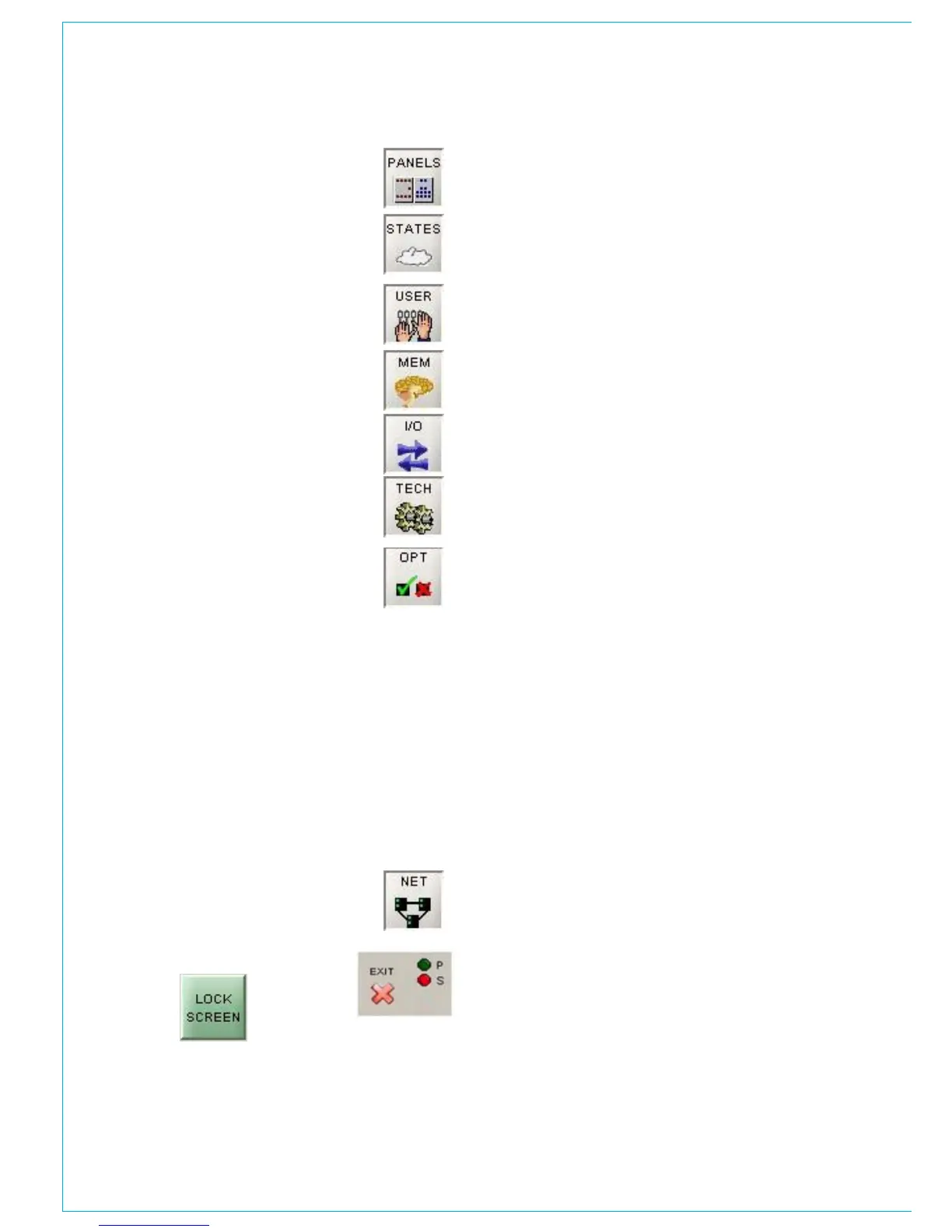
Operational reproductions of the EQ, Dynamics, Routing,
Aux Send, Aux Output and Delay panels; providing
alternative controls.
Sets the current state of various functions
(these are not stored with the user memories or
options - only in the live (hidden) memory.)
Operational screens which enhance the controls on
the console and for setting options which are stored
with the user memories.
Memory control screens to supplement the panel controls.
Set up and display of all the I/O connections stored
with the user memories.
Entry to and control of password-protected operational
modes, troubleshooting screens.
The Options screens are used to pre-set the system to
the studio’s required settings. Includes set up of meter
configurations, monitor panel configurations, port lists,
serial interface and label associations, GPIO and condition
switching.
Options settings are not stored in the individual console
memories but are saved and loaded separately using the
buttons on each Options screen. This allows changes to be
made without invalidating any saved memories. Changes to
options take effect as soon as they are made, however if
they are not saved, the next time the desk boots up the
options will revert to their previous settings. Upon loading
the options settings from the file on the hard disk, any
changes made will be overwritten unless they have been
saved. This allows changes to be tried out without losing
the original settings and these original settings can be
restored without having to re-boot the system.
Screens for setup and control of an audio network system
These screens are only visible if Hydra audio networking is
installed.
The “EXIT” button at the bottom corner of the screen will
exit the application. Next to this button are two indicators
which show the status of the primary and secondary control
processors. During normal operation, the primary processor
will be in use, and its indicator will be green. When busy,
the processor’s indicator will be amber, during which time,
no changes can be made to the control screens (Although
changes to the control surface can be made, and will take
immediate effect).


 To Next Page