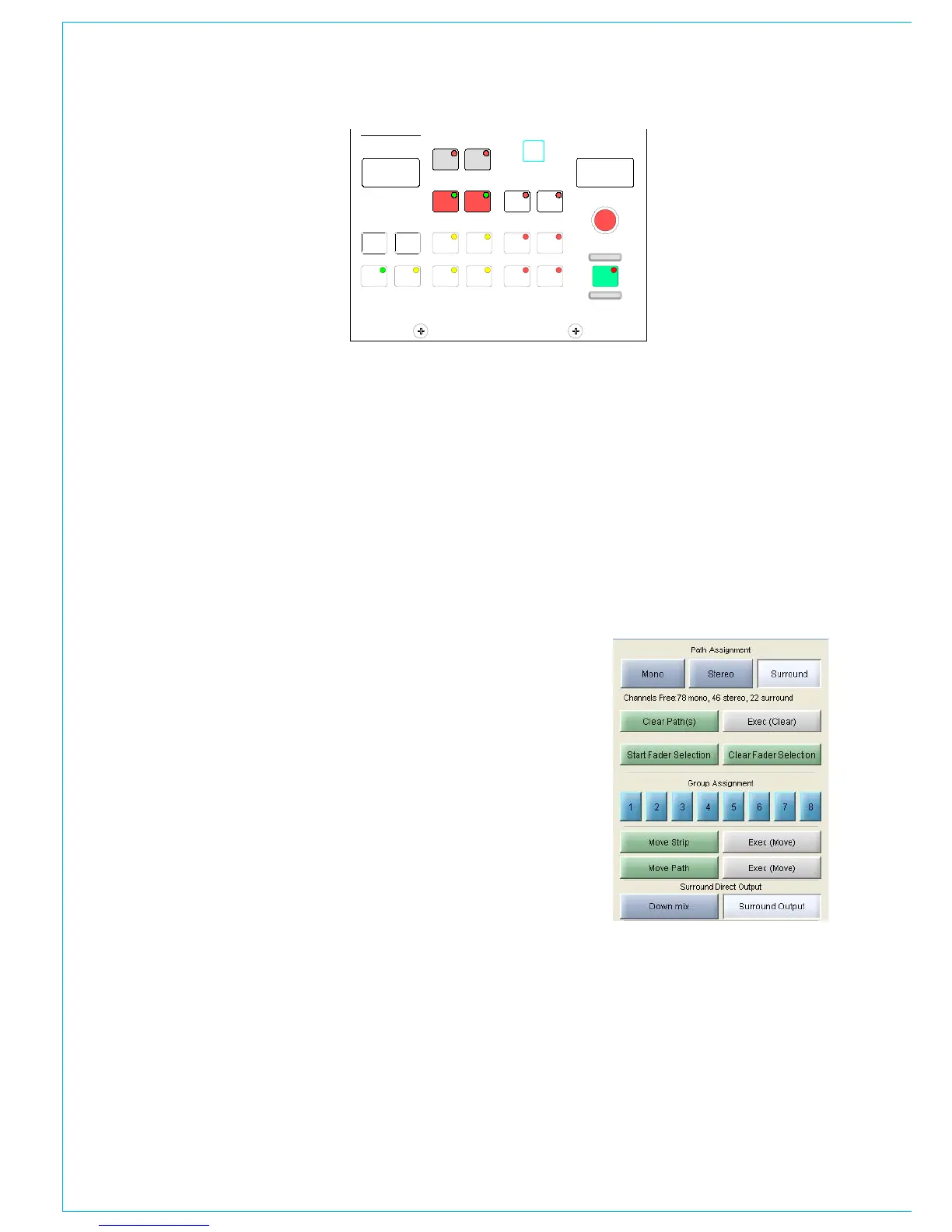
Input Port Assignment
Ports are assigned to inputs 1 and 2 for
the currently assigned fader as follows:
Press 1 or 2 to select an input. (Note:
•
This does not switch the channel from
input 1 to 2, or 2 to 1 - that is done
using the Input/Output panel)
Use the rotary control to scroll
•
through the lists of available input
ports.
Upon reaching the desired port, press
•
the ON button to assign it to the input
1 or 2 for the currently assigned fader
path.
Pressing ON again will de-assign the
•
port.
Port assignment can also be done using
the I/O screens.
Lists
Pressing and turning the rotary control
gives access to lists of other types of port.
Using the Options - Port List screens, each
port can be allocated to one of a number
of lists to allow I/O which is wired for
similar purposes to be grouped together
for selection. It is possible to determine
which lists of ports appear for selection
on the I/O Matrix panel using the Options-
Port Lists screens. Making only the
relevant lists available for selection makes
it easier to find the ports you require.
Path Type Selection
The GROUP, SURR, STEREO and
MONO buttons select the path type for
the currently assigned fader. If the path
is to be a group, its number is selected
I/O MATRIx
using the rotary control and ON button.
Groups are defined as surround, stereo or
mono on the USER-BUSSES screen. The
path type and group number can also be
selected using the USER-CHAN screen.
Move Path and Move Strip
Paths can be moved or swapped from
one fader to another, using the MOVE
PATH buttons. Select the assign button of
the path you wish to move, and press TO
FADER (the assign button will flash). Then
select the assign button of the destination
fader, and press EXEC to move the path.
The two paths will swap over, and any Wild
control assignments will move with them.
A surround master can be moved from
path to path, but it is not possible to move
a spill leg to another fader. It is not possible
to move an isolated path.
The USER-CHAN screen can also be
used to move paths. In addition, the whole
fader strip can be moved to a different
fader. This means that the A and B paths
including any Wild Assignments will move
to the selected destination fader strip. The
Move Path function on the I/O Matrix can
be set to always perform Move Strip using
the States screen.
Clearing Paths
Channels and groups can be cleared
off thefader by pressing CLR and then
EXEC. This will clear all settings and port
assignments from the fader path (A or B).
This function is also available using the
USER-CHAN screen.
Fader Path Selection
In addition to the Assign buttons on the
fader modules (A and B), fader paths can
be called to the Assign Panels using the
nudge buttons to scroll through the faders,
and the A and B buttons choose the path.
This is for use when pressing the fader
assign button is not convenient, or should
a fault develop on the fader strip.


 To Next Page