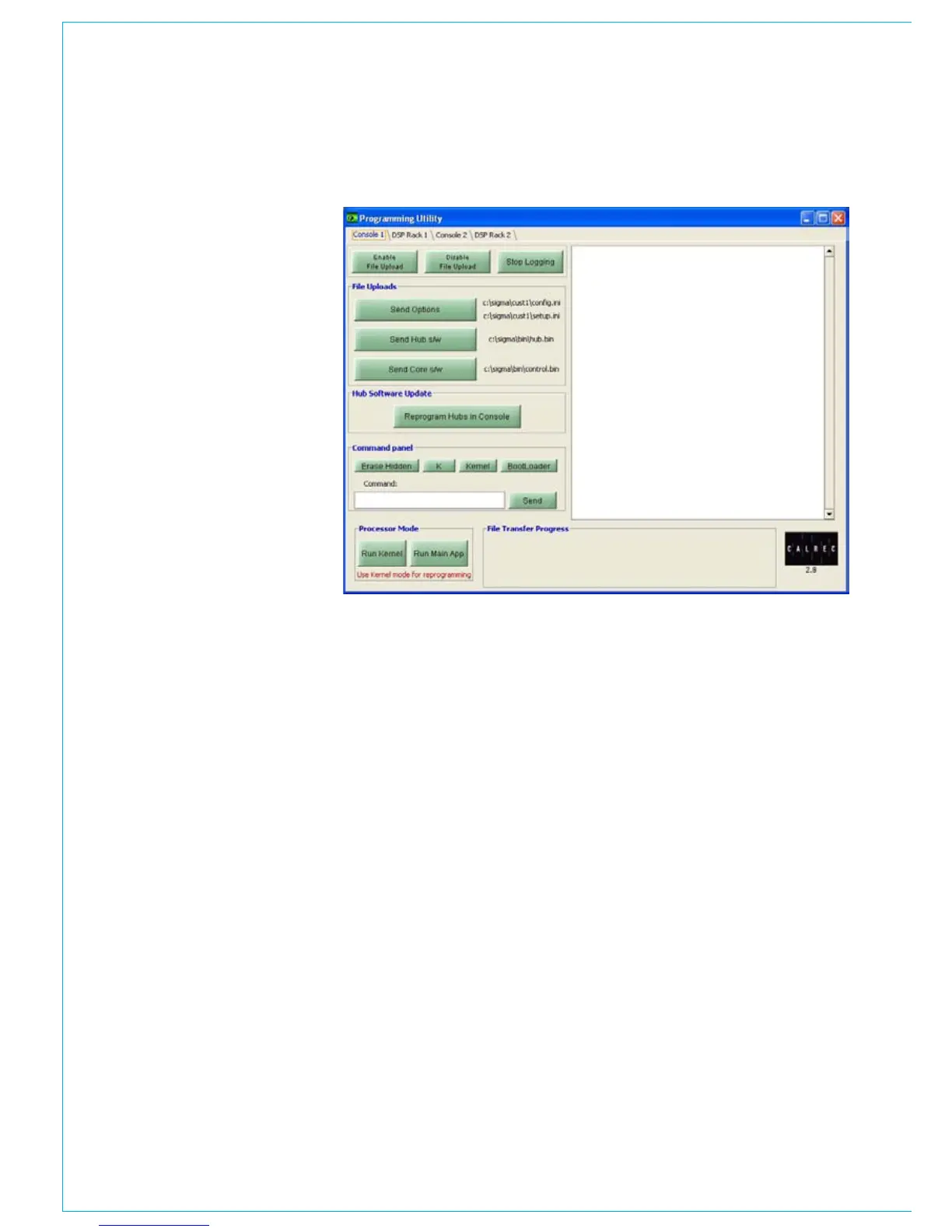
PROGRAMMING UTILITy
To use the programming utility, go the
Console PC. The programming utility
can be launched by going to the START
button on the task bar, then ‘Calrec Sigma’
and then Prog Utility.
The programming utility has four pages,
one for each of the mixer’s four main
processors. Console 1 refers to the
mixer’s main processor in the control
surface. Console 2 refers to the mixer’s
back-up, or secondary, processor in the
control surface. DSP Rack 1 refers to the
mixer’s main processor in the DSP card
frame. DSP Rack 2 refers to the mixer’s
back-up, or secondary, processor in the
DSP card frame.
When the programming utility is first
launched, you will find that most of the
buttons are ‘greyed out’. This is to stop
accidental changes been made to the
mixer. To enable the ‘greyed out’ buttons
select ‘enable file upload’, on any of the
four pages. You will then be asked for a
username and password. The required
user name and password is the same
used to enter technician mode on the
PC’s Main application. The technician
mode password is set by the mixer’s
owner, not Calrec.
Console 1
Programming the control surface
processors - If you wish to transfer
any files from the PC to the mixer’s
processors, you will first need to stop the
processors running their normal program,
and then run a program which can receive
and save the new files. This is done by
pressing ‘Run Kernel’. If a processor has
successfully entered kernel mode, the
following message, or one very similar,
will be displayed in the text window on the
right of the screen:-
xxxxxxx CALREC UN5469 CORE
BOOTLOADER Rev 1.1 xxxxxxx
NVRAM found 0 1 2 3
SDRAM found 0 1 2 3
Loading kernel
xxxxxxx CALREC UN5469 CORE
KERNEL REV 1.1 xxxxxxx
DATE
TIME
If the above message is not displayed
then the processor is not in kernel mode.
In which case you should re-try. If after
repeated attempts the processor will not
enter kernel mode see the section, at the
end of this document, called ‘Forcing a
processor into Kernel mode’.
When a processor card is in kernel mode,
the LEDs on the edge of the card will all
flash. The flashing LEDs will alternate
between adjacent LEDs.
Once successfully in kernel mode you
can send data to the processor card. If
changes have been made to the setup
of the mixer, using the setup application,
those changes need to be programmed
into all the mixers processors. To do this
press ‘send options’. The progress of the
file transfer can be seen at the bottom of
the window. The options files will need to
be sent to all of the four main processors.


 To Next Page