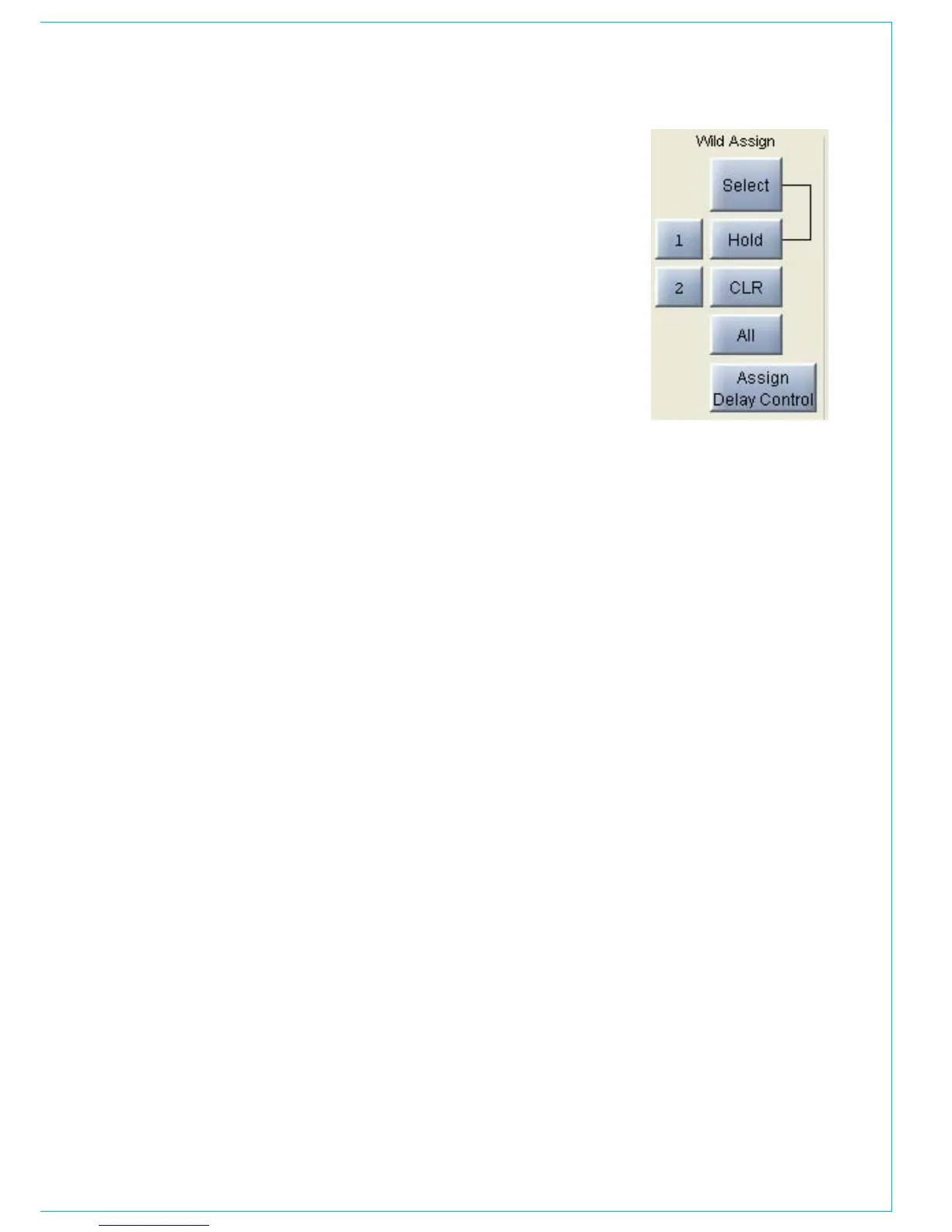
Wild Control Assignment
The Wild controls above each fader are
assigned from this screen. All the Assign
panel rotary controls incorporate a switch
which is operated by pushing the control.
These switches are used to assign the
control to a Wild control as follows:
Select a fader path
•
Select WILD ASSIGN 1 or 2•
Push one Assign panel rotary control•
The control is now assigned and changes
will show in the display. The Wild controls
“FLIP” with the fader, providing the same
function for each of the two paths. The
colour of the Wild control display will show
which fader the control is related to: Green
for A, Amber for B.
If the fader is touched instead of pushing a
rotary control, then the fader for the alternate
layer will be assigned to the Wild control.
The gains of the two inputs 1 and 2 can
be assigned seperately to Wild controls, by
holding down the required input button on
the Input/Output panel before pushing the
gain adjustment rotary control.
Please note that Auxiliary output controls
cannot be assigned to Wild controls.
CLR will clear the selected Wild control
from its assignment.
Multiple Wild Control Assignment
It is possible to assign controls to more
than one fader path at a time, either by
selecting individual fader assign buttons (A
or B), or by defining a “block” or “Region”
of faders. The button above HOLD toggles
between SELECT mode and REGIONS
mode.
In SELECT mode, select Wild 1 or 2 on the
screen and HOLD. Any number of fader
paths can then be selected individually
(their fader assign buttons will illuminate).
Pushing an Assign Panel rotary control will
then assign that control to Wild 1 or 2 for
all selected fader paths.
In REGIONS mode, select Wild 1 or 2 on
the screen and HOLD. A block or region of
faders can then be defined by pressing the
fader assign buttons of the first and last
fader path in the required region. Pushing
an Assign Panel rotary control will then
assign that control to Wild 1 or 2 for all
fader paths in the selected region.
CLR can be used to clear regions of
faders of their wild control assignments.
It is possible to assign the same control
to Wilds 1and 2 for all fader paths by
selecting ALL before pushing the required
Assign panel rotary control.
If the track output level control is assigned
to a block of wild controls, each fader’s
wild control will have a different numbered
track output level control, beginning with
the track currently selected on the first
fader in the block.
Wild Control Push-Switch Option
If a wild control has the Aux Send, Input
Delay or Front Pan controls assigned to
it, the user can control the ON/OFF or
IN/OUT status of these controls using the
Wild control push-switch. This feature is
optional, so it can be enabled or disabled
using the OPTIONS - MISC screen.
Alternate Wild Controls
The ALT button will be visible if the
Alternate Wild Control button option
has been taken. This allows switching
between two complete sets of alternate
wild settings. This would then allow up to 4
available wild controls per fader.


 To Next Page