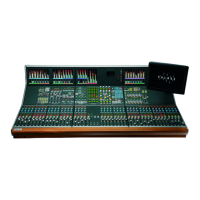
Panels-Route Screen
This screen provides alternative controls
for the routing, in addition to those on the
control surface. In addition, the user can
choose whether to control the routing of
the currently assigned fader path, or to
select a different fader, known as the “PC
Fader” to which settings can be applied
independently of the current assignment.
Control is chosen using the selection
buttons “PC Fader” and “Desk Fader”
The right side of the screen has buttons
for channel paths A and B, and Mains 1-4.
To make changes, select the required path
either by pressing its fader assign button,
or by selecting it from the right side of the
screen, and then use the buttons on the left
side of the screen to choose the routing.
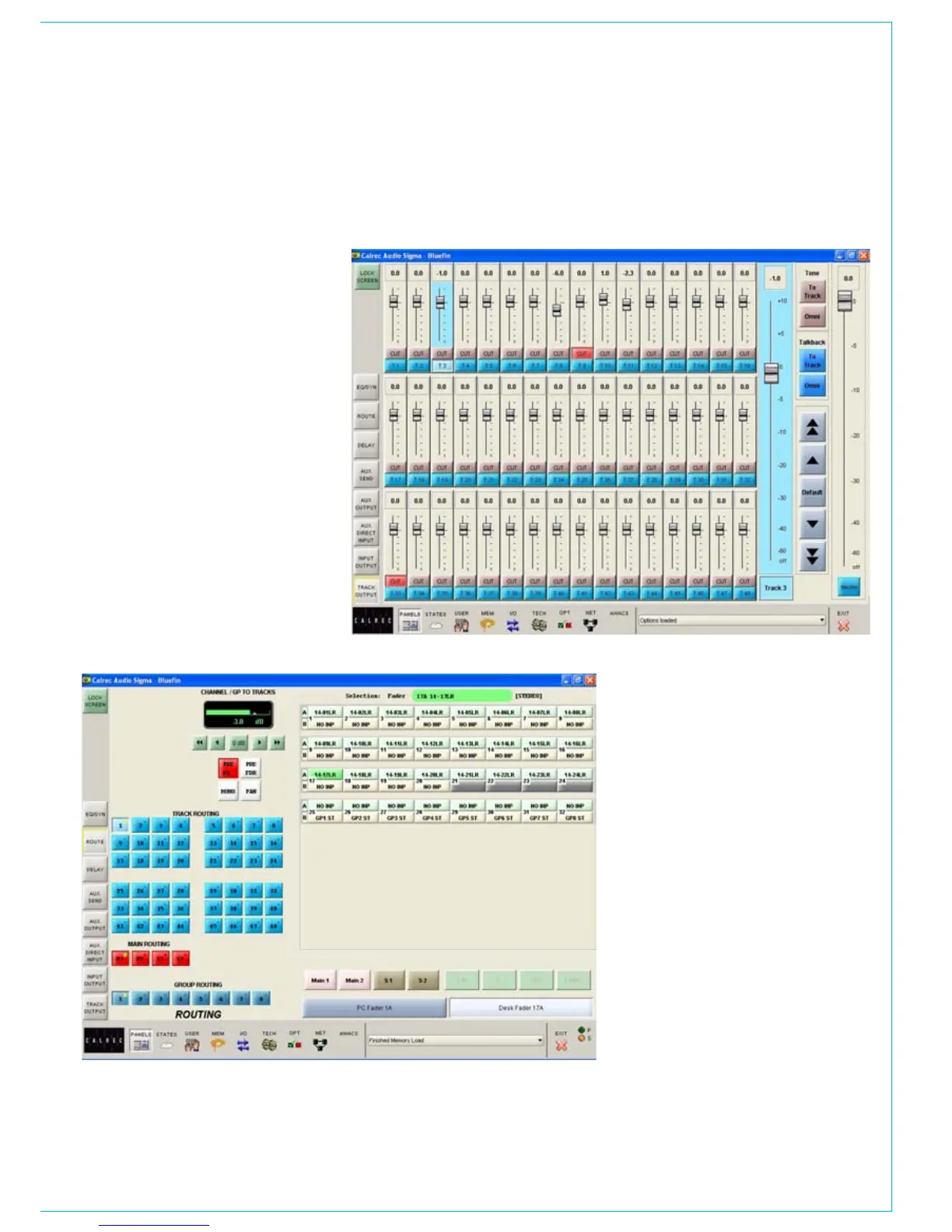
Panels - Track Output Screen
The Panels-Track Output screen allows the
user to control each of the 48 track output
levels using virtual faders. Each track
output has its own screen-based fader,
which can be adjusted by dragging the
fader using the touch screen or trackball.
In addition, the selected track output can
be adjusted using a larger fader at the side
of the screen, or using the coarse or fine
nudge buttons. The default button can be
used to set the selected track output to
0dB.
A master fader allows the level of all the
tracks to be controlled simultaneously.
Tone or Talkback can be fed to the
selected track or all at once using the
selection buttons.


 To Next Page